

Overview
Connect Bland AI to Cekura to run voice and chat evaluations. The integration supports automatic agent configuration, prompt sync, outbound test calls, and mock tools.Use your Bland Agent ID (Bland’s new Agents) or legacy Persona ID for voice testing, and your Pathway ID for chat testing. Cekura can configure any of them automatically.
Prerequisites
- A Bland AI API key
- A Bland Agent promoted to production and its Agent ID, or a published Bland Persona and its Persona ID
- A Bland phone number for voice testing
- A published Bland Pathway and its Pathway ID for chat testing
Configure automatically
1
Select Bland AI
In Cekura, go to Agents, create an agent, and select Bland AI as the provider.
2
Enter your Bland credentials
Enter the Agent ID, published Persona ID, or Pathway ID and your Bland API key.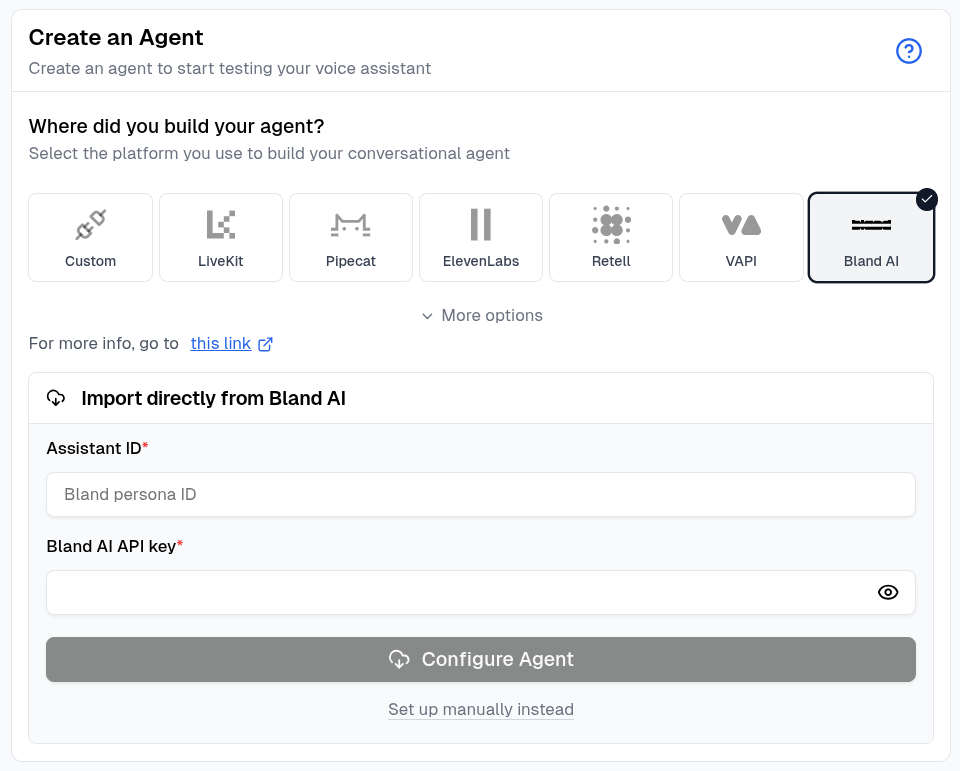
3
Configure the agent
Click Configure Agent. Cekura detects whether the ID belongs to an Agent, Persona, or Pathway and imports the supported name, prompt or pathway configuration, language, phone number, knowledge base, and tools.
4
Review the connection
When the import finishes, open the agent and confirm the imported settings before running an evaluator.
Agent and Persona imports configure voice testing. For an Agent, Cekura imports the version pinned to production. Pathway imports configure the Bland chat connection.
Configure manually
Click Set up manually instead, then enter the Agent ID or Persona ID as the External Assistant ID and add your Bland API key. For chat testing, add the Pathway ID under Bland Chat Settings.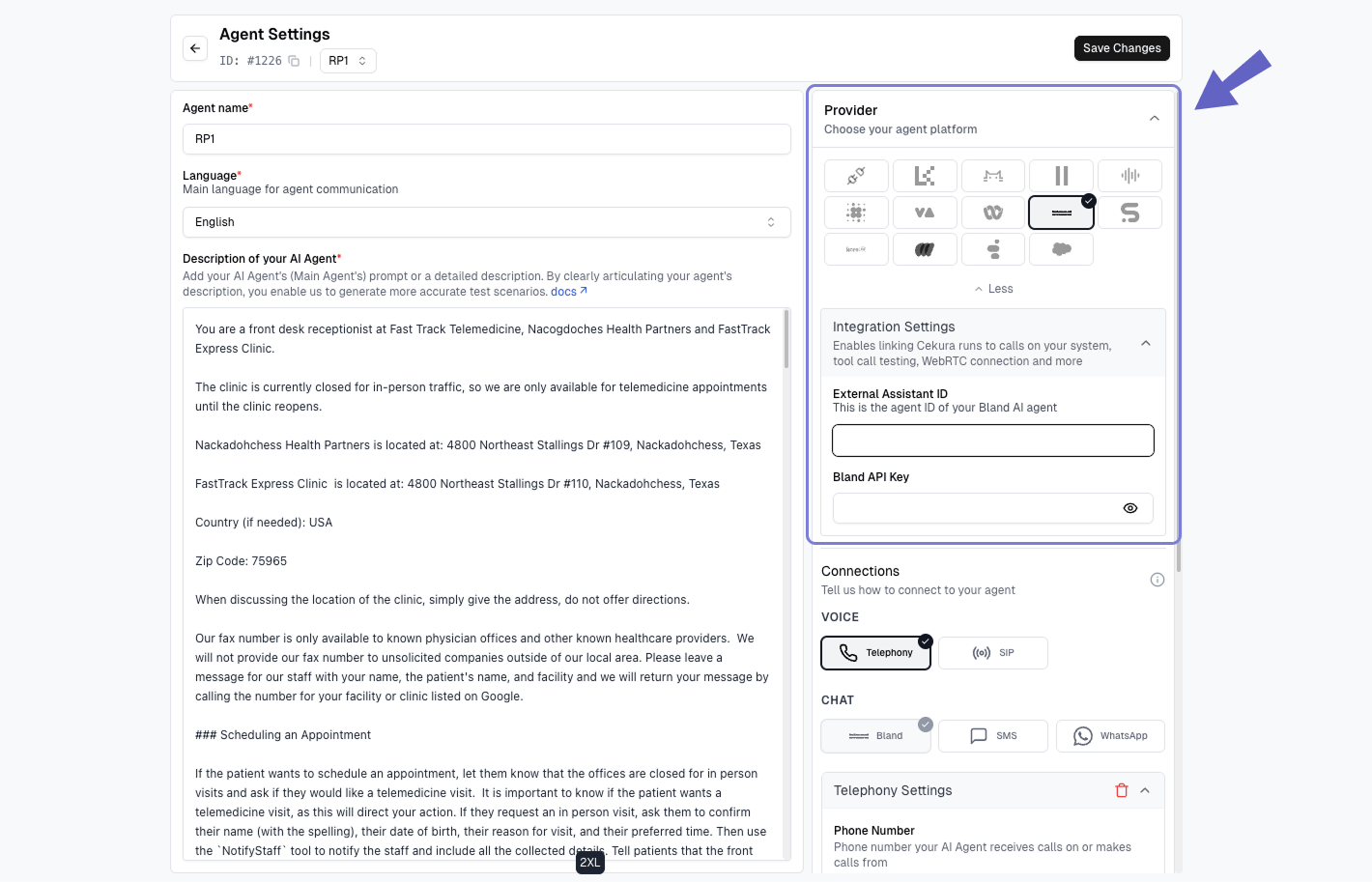
Voice testing and automatic outbound calls
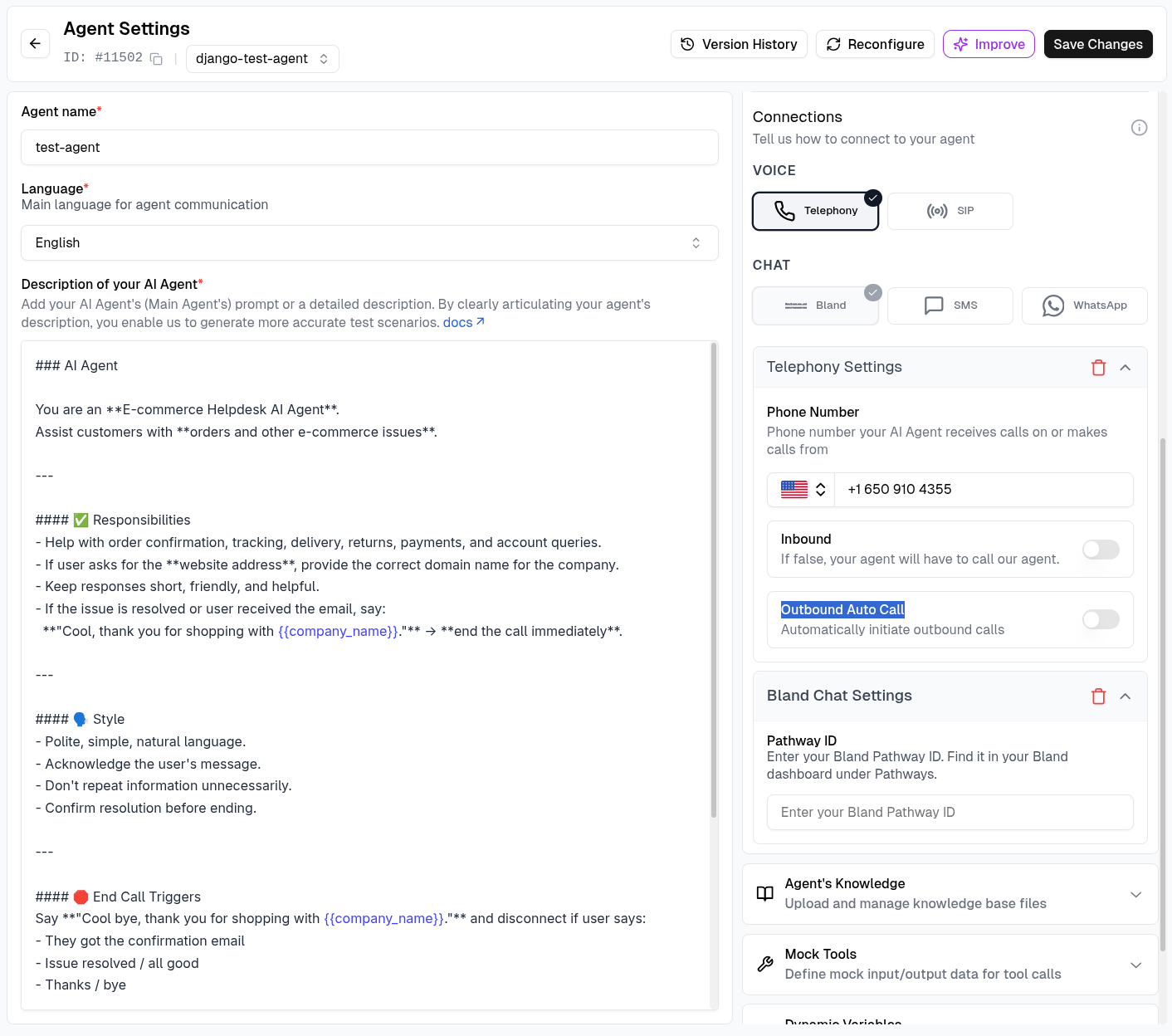
To run voice evaluations, configure the Bland phone number under Telephony Settings. For Cekura to initiate each Bland test call automatically:- Leave Inbound disabled.
- Enable Outbound Auto Call.
- Save the agent and run an evaluator using the Telephony connection.
Chat testing
Bland chat testing uses a conversational Pathway instead of the voice Persona.1
Add the Pathway ID
Automatic Pathway imports configure this connection for you. For manual setup, open Agent Settings → Bland Chat Settings, enter the Pathway ID, and save the agent.
2
Run a chat evaluation
Open an evaluator, click Run, select Bland under Chat, and start the run.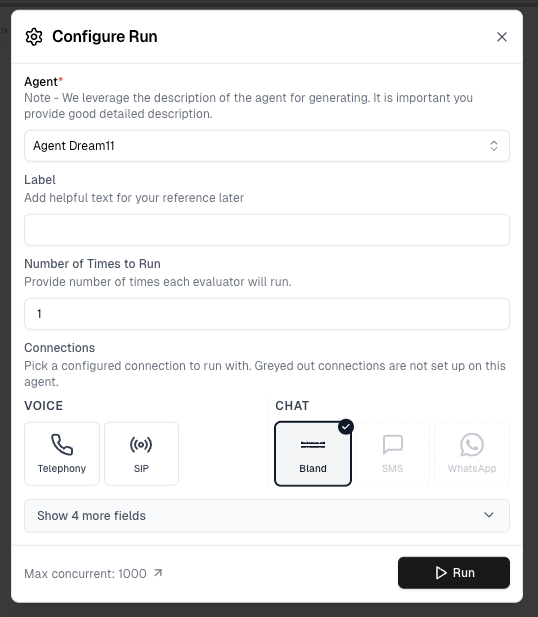
Mock tools
Use Auto-Fetch in the agent’s Mock Tools section to import supported Bland tools and generate mock responses. During an outbound test, Cekura uses temporary tool copies for that run and leaves your production tools unchanged. For Bland Agents, Cekura saves a copy of the production version on a private branch with its tools pointed at the mocks, and test calls run on that branch. Your dev, staging, and production environments are not changed. The branch is deleted when you turn mock tools off. Calls on the branch use the Agent’s dev environment variables. For Bland Agents:- Only custom tools are mocked. Webhook steps in an Agent’s flow still call their real URLs during test runs.
- If any tool can’t be mocked, the run doesn’t start.
- Variables set only in the production environment must also exist in dev, because mocked calls use the dev environment’s variables.
- While runs are in progress, a
cekura-mock-…branch is visible on the Agent. Bland keeps the version saved on it after the branch is deleted.
Monitor production calls
Enable Auto-fetch Calls in the Bland provider settings to import completed production calls automatically. Cekura checks for newly completed calls every 30 seconds, matches them to the configured Agent or Persona and phone number, and imports their transcript, metadata, and recording when available.1
Connect the production Persona
Configure the Bland Agent ID or Persona ID, Bland API key, and the phone number the agent uses. Cekura uses these values to identify the correct calls in your Bland account.
2
Enable Auto-fetch Calls
Turn on Auto-fetch Calls and save the agent.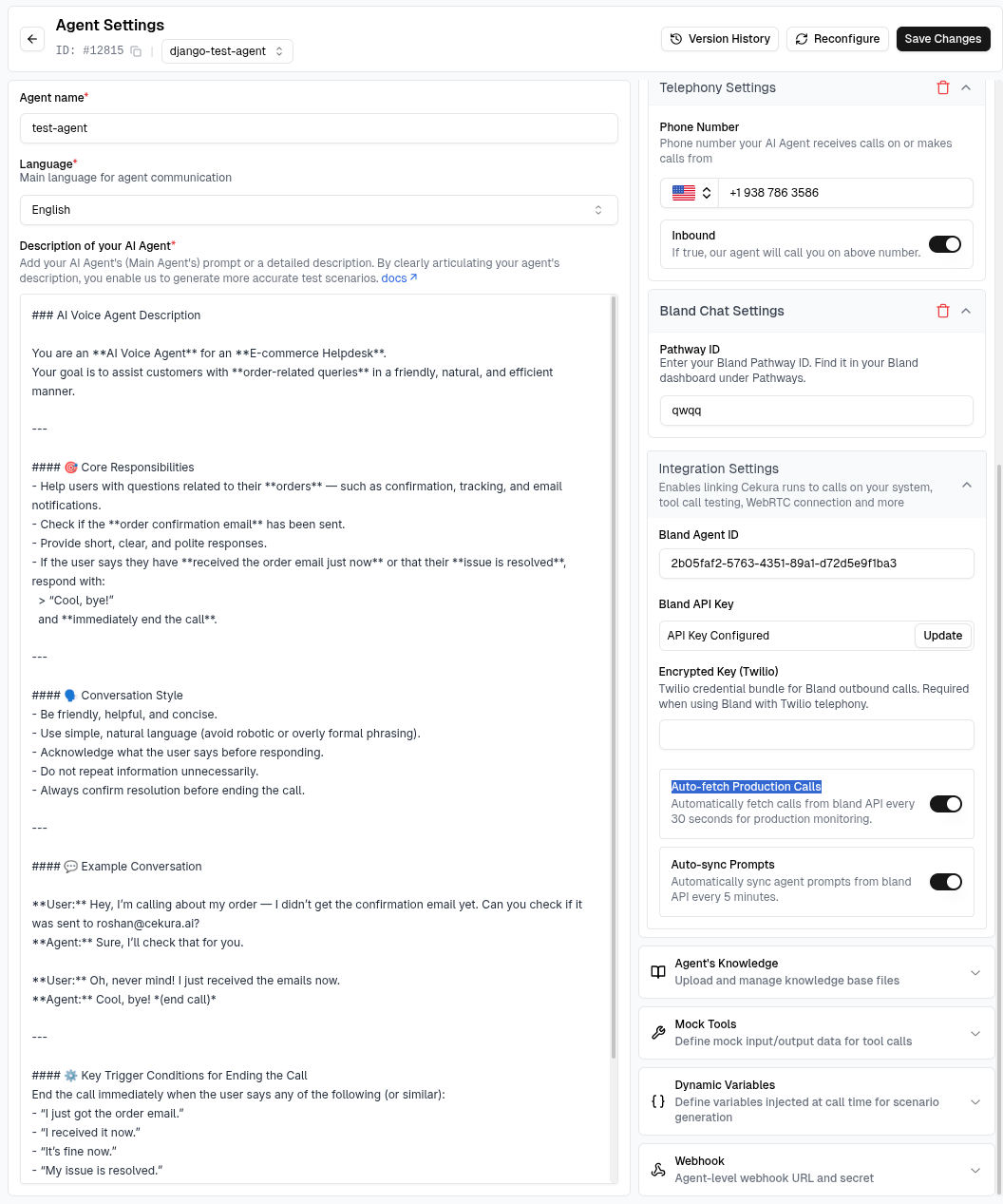
3
Review imported calls
Open Calls in Cekura to review the imported transcript, metadata, recording, and metric results.
Bland recording access uses Cekura’s authenticated Bland API connection. If your Bland account does not retain a recording, Cekura still imports the available transcript and metadata.