

What is Auto Outbound Call?
Auto Outbound Call is an automated testing feature where Cekura automatically initiates outbound calls when you run evaluators. Unlike manual outbound testing where you write scripts to handle calls, this feature does everything automatically.How It Works
1
Enable Auto Outbound
Toggle the Auto Outbound Call setting ON in your agent settings
2
Run Evaluators
Execute evaluators through the dashboard - no script needed
3
System Calls Automatically
Cekura uses your voice provider (VAPI, Retell, ElevenLabs, Bland, LiveKit, or Custom) to initiate calls
4
Review Results
Check test results and transcripts in your dashboard
Prerequisites
- Outbound mode enabled: Agent’s
inboundmust be set tofalse - Voice provider configured: Valid credentials and required agent configuration for VAPI, Retell, ElevenLabs, Bland, LiveKit, or Custom (Custom requires a trigger URL instead of provider API credentials)
- Agent
contact_numberset to your outbound caller ID: Cekura validates the caller ID (ANI) of every incoming outbound-test call against the agent’scontact_numberfield. If the provider dials from+15551234567, the agent’scontact_numbermust be exactly+15551234567in E.164 format. Set this in Agent settings or via the Update Agent API. - Evaluators ready: Created evaluators with valid phone numbers
Enabling Auto Outbound Call
Navigate to your Agent settings -> Right sidebar -> Connection -> Select Telephony under VOICE -> Toggle ON Auto Outbound Call.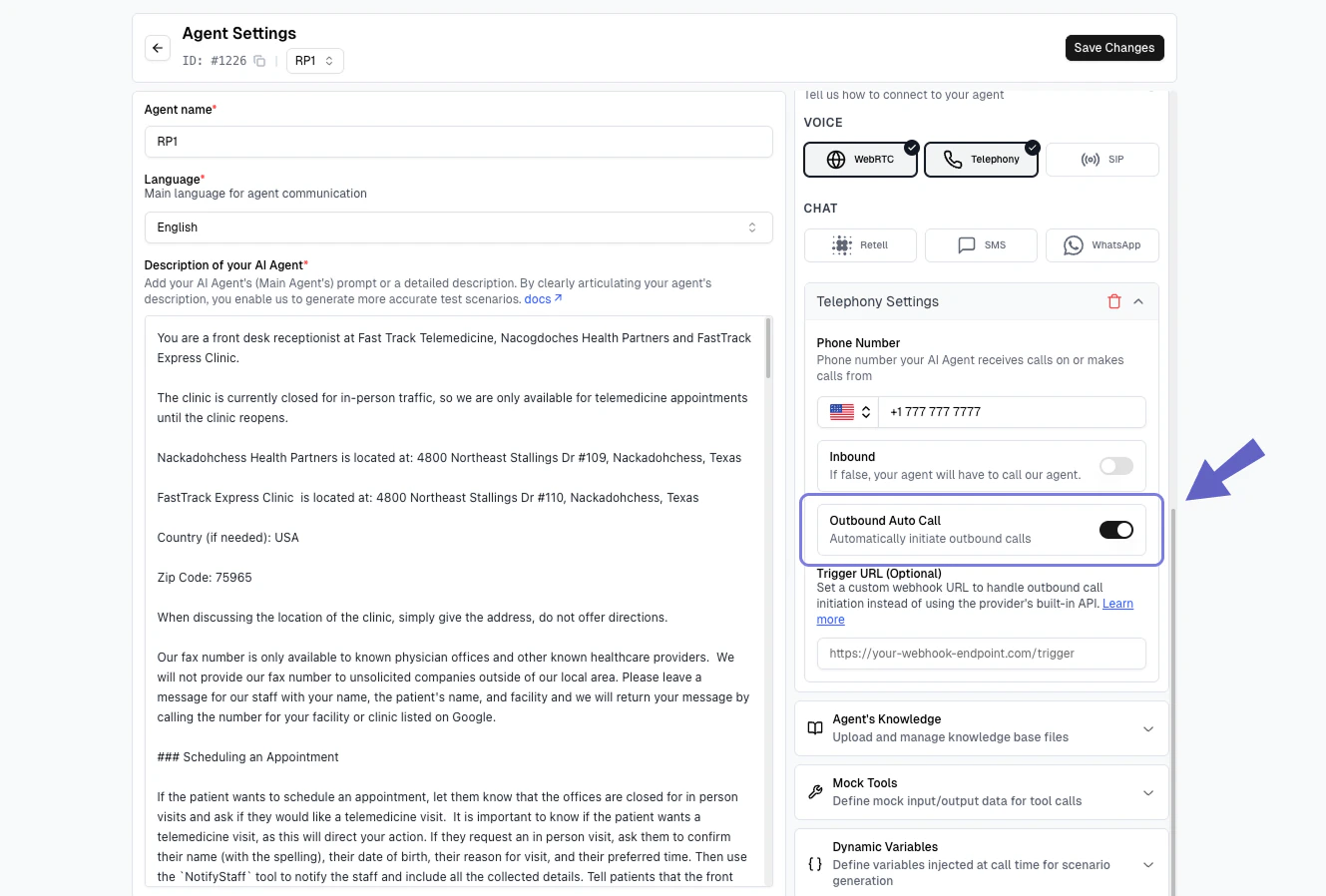
Ensure your voice provider account has sufficient credits for making calls.
Advanced: Trigger URL Webhook
For advanced use cases, you can configure a Trigger URL to receive webhook notifications instead of automatic calls. This lets you add custom logic before the call is made. For Custom provider agents, the trigger URL is mandatory — since there is no provider API for Cekura to call directly, your endpoint receives the call request and is responsible for making the agent dial the Cekura number.When to Use
Use trigger URLs when you need to:- Add validation or business logic before calls
- Schedule calls for specific times
- Integrate with internal systems
- Log or audit call requests
- Enable outbound auto-call for custom-hosted agents (required)
How It Works
1
Add Trigger URL
In your agent settings, enter your webhook URL in the Trigger URL field (below the Outbound Auto Call toggle).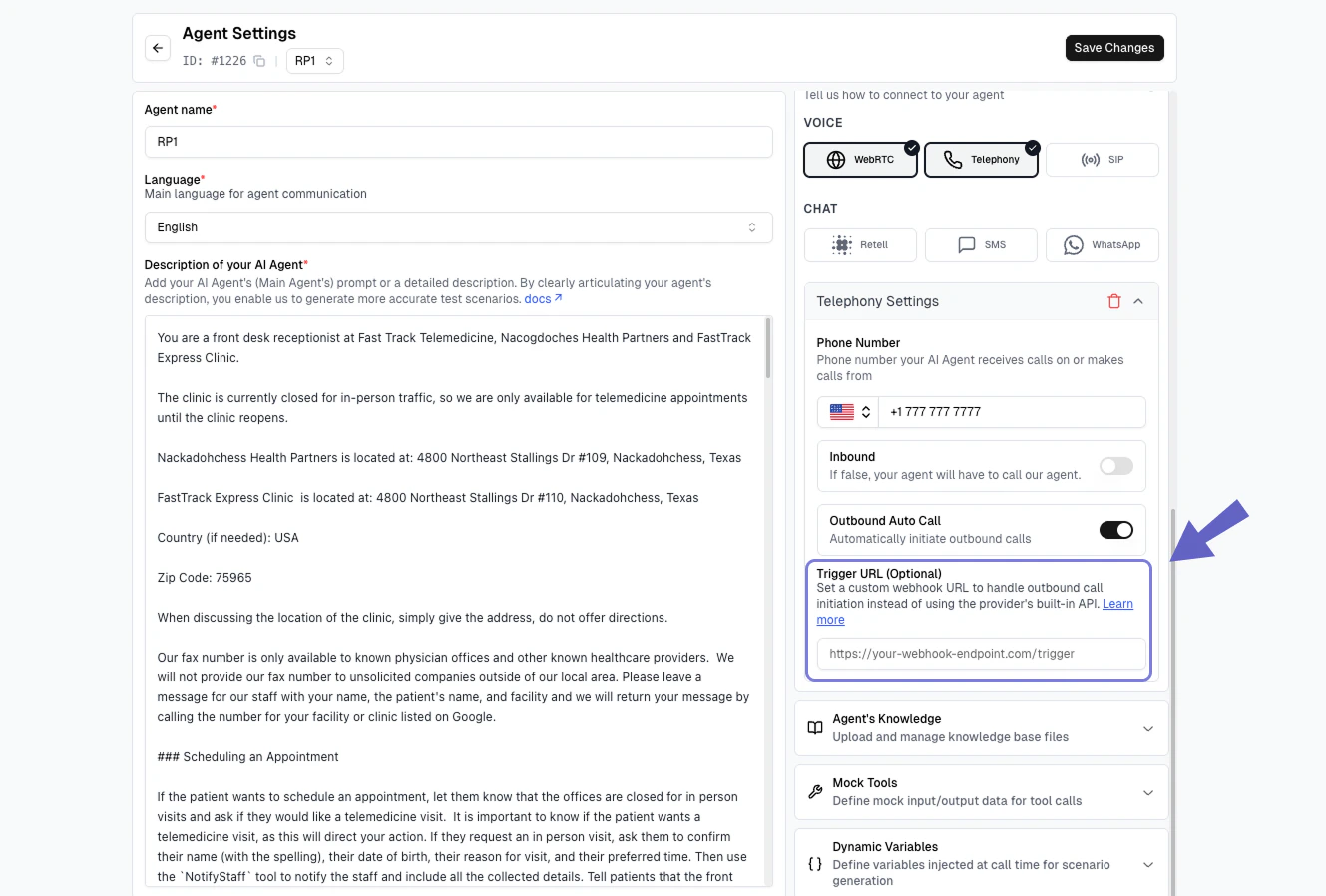
2
Receive Webhook
When evaluators run, Cekura sends a POST request to your URL with call details
3
Make the Call
Your system processes the webhook and initiates the call using your provider’s API
Webhook Payload
Cekura sends the following JSON payload to your trigger URL:from_number: Your agent’s contact number (the number making the call)to_number: The evaluator’s phone number (where to call)dynamic_variables: Optional test profile data for dynamic prompting
Content-Type: application/jsonX-CEKURA-SECRET: <your_secret>— included only when a trigger secret is configured (see below)
Trigger Secret
You can optionally configure a shared secret on your provider credentials. When set, Cekura includes it as theX-CEKURA-SECRET header on every trigger URL request. Your endpoint can check this header to reject requests that did not originate from Cekura.
The secret is write-only — API responses expose only a trigger_secret_configured boolean, never the secret value itself.
Your webhook endpoint must be publicly accessible (HTTPS), return a 2xx status code (200–299), and respond within 30 seconds. Cekura does not follow redirects, so configure the final URL rather than one that 3xx-redirects to it.
Dial window timing: Each outbound run has a dial window that opens when the run reaches
pending status. The call must be placed before outbound_dial_window_closes_at (default 300 seconds after the window opens). Dials received after the deadline are dropped and the run returns status: timeout. The three dial-window fields (outbound_dial_window_opens_at, outbound_dial_window_seconds, outbound_dial_window_closes_at) are included in run responses so you can track the deadline.Response Format
Your webhook should return:204 No Content or a plain-text body works too. Cekura records
call_id when the response is a JSON object containing one, and proceeds without it otherwise.
Troubleshooting
Calls Not Starting
Calls Not Starting
Check that Auto Outbound Call is enabled, agent is in Outbound mode, and voice provider credentials are valid.
Calls Placed but Run Times Out (Busy / NoAnswer on Provider Side)
Calls Placed but Run Times Out (Busy / NoAnswer on Provider Side)
The provider dialed but Cekura never picked up. Two possible causes:
- Dialed too late — if the provider dialed after
outbound_dial_window_closes_at(check the run response for this field; default is 300 seconds after the run reachedpending), Cekura dropped the call. This can happen if the trigger URL webhook is slow to respond or if there’s a delay in your call logic. - Caller-ID mismatch — Cekura rejects incoming outbound-test calls whose caller ID doesn’t match a configured
contact_numberon any agent in your project. Open the agent under test and confirm itscontact_numberis set to the exact E.164 number the provider dials from (thefrom_numberin the trigger webhook payload). An empty or mismatchedcontact_numbercauses every outbound attempt to be silently dropped — your provider logs will showBusy/NoAnswer/ no-pickup with no audio and no SIP error explaining why. After correctingcontact_number, trigger a fresh run; the timed-out runs cannot be recovered.
Failed to Initiate Call / Permission Errors
Failed to Initiate Call / Permission Errors
Check API key permissions at your provider’s settings. For ElevenLabs, ensure “Conversational AI” and “Phone Number” permissions are enabled at https://elevenlabs.io/app/settings/api-keys. Verify phone number format is E.164 (+1XXXXXXXXXX).
Webhook Not Working
Webhook Not Working
Verify trigger URL is publicly accessible (HTTPS), returns a 2xx status code, and no firewall is blocking requests. If you configured a trigger secret, confirm that your endpoint is not rejecting the
X-CEKURA-SECRET header value.Custom Provider: Trigger URL Not Configured
Custom Provider: Trigger URL Not Configured
Custom-hosted agents require a trigger URL to use auto outbound calls. Set
provider.credentials.config.trigger_url in your agent configuration. Without it, enabling auto_dial_outbound is rejected by the API, and dispatch returns a “Trigger URL not configured” error.Trigger URL Rejected
Trigger URL Rejected
The trigger URL is validated before each request. A “Trigger URL rejected” error means the URL is not usable: the scheme must be
http or https, it must not embed credentials, and the host must resolve to a public address — anything internal, such as a private, loopback or link-local target, is refused.Best Practices
- Monitor credits: Track your provider account balance
- Valid numbers: Use correct phone number format (+1XXXXXXXXXX)
- Secure webhooks: Use HTTPS, configure a trigger secret, and validate the
X-CEKURA-SECRETheader on incoming requests
Next Steps
- Learn about manual outbound testing for more control
- Explore load testing capabilities
- Set up custom metrics for your tests