Overview
Test your LiveKit agents with automated room and token management. Cekura handles room creation and token generation automatically.
Run tests directly from the frontend without writing code.Configure LiveKit credentials
Go to your agent settings and configure LiveKit integration:
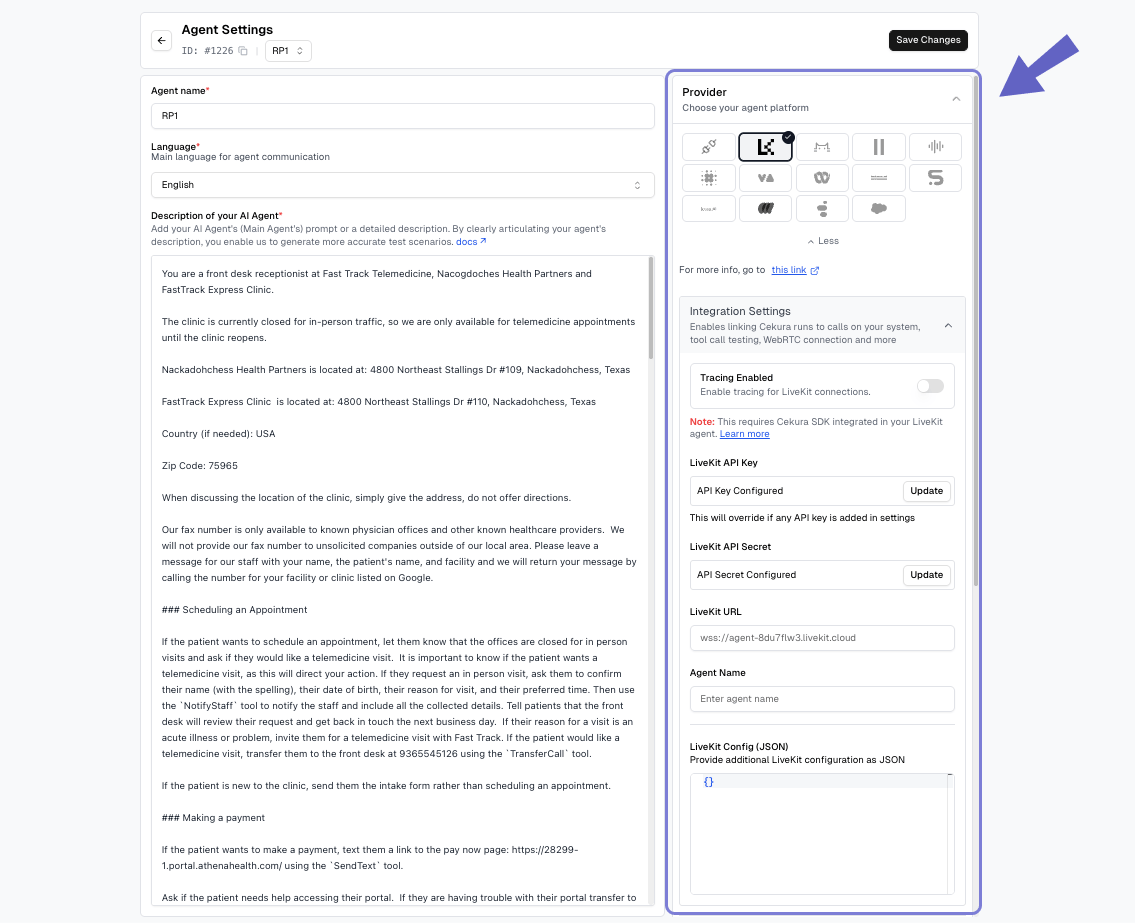
Required fields:
- Provider: Select LiveKit from the dropdown
- LiveKit API Key: Your LiveKit API key
- LiveKit API Secret: Your LiveKit API secret
- LiveKit URL: Your LiveKit server URL (e.g.,
wss://your-server.livekit.cloud)
- Agent Name: The specific agent name to dispatch in LiveKit
Optional fields:
- LiveKit Config (JSON): Additional room configuration parameters
Accessing Config in Your Agent:
Config parameters you might be using in your livekit agent’s code. The configuration JSON is stored in the LiveKit room’s metadata. Access it in your agent’s entrypoint:import json
from livekit.agents import JobContext
async def entrypoint(ctx: JobContext):
await ctx.connect()
# Access room metadata
room_metadata = ctx.room.metadata
config = json.loads(room_metadata) if room_metadata else {}
# Use config values
empty_timeout = config.get("empty_timeout", 300)
max_participants = config.get("max_participants", 10)
Run tests from frontend
Select scenarios and run tests using the UI:
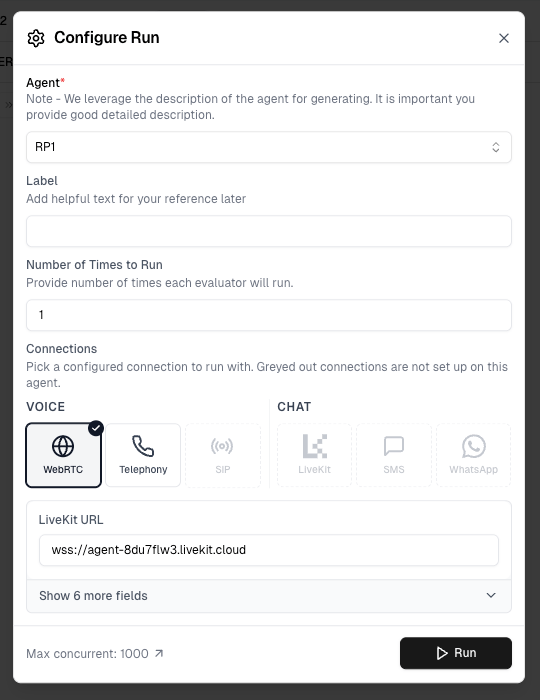
Click “Run with LiveKit” to execute your tests. Cekura automatically:
- Creates unique rooms for each scenario
- Generates access tokens
- Executes tests and cleans up resources
View results
Results appear in your dashboard. Track test status, metrics, and conversation details in real-time.
Use the API to integrate LiveKit testing into your workflow.Prerequisites
Configure LiveKit credentials in your agent settings:
Required fields:
- Provider: Select LiveKit from the dropdown
- LiveKit API Key: Your LiveKit API key
- LiveKit API Secret: Your LiveKit API secret
- LiveKit URL: Your LiveKit server URL (e.g.,
wss://your-server.livekit.cloud)
- Agent Name: The specific agent name to dispatch in LiveKit
Optional fields:
- LiveKit Config (JSON): Additional room configuration parameters
Accessing Config in Your Agent:
Config parameters you might be using in your livekit agent’s code. The configuration JSON is stored in the LiveKit room’s metadata. Access it in your agent’s entrypoint:import json
from livekit.agents import JobContext
async def entrypoint(ctx: JobContext):
await ctx.connect()
# Access room metadata
room_metadata = ctx.room.metadata
config = json.loads(room_metadata) if room_metadata else {}
# Use config values
empty_timeout = config.get("empty_timeout", 300)
max_participants = config.get("max_participants", 10)
API Endpoint
POST https://api.cekura.ai/test_framework/v1/scenarios-external/run_scenarios_livekit_v2/
Authentication
Include your API key in the request header:X-CEKURA-API-KEY: <YOUR_API_KEY>
Request Parameters
scenarios (array, required): Array of test configurationsEach scenario object contains:
- scenario (number, required): Scenario ID
frequency (number, optional): Number of times to run each scenario. Defaults to 1 if not specified.Examples
Single Run (cURL)
curl -X POST \
'https://api.cekura.ai/test_framework/v1/scenarios-external/run_scenarios_livekit_v2/' \
-H 'X-CEKURA-API-KEY: <YOUR_API_KEY>' \
-H 'Content-Type: application/json' \
-d '{
"scenarios": [
{
"scenario": 30
}
],
"frequency": 1
}'
Multiple Runs (cURL)
curl -X POST \
'https://api.cekura.ai/test_framework/v1/scenarios-external/run_scenarios_livekit_v2/' \
-H 'X-CEKURA-API-KEY: <YOUR_API_KEY>' \
-H 'Content-Type: application/json' \
-d '{
"scenarios": [
{
"scenario": 30
},
{
"scenario": 31
}
],
"frequency": 1
}'
Python Example
import requests
API_KEY = "<YOUR_API_KEY>"
BASE_URL = "https://api.cekura.ai/test_framework"
headers = {
"X-CEKURA-API-KEY": API_KEY,
"Content-Type": "application/json",
}
payload = {
"scenarios": [
{
"scenario": 30,
},
{
"scenario": 31,
},
],
"frequency": 1,
}
resp = requests.post(
f"{BASE_URL}/v1/scenarios-external/run_scenarios_livekit_v2/",
headers=headers,
json=payload,
)
result = resp.json()
print(result)
Response
{
"id": 16870,
"name": "",
"agent": 5,
"status": "in_progress",
"success_rate": 0.0,
"run_as_text": false,
"is_cronjob": false,
"runs": [
{
"id": 34625,
"status": "running",
"scenario": 11547,
"scenario_name": "In-Person Chronic Care Refusal",
"test_profile_data": {"key": "value"}
}
],
"created_at": "2025-10-16T09:32:59.484534Z",
"updated_at": "2025-10-16T09:32:59.484942Z"
}
Monitor Results
Poll for results using the List Runs with IDs API.
In the automated flow, Cekura creates the LiveKit room and dispatches your agent. During dispatch, Cekura populates the agent’s job metadata with test context that your agent code can use at runtime.
{
"scenario_id": 123,
"run_id": 456,
"test_profile_data": {
"user_name": "John Doe",
"user_email": "john@example.com",
"account_id": "ACC-12345"
}
}
| Field | Type | Included When |
|---|
scenario_id | number | Always |
run_id | number | Always |
test_profile_data | object | Only when a test profile is assigned to the scenario or run |
Access the dispatch metadata via ctx.job.metadata in your LiveKit agent’s entrypoint:
import json
from livekit.agents import JobContext
async def entrypoint(ctx: JobContext):
await ctx.connect()
# Access job/dispatch metadata (set by Cekura in automated flows)
job_metadata = json.loads(ctx.job.metadata) if ctx.job.metadata else {}
scenario_id = job_metadata.get("scenario_id")
run_id = job_metadata.get("run_id")
test_profile_data = job_metadata.get("test_profile_data", {})
# Use the variables as per your needs
ctx.job.metadata contains test context from Cekura (scenario ID, run ID, test profile data). This is different from ctx.room.metadata which contains the LiveKit Config JSON.
For detailed LiveKit traces and observability, check out the LiveKit Tracing documentation.
Next Steps