

Configure Custom Observability
Follow these steps to set up custom observability for your voice agents:1
Obtain your API key
Log in to your Cekura dashboard to retrieve your API key. You can find it in the Settings tab visible on the top right corner. This key is essential for authenticating your requests and accessing observability features.
Home > Settings > API Key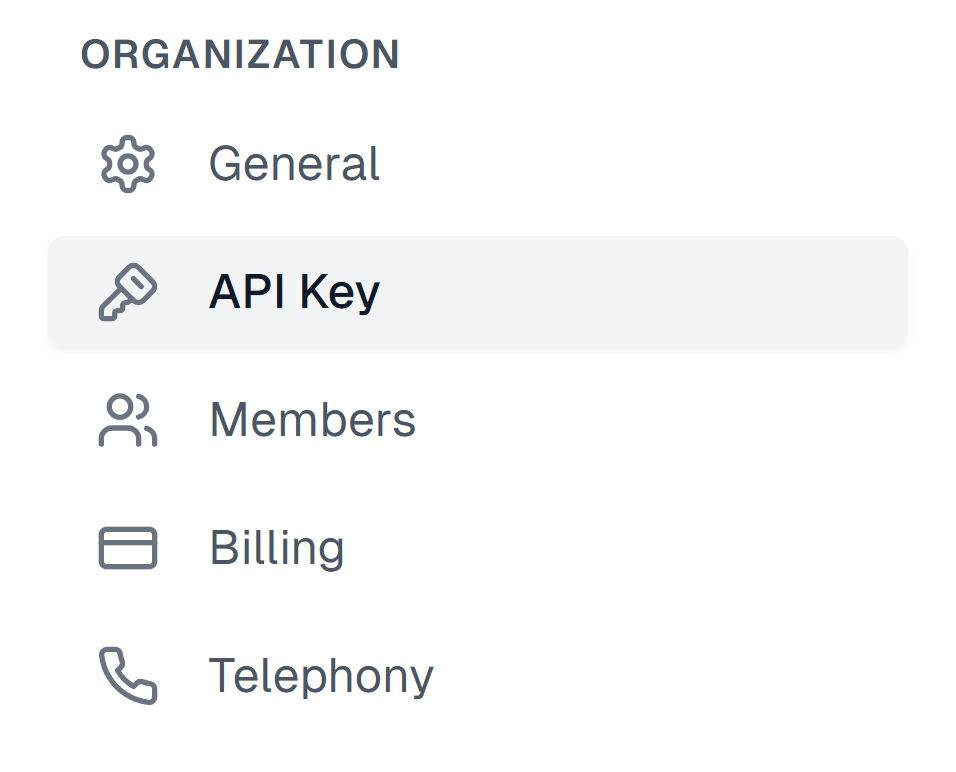
Home > Settings > API Key
2
Create an agent
Navigate to the dashboard and create an agent. This agent will be responsible for collecting and sending data to the observability platform.Read more on Creating an Agent.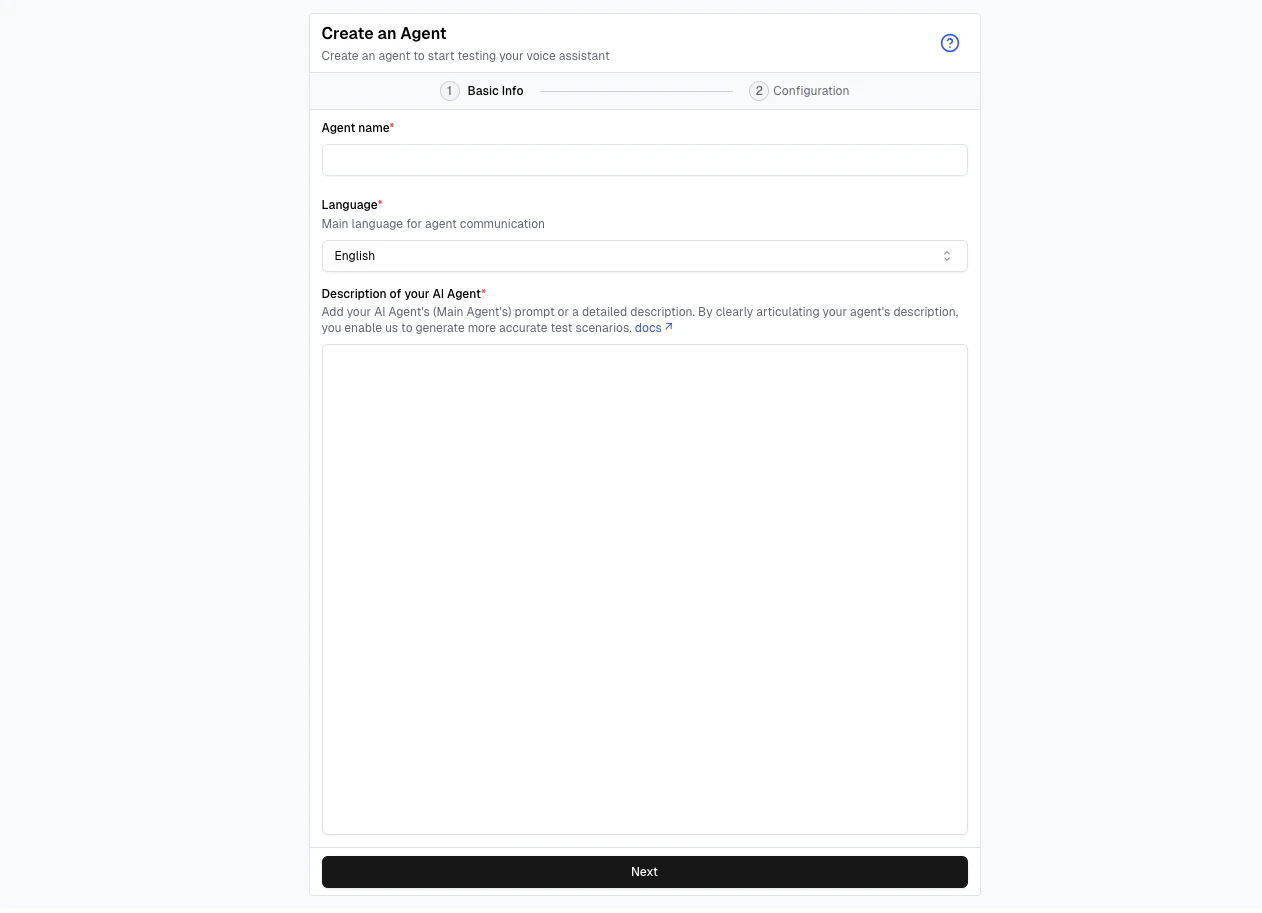
3
Define metrics
Go to dashboard.cekura.ai and select your agent to start creating metrics. These metrics will help you monitor and analyze the performance of your systems.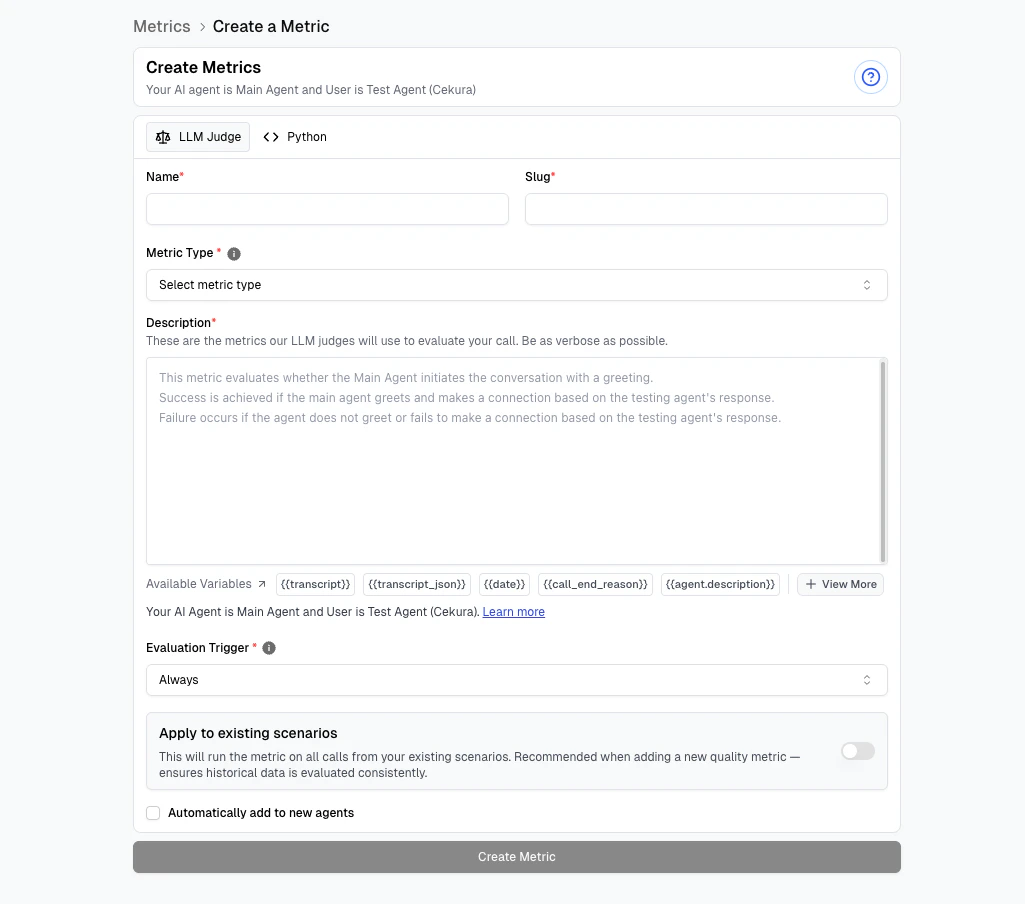
4
Start pushing logs
Choose your voice provider below to forward call data to Cekura’s observability suite.
Connect your Providers
- Custom API
- Vapi
- ElevenLabs
- Retell
- Bland AI
import requests

# Send call data to Cekura observability
url = 'https://api.cekura.ai/observability/v1/observe/'
headers = {
    'X-CEKURA-API-KEY': '<your_cekura_api_key>',
    'Content-Type': 'application/json'
}
data = {
    'agent': '<agent_id_in_cekura>',
    'voice_recording_url': '<url_to_call_recording>',
    'transcript_type': 'cekura',
    'transcript_json': [
        {
            'role': 'user',
            'content': 'Hello, I want to book an appointment.',
            'start_time': 0.5,
            'end_time': 2.3
        },
        {
            'role': 'assistant',
            'content': 'Sure, what time works for you?',
            'start_time': 2.5,
            'end_time': 4.1
        }
    ],
    'call_id': '<unique_call_identifier>',
    'call_ended_reason': '<reason_for_call_end>'
}

response = requests.post(url, headers=headers, json=data)
const axios = require('axios');

// Send call data to Cekura observability
const url = 'https://api.cekura.ai/observability/v1/observe/';
const headers = {
  'X-CEKURA-API-KEY': '<your_cekura_api_key>',
  'Content-Type': 'application/json'
};
const data = {
  agent: '<agent_id_in_cekura>',
  voice_recording_url: '<url_to_call_recording>',
  transcript_type: 'cekura',
  transcript_json: [
    {
      role: 'user',
      content: 'Hello, I want to book an appointment.',
      start_time: 0.5,
      end_time: 2.3
    },
    {
      role: 'assistant',
      content: 'Sure, what time works for you?',
      start_time: 2.5,
      end_time: 4.1
    }
  ],
  call_id: '<unique_call_identifier>',
  call_ended_reason: '<reason_for_call_end>'
};

const response = await axios.post(url, data, { headers });
- Code
- No Code
import requests

# Forward VAPI webhook response to Cekura
url = 'https://api.cekura.ai/observability/v1/observe/'
headers = {
    'X-CEKURA-API-KEY': '<your_cekura_api_key>',
    'Content-Type': 'application/json'
}
data = {
    'agent': '<agent_id_in_cekura>',
    'voice_recording_url': vapi_response["stereoRecordingUrl"],
    'transcript_type': 'vapi',
    'transcript_json': vapi_response["messages"],
    'call_id': vapi_response["id"],
    'call_ended_reason': vapi_response["endedReason"]
}

response = requests.post(url, headers=headers, json=data)
const axios = require('axios');

// Forward VAPI webhook response to Cekura
const url = 'https://api.cekura.ai/observability/v1/observe/';
const headers = {
  'X-CEKURA-API-KEY': '<your_cekura_api_key>',
  'Content-Type': 'application/json'
};
const data = {
  agent: '<agent_id_in_cekura>',
  voice_recording_url: vapiResponse.stereoRecordingUrl,
  transcript_type: 'vapi',
  transcript_json: vapiResponse.messages,
  call_id: vapiResponse.id,
  call_ended_reason: vapiResponse.endedReason
};

const response = await axios.post(url, data, { headers });
Auto-fetch production calls (recommended)
Cekura can pull completed VAPI calls every 30 seconds without requiring a webhook.1
Connect your VAPI agent
In Cekura, create or open an agent, select VAPI as its provider, and enter the VAPI API key and Assistant ID.
2
Enable automatic call import
In the provider settings, enable Auto-fetch Production Calls and save the agent.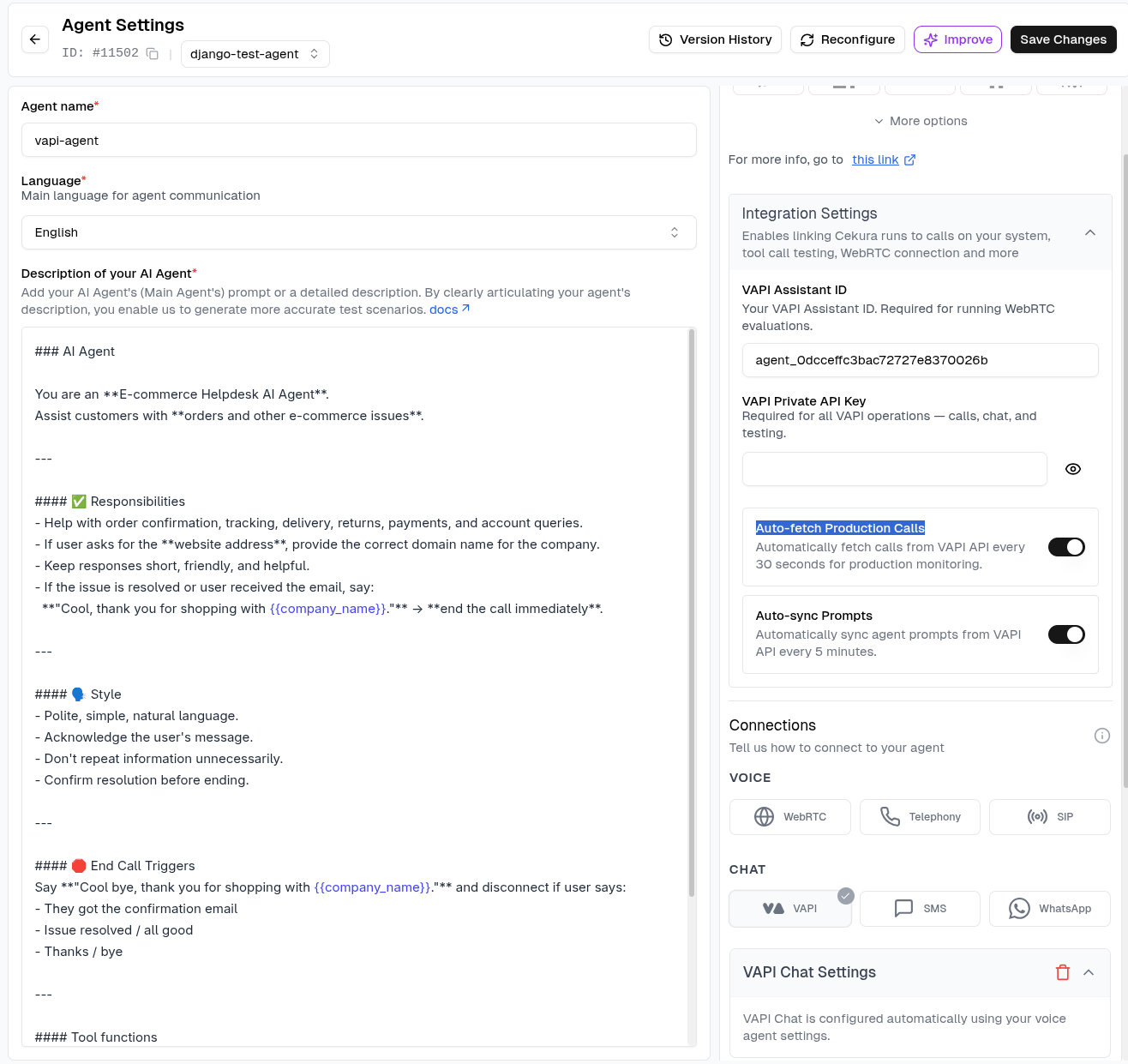
3
Test your integration
Complete a call with the VAPI agent. The call should appear in Observability → Calls within 30 seconds.
Webhook integration
Use this alternative when calls must appear in Cekura in real time.1
Get your Cekura API Key
Navigate to the API keys section in your Cekura dashboard settings. If you don’t have an API key yet, create a new one. Copy the API key value as you’ll need it to authenticate your requests to Cekura’s observability API.
2
Add Cekura credentials to VAPI
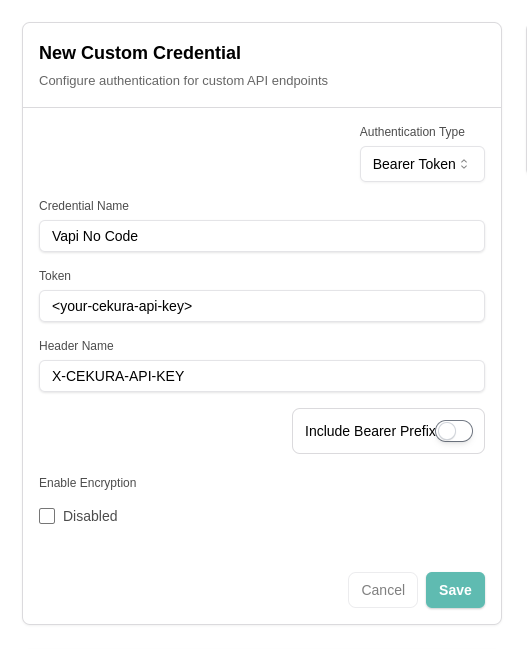
In your VAPI dashboard, navigate to integrations in your account settings and add custom integration with the following details:
- Auth type: Bearer token
- Credential name: Cekura API key
- Token: Your Cekura API key
- Header name: X-CEKURA-API-KEY
-
Include bearer prefix: No
3
Configure Server URL in VAPI
In your VAPI dashboard, navigate to your agent settings and configure the Server URL and authorization header you created in the previous step. This URL is used for all communication between your application and VAPI, including context retrieval, function calls, and end-of-call reporting.Set the Server URL to: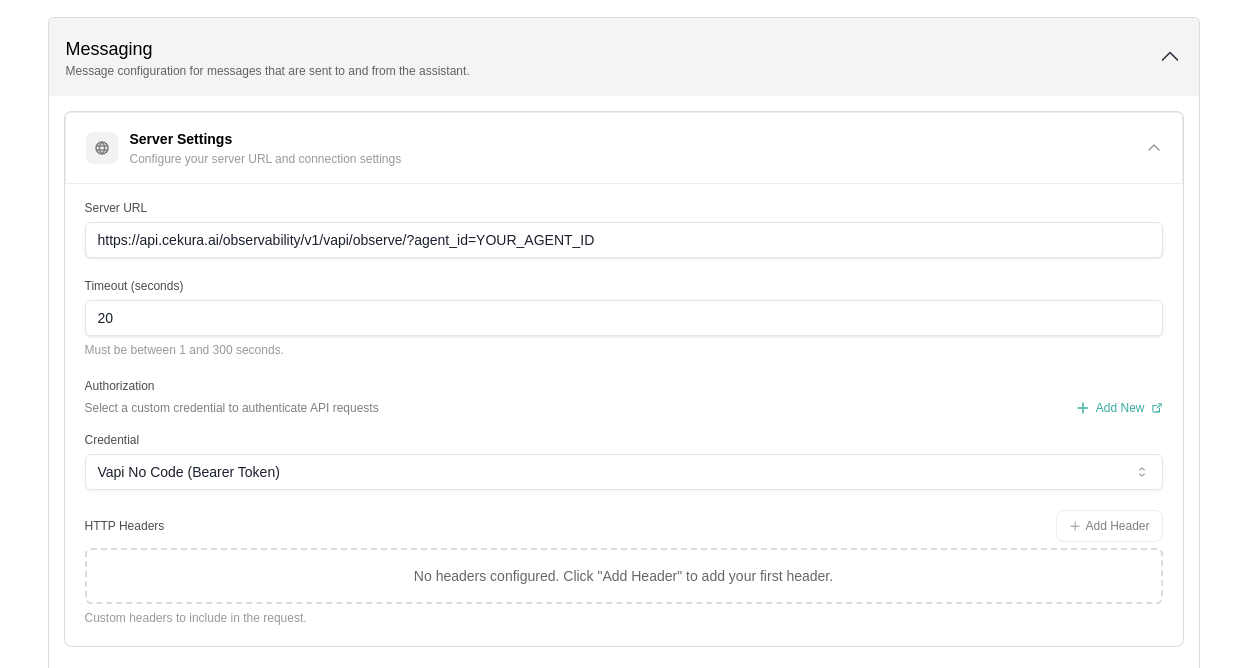
https://api.cekura.ai/observability/v1/vapi/observe/?agent_id=YOUR_AGENT_ID
4
Get your Assistant ID
Each VAPI agent has a unique Assistant ID that identifies your specific implementation. Copy your Assistant ID from the VAPI dashboard:
5
Add credentials to Cekura
In your Cekura Agent Settings page:
-
Add the API key from VAPI with the tag
webhook -
Copy and add your
agent IDfrom VAPI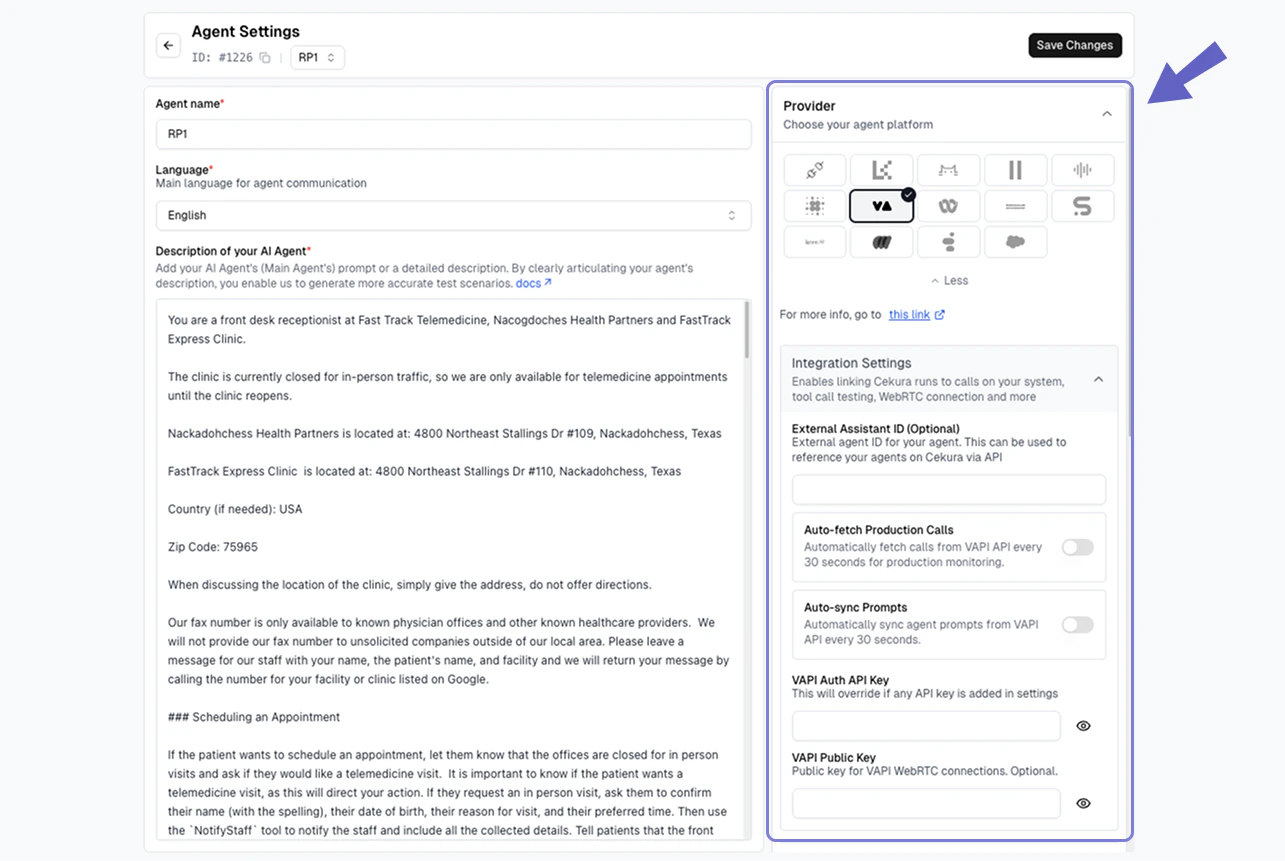
6
Test your integration
Make a test call from VAPI (phone number based or webcall). Your calls should now appear in the Cekura observability
Calls section.- Code
- No Code
import requests
import json

# Download audio from ElevenLabs
ELEVENLABS_API_KEY = "your_elevenlabs_api_key"
ELEVENLABS_API_BASE_URL = "https://api.elevenlabs.io/v1"
conversation_id = "your_conversation_id"

url_audio = f"{ELEVENLABS_API_BASE_URL}/convai/conversations/{conversation_id}/audio"
headers_audio = {"xi-api-key": ELEVENLABS_API_KEY}
audio_response = requests.get(url_audio, headers=headers_audio)
audio_content = audio_response.content if audio_response.status_code == 200 else None

# Send to Cekura
CEKURA_API_KEY = "your_cekura_api_key"
CEKURA_AGENT_ID = "your_cekura_agent_id"
url_cekura = "https://api.cekura.ai/observability/v1/observe/"
headers_cekura = {"X-CEKURA-API-KEY": CEKURA_API_KEY}
data = {
    "agent": CEKURA_AGENT_ID,
    "call_id": conversation_id,
    "transcript_type": "elevenlabs",
    "transcript_json": json.dumps(transcript_data)
}
files = {
    "voice_recording": (f"elevenlabs_recording_{conversation_id}.mp3", audio_content, "audio/mpeg")
}
response = requests.post(url_cekura, headers=headers_cekura, data=data, files=files)
const axios = require('axios');
const FormData = require('form-data');

// Download audio from ElevenLabs
const ELEVENLABS_API_KEY = 'your_elevenlabs_api_key';
const ELEVENLABS_API_BASE_URL = 'https://api.elevenlabs.io/v1';
const conversationId = 'your_conversation_id';

const audioResponse = await axios.get(
  `${ELEVENLABS_API_BASE_URL}/convai/conversations/${conversationId}/audio`,
  { headers: { 'xi-api-key': ELEVENLABS_API_KEY }, responseType: 'arraybuffer' }
);
const audioContent = audioResponse.status === 200 ? audioResponse.data : null;

// Send to Cekura
const CEKURA_API_KEY = 'your_cekura_api_key';
const CEKURA_AGENT_ID = 'your_cekura_agent_id';
const form = new FormData();
form.append('agent', CEKURA_AGENT_ID);
form.append('call_id', conversationId);
form.append('transcript_type', 'elevenlabs');
form.append('transcript_json', JSON.stringify(transcriptData));
form.append('voice_recording', Buffer.from(audioContent), {
  filename: `elevenlabs_recording_${conversationId}.mp3`,
  contentType: 'audio/mpeg'
});

const response = await axios.post(
  'https://api.cekura.ai/observability/v1/observe/',
  form,
  { headers: { 'X-CEKURA-API-KEY': CEKURA_API_KEY, ...form.getHeaders() } }
);
Auto-fetch production calls (recommended)
Cekura can pull completed ElevenLabs calls every 30 seconds without requiring a webhook.1
Connect your ElevenLabs agent
In Cekura, create or open an agent, select ElevenLabs as its provider, and enter the ElevenLabs API key and Agent ID.
2
Enable automatic call import
In the provider settings, enable Auto-fetch Production Calls and save the agent.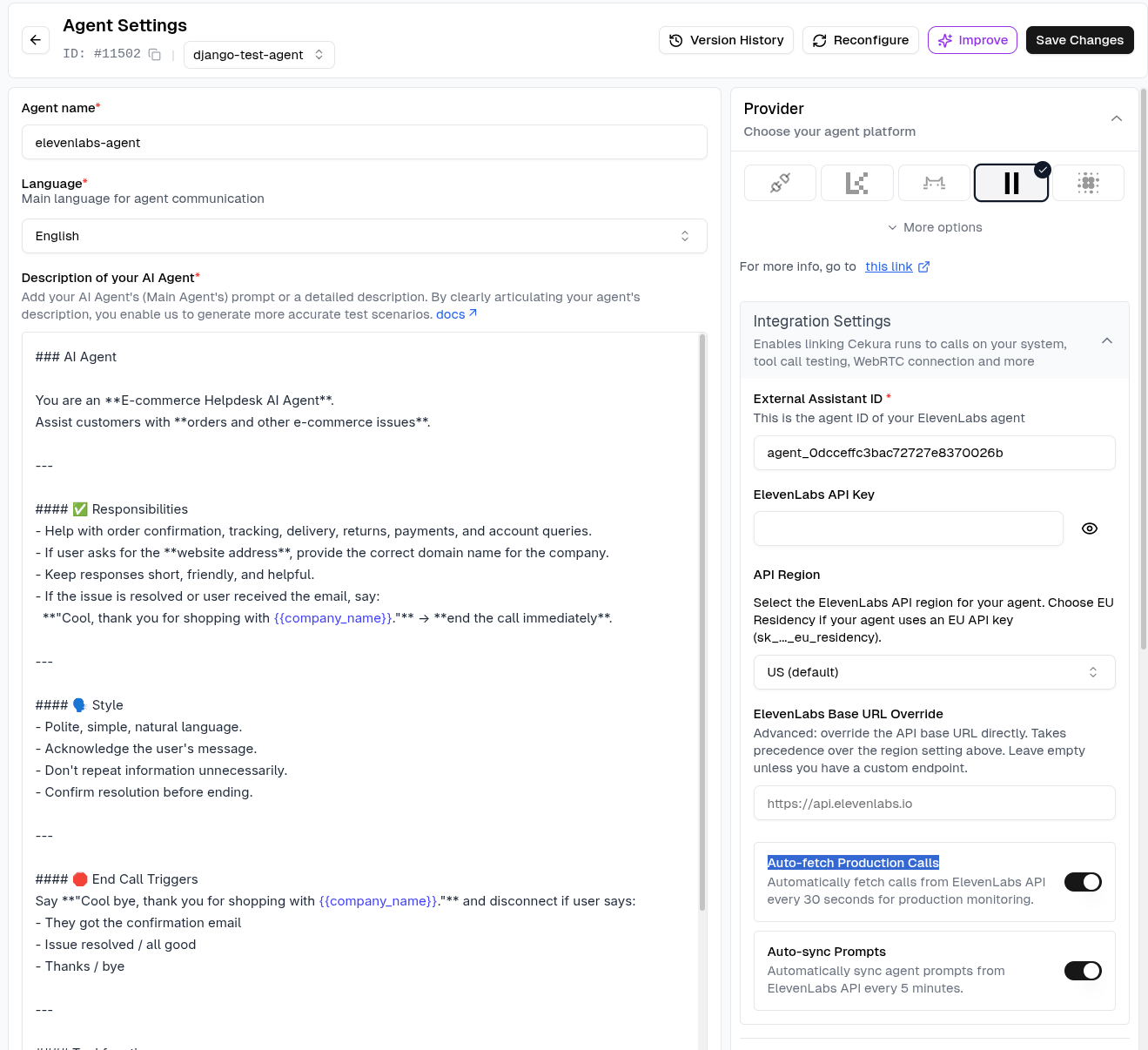
3
Test your integration
Complete a call with the ElevenLabs agent. The call should appear in Observability → Calls within 30 seconds.
Webhook integration
Use this alternative when calls must appear in Cekura in real time.1
Configure webhook URL in ElevenLabs
In your ElevenLabs dashboard, navigate to your agent settings and configure the observability webhook URL: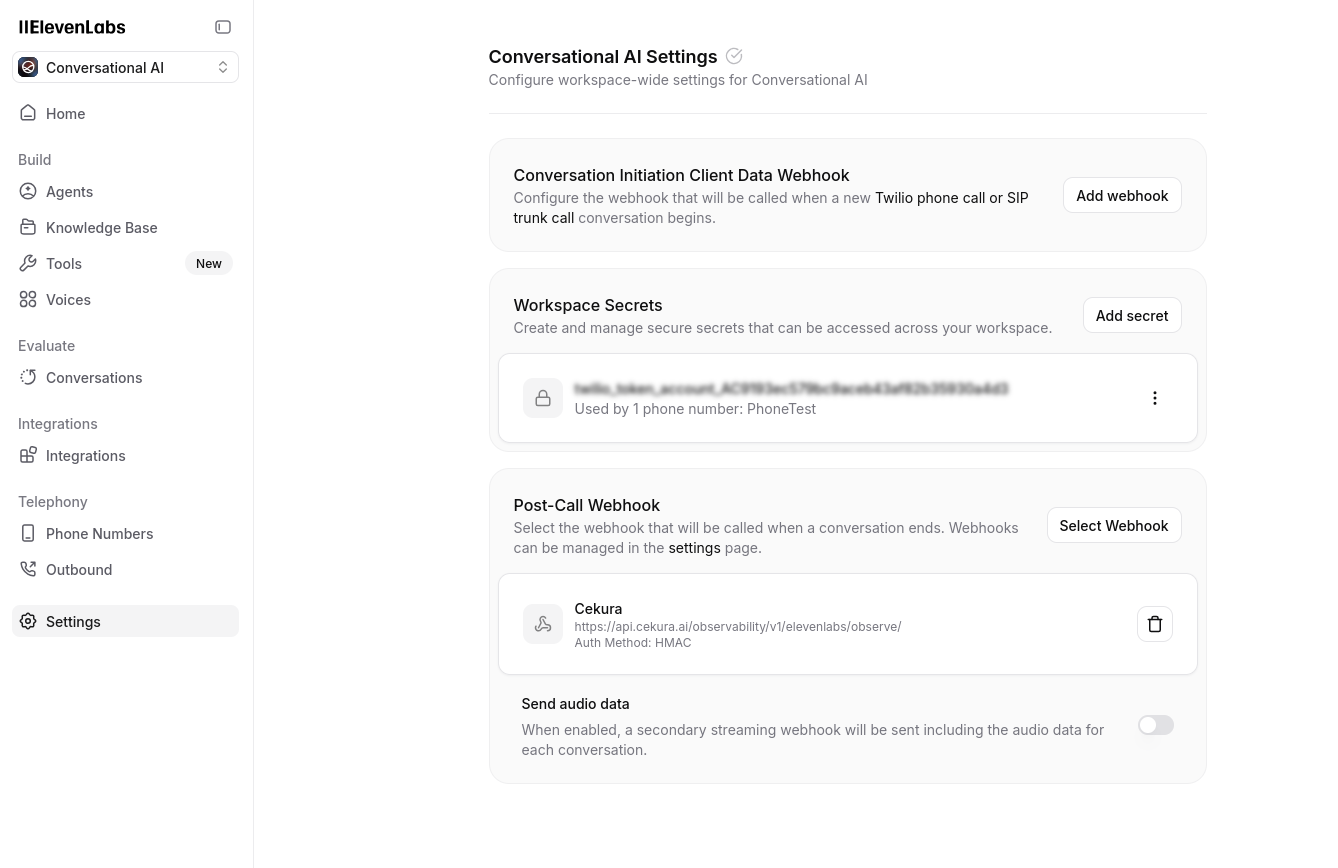
https://api.cekura.ai/observability/v1/elevenlabs/observe/
2
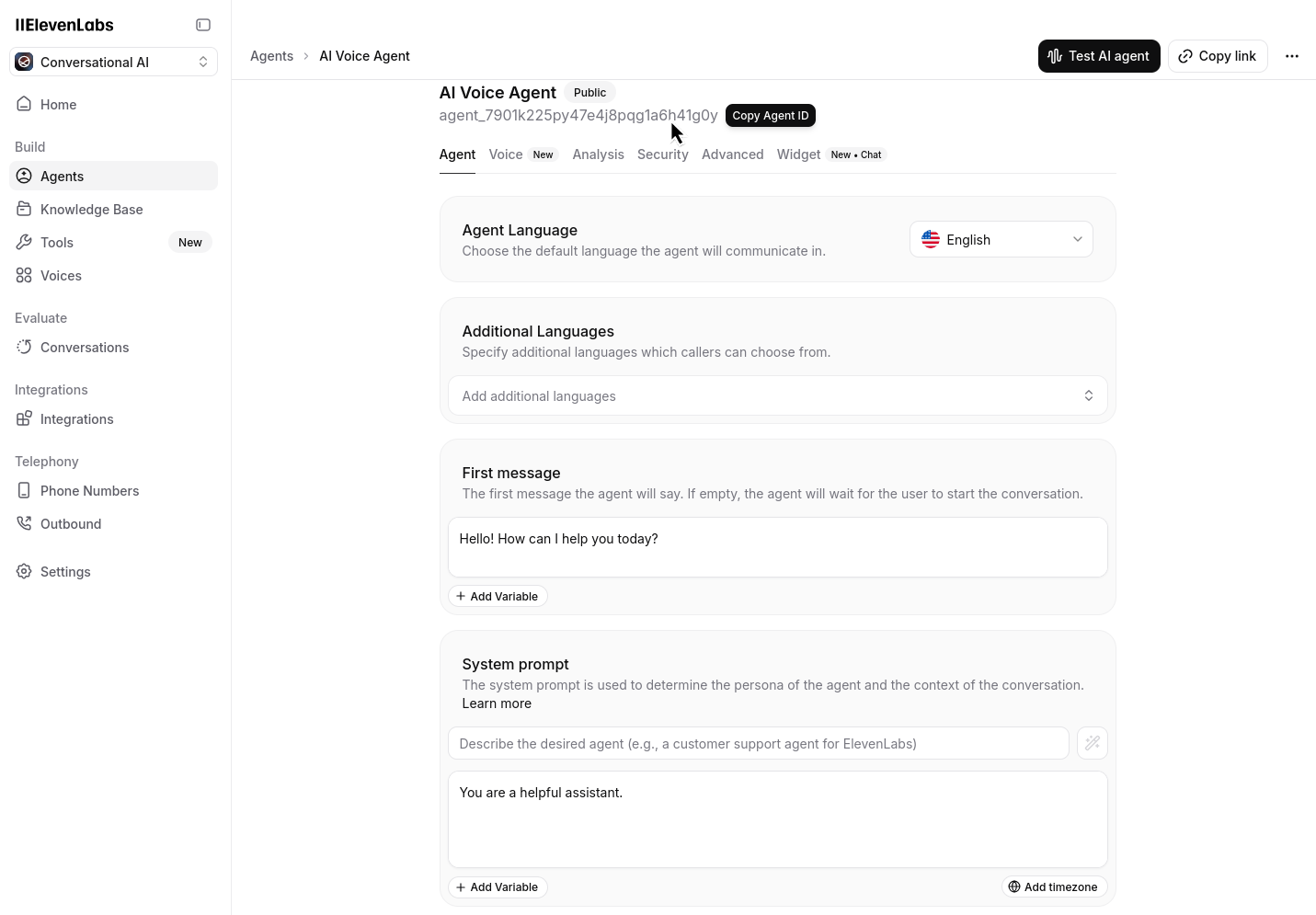
Verify ElevenLabs API key and Agent ID
Go to the API keys section in your ElevenLabs dashboard and ensure you have at least one API key configured. Also note your Agent ID from the dashboard: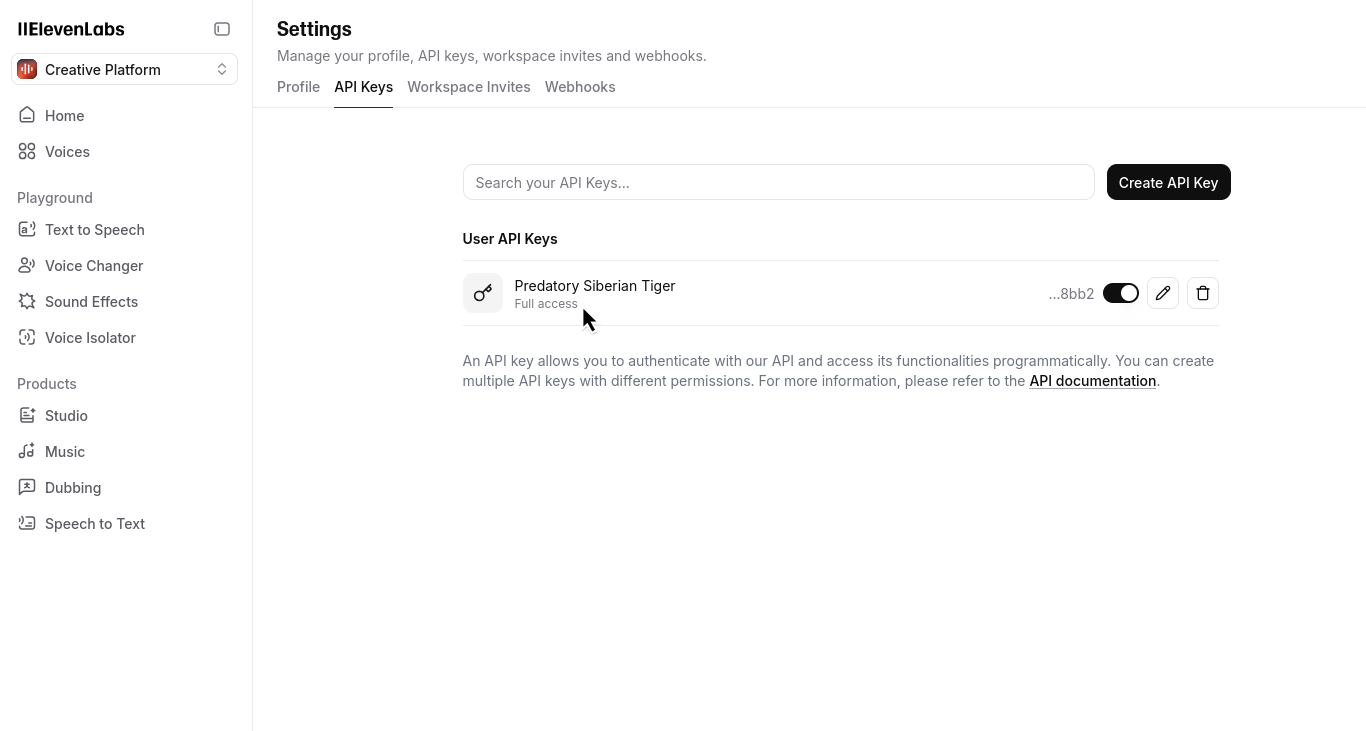
3
Add credentials to Cekura
In your Cekura Agent Settings page, add the API key from ElevenLabs and ensure you have copied your 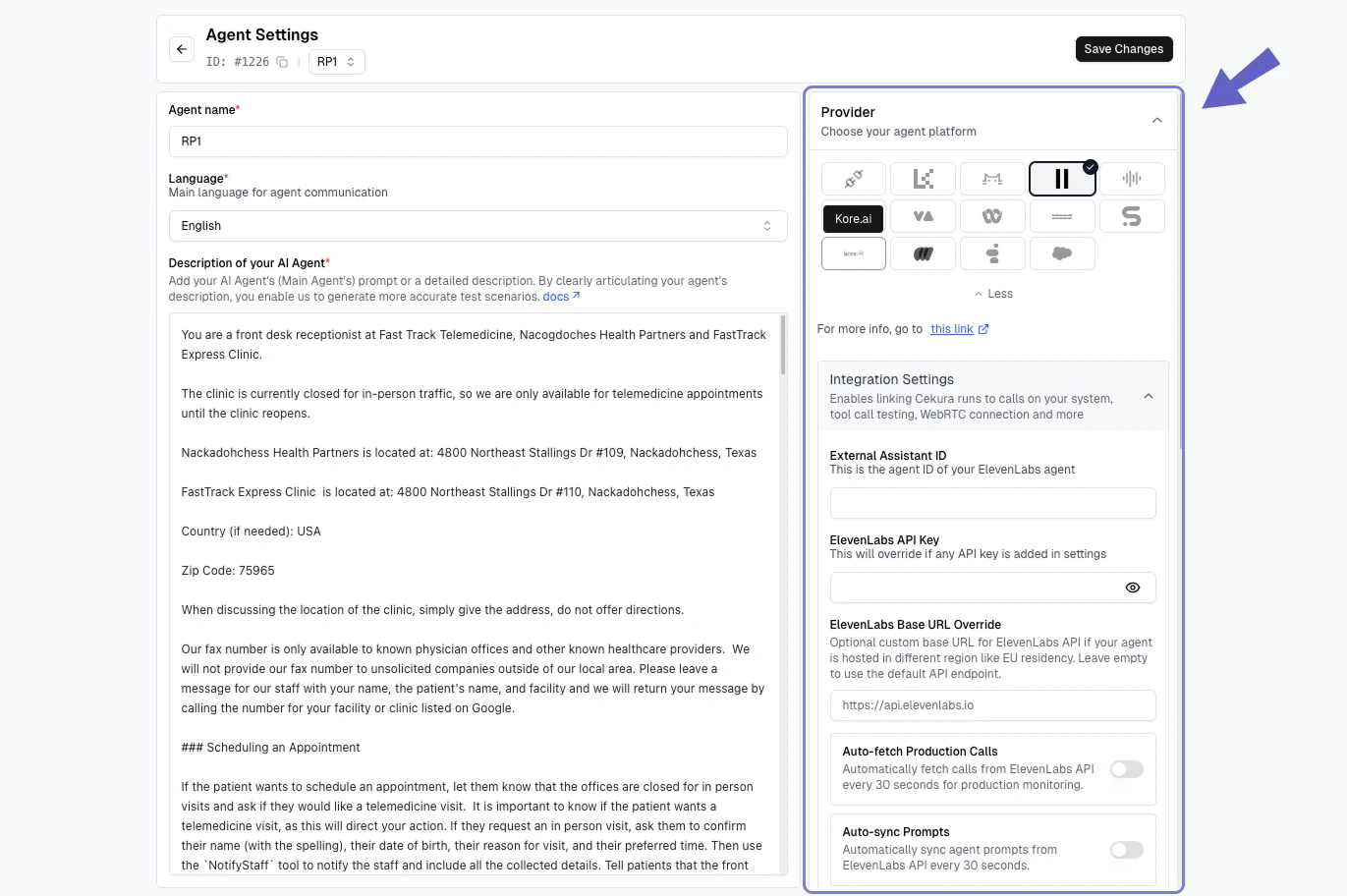
agent ID from ElevenLabs:4
Test your integration
Make a test call from ElevenLabs (phone number based or webcall). Your calls should now appear in the Cekura observability
Calls section.- Code
- No Code
import requests

# Forward Retell webhook response to Cekura
url = 'https://api.cekura.ai/observability/v1/observe/'
headers = {
    'X-CEKURA-API-KEY': '<your_cekura_api_key>',
    'Content-Type': 'application/json'
}
data = {
    'agent': '<agent_id_in_cekura>',
    'voice_recording_url': retell_response['recording_multi_channel_url'],
    'transcript_type': 'retell',
    'transcript_json': retell_response['transcript_with_tool_calls'],
    'call_id': retell_response['call_id'],
    'call_ended_reason': retell_response['disconnection_reason']
}

response = requests.post(url, headers=headers, json=data)
const axios = require('axios');

// Forward Retell webhook response to Cekura
const url = 'https://api.cekura.ai/observability/v1/observe/';
const headers = {
  'X-CEKURA-API-KEY': '<your_cekura_api_key>',
  'Content-Type': 'application/json'
};
const data = {
  agent: '<agent_id_in_cekura>',
  voice_recording_url: retellResponse.recording_multi_channel_url,
  transcript_type: 'retell',
  transcript_json: retellResponse.transcript_with_tool_calls,
  call_id: retellResponse.call_id,
  call_ended_reason: retellResponse.disconnection_reason
};

const response = await axios.post(url, data, { headers });
Auto-fetch production calls (recommended)
Cekura can pull completed Retell calls every 30 seconds without requiring a webhook.1
Connect your Retell agent
In Cekura, create or open an agent, select Retell as its provider, and enter the Retell API key and Agent ID.
The Retell API key must include the History.Read scope. If Retell rejects call-history access, Cekura automatically disables auto-fetch to avoid repeated failures.
2
Enable automatic call import
In the provider settings, enable Auto-fetch Production Calls and save the agent.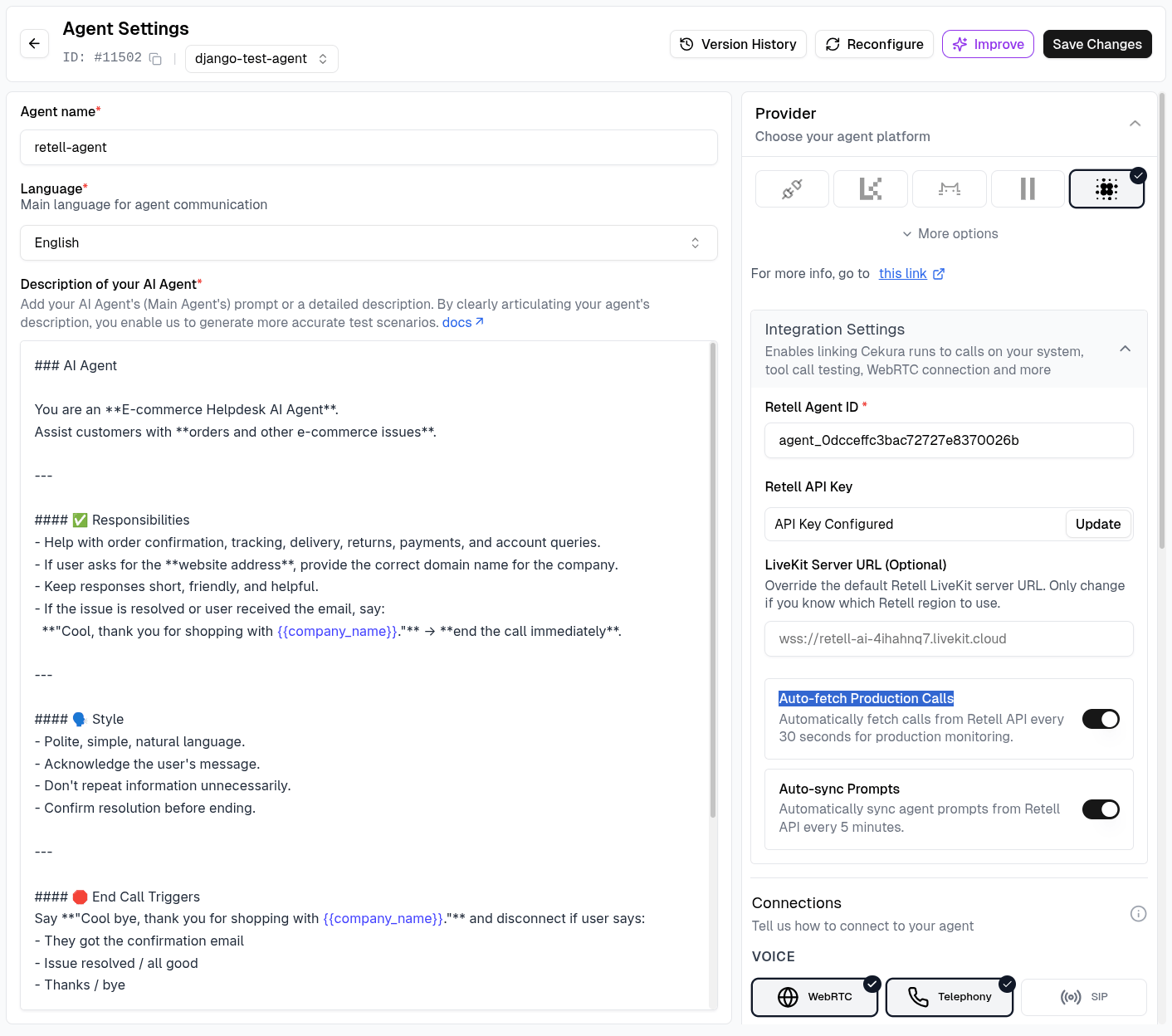
3
Test your integration
Complete a call with the Retell agent. The call should appear in Observability → Calls within 30 seconds.
Webhook integration
Use this alternative when calls must appear in Cekura in real time.1
Configure webhook URL in Retell
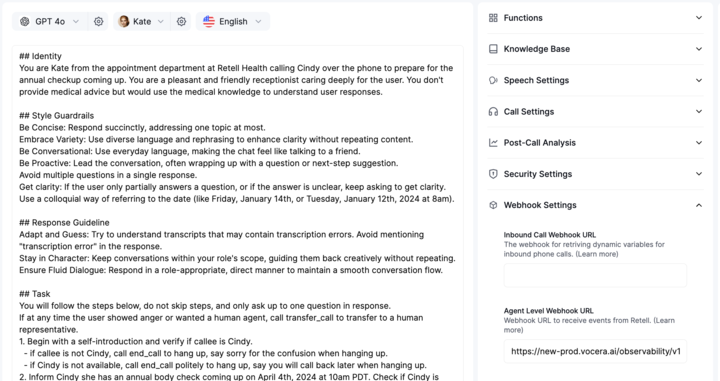
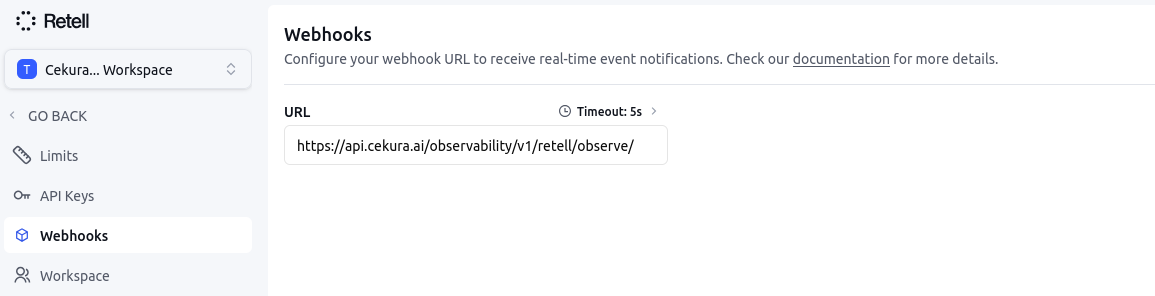
In your Retell dashboard, add the observability webhook URL:You can configure the webhook at either level:
https://api.cekura.ai/observability/v1/retell/observe/
-
Setting Webhook at Agent level: Navigate to your agent settings and add the webhook URL for a specific agent.
-
Setting Webhook at Workspace level: Navigate to your workspace settings and add the webhook URL for all agents in the workspace.
2
Verify Retell API key
Go to the API keys section in your Retell dashboard. Create/ensure you have at least one API key configured with the webhook tag set.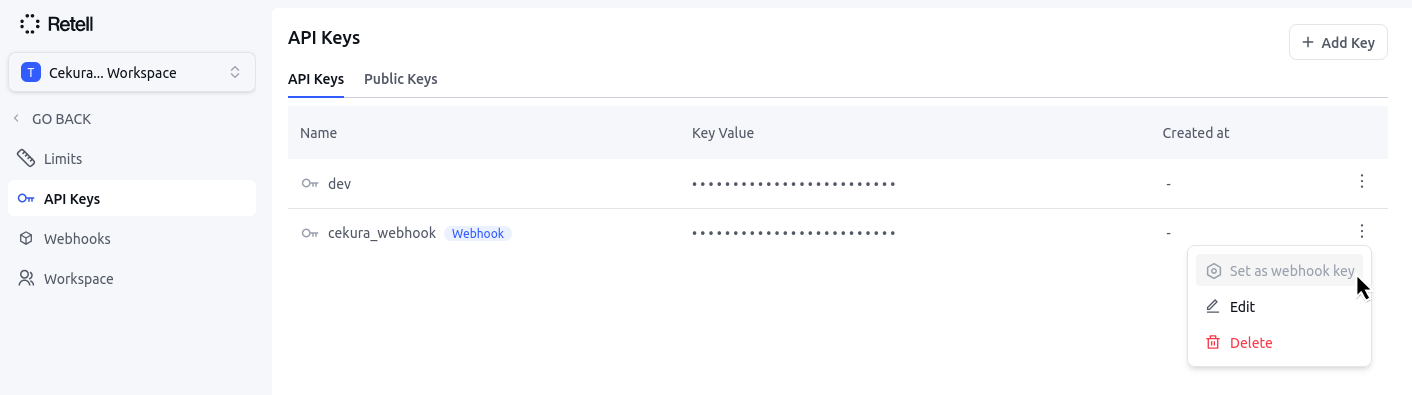
3
Add credentials to Cekura
In your Cekura Agent Settings page:
-
Add the API key from Retell with the tag
webhookin Retell API Keys field. -
Copy and add your
agent IDfrom Retell in the External Assistant ID field.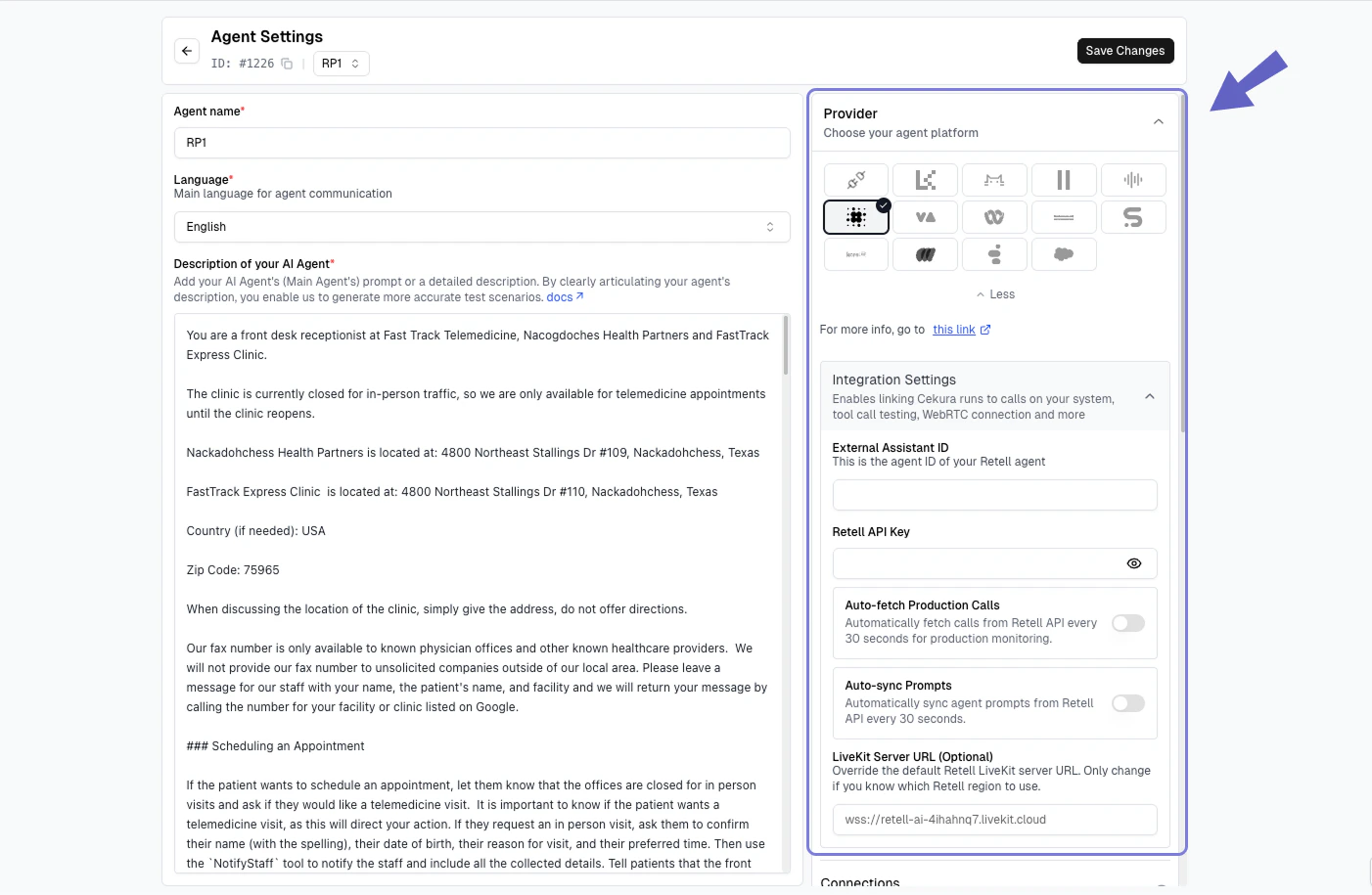
4
Test your integration
Make a test call from Retell (phone number based or webcall). Your calls should now appear in the Cekura observability
Calls section.- No Code
Auto-fetch production calls (recommended)
Cekura can pull completed Bland calls every 30 seconds without requiring a webhook.1
Connect your Bland agent
In Cekura, create or open an agent, select Bland AI as its provider, and enter the Bland API key and Persona ID.
2
Enable automatic call import
In the provider settings, enable Auto-fetch Production Calls and save the agent.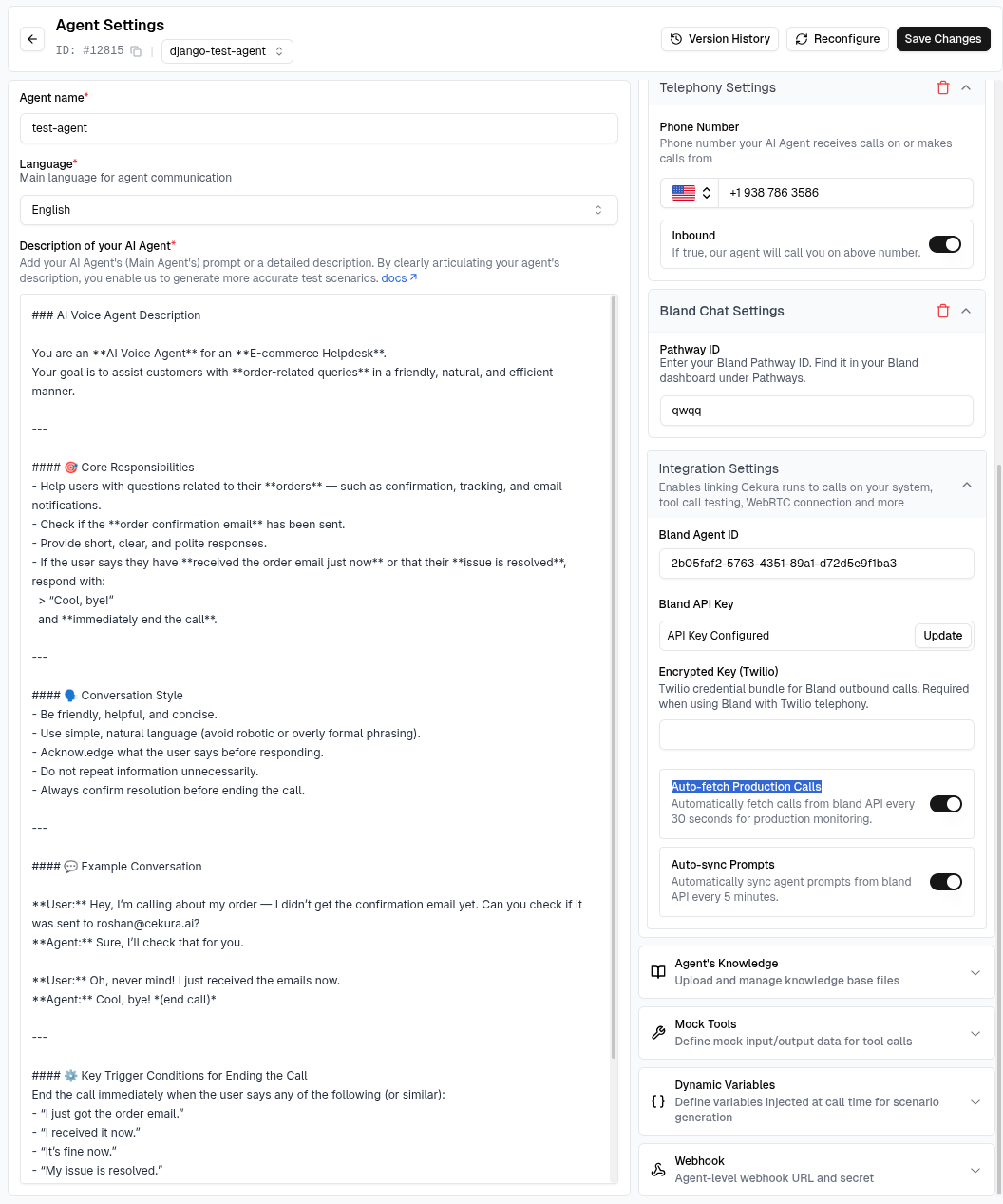
3
Test your integration
Complete a call with the Bland agent. The call should appear in Observability → Calls within 30 seconds.