> ## Documentation Index
> Fetch the complete documentation index at: https://docs.cekura.ai/llms.txt
> Use this file to discover all available pages before exploring further.
# Metric Variables
> Canonical reference for variables available in metric prompts and Python metric scripts
export const CopyPageButton = () => {
if (typeof window !== 'undefined') {
setTimeout(function () {
if (document.getElementById('ck-tools')) return;
var anchor = document.getElementById('content-area') || document.querySelector('.mdx-content');
if (!anchor) return;
if (!document.getElementById('ck-style')) {
var s = document.createElement('style');
s.id = 'ck-style';
s.textContent = '#ck-tools{position:absolute;top:6px;right:0;z-index:100;font-family:inherit;}' + '.ck-row{display:inline-flex;align-items:stretch;border:1px solid rgba(0,0,0,0.15);border-radius:8px;overflow:hidden;background:#fff;}' + ':root.dark .ck-row{background:rgba(255,255,255,0.06);border-color:rgba(255,255,255,0.12);}' + '.ck-btn{padding:5px 12px;border:none;background:none;cursor:pointer;font-size:13px;font-weight:500;font-family:inherit;color:#374151;}' + ':root.dark .ck-btn{color:#d1d5db;}' + '.ck-btn:hover{background:rgba(0,0,0,0.04);}' + ':root.dark .ck-btn:hover{background:rgba(255,255,255,0.06);}' + '.ck-chevron{padding:5px 8px;border:none;background:none;cursor:pointer;font-size:14px;font-family:inherit;color:#374151;}' + ':root.dark .ck-chevron{color:#d1d5db;}' + '.ck-chevron:hover{background:rgba(0,0,0,0.04);}' + ':root.dark .ck-chevron:hover{background:rgba(255,255,255,0.06);}' + '.ck-divider{width:1px;background:rgba(0,0,0,0.12);flex-shrink:0;}' + ':root.dark .ck-divider{background:rgba(255,255,255,0.12);}' + '.ck-dd{position:absolute;top:calc(100% + 4px);right:0;min-width:180px;background:#fff;border:1px solid rgba(0,0,0,0.12);border-radius:8px;box-shadow:0 4px 12px rgba(0,0,0,0.1);padding:4px;display:none;z-index:200;}' + ':root.dark .ck-dd{background:#1f2937;border-color:rgba(255,255,255,0.1);box-shadow:0 4px 16px rgba(0,0,0,0.35);}' + '.ck-item{display:block;width:100%;padding:7px 12px;border:none;background:none;border-radius:6px;cursor:pointer;font-size:13px;font-family:inherit;text-align:left;color:#374151;}' + ':root.dark .ck-item{color:#d1d5db;}' + '.ck-item:hover{background:rgba(0,0,0,0.05);}' + ':root.dark .ck-item:hover{background:rgba(255,255,255,0.07);}';
document.head.appendChild(s);
}
var wrap = document.createElement('div');
wrap.id = 'ck-tools';
var row = document.createElement('div');
row.className = 'ck-row';
var mainBtn = document.createElement('button');
mainBtn.className = 'ck-btn';
mainBtn.textContent = 'Copy page';
var divider = document.createElement('span');
divider.className = 'ck-divider';
var chevron = document.createElement('button');
chevron.className = 'ck-chevron';
chevron.textContent = '▾';
var dd = document.createElement('div');
dd.className = 'ck-dd';
function closeDD() {
dd.style.display = 'none';
}
function openDD() {
dd.style.display = 'block';
}
chevron.onclick = function (e) {
e.stopPropagation();
if (dd.style.display === 'block') {
closeDD();
} else {
openDD();
}
};
document.addEventListener('click', function (e) {
if (!e.target.closest('#ck-tools')) {
closeDD();
}
});
document.addEventListener('keydown', function (e) {
if (e.key === 'Escape') {
closeDD();
}
});
function makeItem(label, fn) {
var b = document.createElement('button');
b.className = 'ck-item';
b.textContent = label;
b.onclick = function () {
fn();
closeDD();
};
return b;
}
function getMarkdown() {
var walk = function (node) {
if (!node) return '';
if (node.nodeType === 3) return node.textContent || '';
if (node.nodeType !== 1) return '';
var tag = node.tagName.toLowerCase();
var skip = ['script', 'style', 'svg', 'noscript', 'button', 'iframe'];
if (skip.indexOf(tag) !== -1) return '';
if (node.id === 'ck-tools') return '';
var ch = Array.from(node.childNodes).map(walk).join('');
if (tag === 'h1') return '\n# ' + ch.trim() + '\n\n';
if (tag === 'h2') return '\n## ' + ch.trim() + '\n\n';
if (tag === 'h3') return '\n### ' + ch.trim() + '\n\n';
if (tag === 'p') return '\n' + ch.trim() + '\n\n';
if (tag === 'pre') return '\n```\n' + node.textContent.trim() + '\n```\n\n';
if (tag === 'li') return '- ' + ch.trim() + '\n';
if (tag === 'code') return '`' + ch.trim() + '`';
return ch;
};
var content = document.querySelector('.mdx-content') || document.getElementById('content-area') || document.body;
return walk(content).replace(/\n\n\n+/g, '\n\n').trim();
}
function copyMd() {
var md = getMarkdown();
navigator.clipboard.writeText(md).then(function () {
mainBtn.textContent = 'Copied!';
setTimeout(function () {
mainBtn.textContent = 'Copy page';
}, 2000);
});
}
function viewMd() {
var md = getMarkdown();
var safe = md.split('&').join('&').split('<').join('<').split('>').join('>');
var html = '' + safe + '';
window.open(URL.createObjectURL(new Blob([html], {
type: 'text/html'
})), '_blank');
}
function openClaude() {
var prompt = 'Can you read this Cekura docs page ' + window.location.href + ' so I can ask you questions?';
window.open('https://claude.ai/new?q=' + encodeURIComponent(prompt), '_blank');
}
mainBtn.onclick = copyMd;
dd.appendChild(makeItem('Copy page', copyMd));
dd.appendChild(makeItem('View as Markdown', viewMd));
dd.appendChild(makeItem('Open in Claude', openClaude));
row.appendChild(mainBtn);
row.appendChild(divider);
row.appendChild(chevron);
wrap.appendChild(row);
wrap.appendChild(dd);
anchor.style.position = 'relative';
anchor.insertBefore(wrap, anchor.firstChild);
}, 50);
}
return null;
};
## Overview
When writing metric prompts (LLM Judge) or metric scripts (Python Metric), you can reference call data using `{{variable_name}}` placeholders (LLM Judge) or `data["variable_name"]` accessors (Python). The same set of variables is available across both metric types — what varies is which variables exist in **Simulation** vs. **Observability** contexts.
This page is the authoritative reference for that set. If you're looking at one specific metric type:
* [LLM Judge Metric](/documentation/key-concepts/metrics/llm-judge-metric) — how to build prompts that consume these variables.
* [Python Metric](/documentation/key-concepts/metrics/python-metric) — how to access the same variables from Python code via the `data` dict.
## Quick Reference
| Variable | Simulation | Observability |
| -------------------------- | ---------- | ------------- |
| `{{transcript}}` | ✅ | ✅ |
| `{{call_end_reason}}` | ✅ | ✅ |
| `{{date}}` | ✅ | ✅ |
| `{{timestamp}}` | ✅ | ✅ |
| `{{metadata.*}}` | ✅ | ❌ |
| `{{dynamic_variables.*}}` | ❌ | ✅ |
| `{{test_profile.*}}` | ✅ | ❌ |
| `{{provider_call_data.*}}` | ✅ | ❌ |
| `{{agent.*}}` | ✅ | ✅ |
| `{{evaluator.*}}` | ✅ | ❌ |
## Available Variables
### System Variables
These variables are available in both **Simulation** and **Observability** calls:
#### `{{transcript}}`
**Availability:** ✅ Simulation & Observability
Full conversation transcript as plain text.
**Example value:**
```
[00:02] Testing Agent: Hello.
[00:02] Main Agent: Customer support. Can I help you today?
[00:07] Testing Agent: Who's this?
[00:09] Main Agent: Hi. I'm Alex, your virtual assistant from Tech Solutions...
```
#### `{{call_end_reason}}`
**Availability:** ✅ Simulation & Observability
Reason why the call ended.
**Common end reasons:**
* `"assistant-ended-call"`
* `"customer-ended-call"`
* `"customer-did-not-answer"`
* `"customer-busy"`
* `"silence-timed-out"`
* `"exceeded-max-duration"`
* `"run-cancelled-by-user"`
#### `{{date}}`
**Availability:** ✅ Simulation & Observability
Current date in YYYY-MM-DD format.
**Example values:**
* `"2024-12-13"`
* `"2025-01-15"`
#### `{{timestamp}}`
**Availability:** ✅ Simulation & Observability
Call's timestamp in ISO 8601 format, including date, time, and timezone information.
**Format:** ISO 8601 (`YYYY-MM-DDTHH:MM:SS.ffffff±HH:MM`)
**Example values:**
* `"2024-12-13T14:30:45.123456+00:00"`
* `"2025-01-15T09:15:30.789012-05:00"`
**Note:** For Observability, this timestamp can be overridden via API when creating the call log. For Simulation, it's automatically set to the time the run was created.
#### `{{provider_call_id}}`
**Availability:** ✅ Simulation | ❌ Observability
Provider-specific call identifier from the telephony provider (e.g., Vapi, Retell).
**Note:** This value is only available when a provider call has been successfully matched and linked to the simulation run.
**Example value:**
* `"provider-call-id"`
***
### Namespace Variables
#### `{{agent.*}}`
**Availability:** ✅ Simulation & Observability
Access agent configuration details using the `agent.` prefix.
**Available fields:**
| Field | Description | Example Value |
| -------------------------- | ----------------------------------- | ------------------------------------------------- |
| `{{agent.description}}` | Description of the agent | `"Customer support agent for handling inquiries"` |
| `{{agent.name}}` | Name of the agent | `"Customer Support Agent"`, `"Sales Agent"` |
| `{{agent.language}}` | Agent's language code | `"en"`, `"es"`, `"fr"` |
| `{{agent.inbound}}` | Whether agent handles inbound calls | `true`, `false` |
| `{{agent.contact_number}}` | Agent's phone number | `"+1234567890"` |
#### `{{metadata.*}}`
**Availability:** ✅ Simulation | ❌ Observability
Access metadata fields using the `metadata.` prefix. This namespace includes two system-generated fields **plus any custom key-value pairs** you include in the `metadata` object when submitting a call via the [Custom Integration](/documentation/integrations/custom-integration) webhook or the observability API.
**System-generated fields:**
| Field | Description | Example Value |
| ------------------------------- | ----------------------------------- | --------------------------------------------- |
| `{{metadata.ringing_duration}}` | Time before call answered (seconds) | `1.2`, `3.5` |
| `{{metadata.call_end_reason}}` | Same as `{{call_end_reason}}` | `"customer-ended-call"`, `"agent-ended-call"` |
**Custom fields (any key-value pair you send):**
Any field you include in the `metadata` object of your webhook payload is accessible in metric prompts and Python metric scripts using the same dot notation. For example, if your payload includes `"metadata": {"client_uuid": "abc123", "prompt_code": "hr_intro"}`, you can reference `{{metadata.client_uuid}}` and `{{metadata.prompt_code}}` directly in your LLM Judge or Python metric.
```json theme={null}
"metadata": {
"client_uuid": "abc123",
"candidate_uuid": "xyz789",
"prompt_code": "hr_intro"
}
```
References in an LLM Judge metric prompt:
* `{{metadata.client_uuid}}` → `"abc123"`
* `{{metadata.candidate_uuid}}` → `"xyz789"`
* `{{metadata.prompt_code}}` → `"hr_intro"`
Custom metadata fields are passed at call-submission time. For simulation runs, they arrive via the Custom Integration webhook sent after the run ends. For structured test data you want to vary per run, see [`{{test_profile.*}}`](#test_profile) instead.
#### `{{test_profile.*}}`
**Availability:** ✅ Simulation | ❌ Observability
Structured test scenario data configured for simulation runs. Supports nested objects and array access for complex test scenarios.
**Common fields:**
| Field | Description | Example Value |
| -------------------------------- | ------------------ | ----------------- |
| `{{test_profile.patient_name}}` | Patient name | `"John Smith"` |
| `{{test_profile.patient_id}}` | Patient ID | `"PT-001"` |
| `{{test_profile.account_id}}` | Account identifier | `"ACC-456"` |
| `{{test_profile.customer_name}}` | Customer name | `"Alice Johnson"` |
#### `{{provider_call_data.*}}`
**Availability:** ✅ Simulation | ❌ Observability
This is based on the provider you have integrated on the platform. This variable gives you complete access to call details from your provider platform.
**Example providers:** VAPI, Retell, Elevenlabs, etc.
#### `{{evaluator.*}}`
**Availability:** ✅ Simulation | ❌ Observability
Access the evaluator (scenario) being run, including its instructions. Useful when a metric or expected outcome prompt needs to reference what the evaluator was supposed to do.
**Available fields:**
| Field | Description | Example Value |
| ----------------------------------------------- | -------------------------------------------------------------------------------------------------------------------------------------------------------------------------------- | ------------------------------------------------------------------------------------------------------------------------------ |
| `{{evaluator.instructions}}` | Evaluator's instructions text. For Conditional Actions evaluators, this is the JSON-serialized conditional actions structure. | `"Call to cancel an appointment scheduled for next Tuesday"` |
| `{{evaluator.conditional_action_instructions}}` | Conditional action instructions (only populated when the evaluator's type is **Conditional Actions**, otherwise an empty string). JSON string with `conditions` and `role` keys. | `'{"conditions": [{"id": 0, "condition": "...", "action": "...", "type": "standard", "fixed_message": true}], "role": "..."}'` |
#### `{{dynamic_variables.*}}`
**Availability:** ❌ Simulation | ✅ Observability (via API)
Custom variables you pass via API to personalize the agent's behavior during the call. These are user-defined fields you send when creating a call.
**Common examples:**
| Field | Description | Example Value |
| ---------------------------------------- | --------------------------- | ------------------------------- |
| `{{dynamic_variables.user_name}}` | Customer name | `"John Doe"` |
| `{{dynamic_variables.customer_name}}` | Customer full name | `"Jane Smith"` |
| `{{dynamic_variables.order_number}}` | Order or ticket ID | `"ORD-12345"` |
| `{{dynamic_variables.appointment_date}}` | Scheduled date/time | `"2024-01-15"`, `"Jan 15, 2pm"` |
| `{{dynamic_variables.total_amount}}` | Transaction amount | `"99.99"`, `150.00` |
| `{{dynamic_variables.account_id}}` | Account identifier | `"ACC-789"` |
| `{{dynamic_variables.product_name}}` | Product name | `"Premium Plan"` |
| Custom fields | Any custom field you define | Any value |
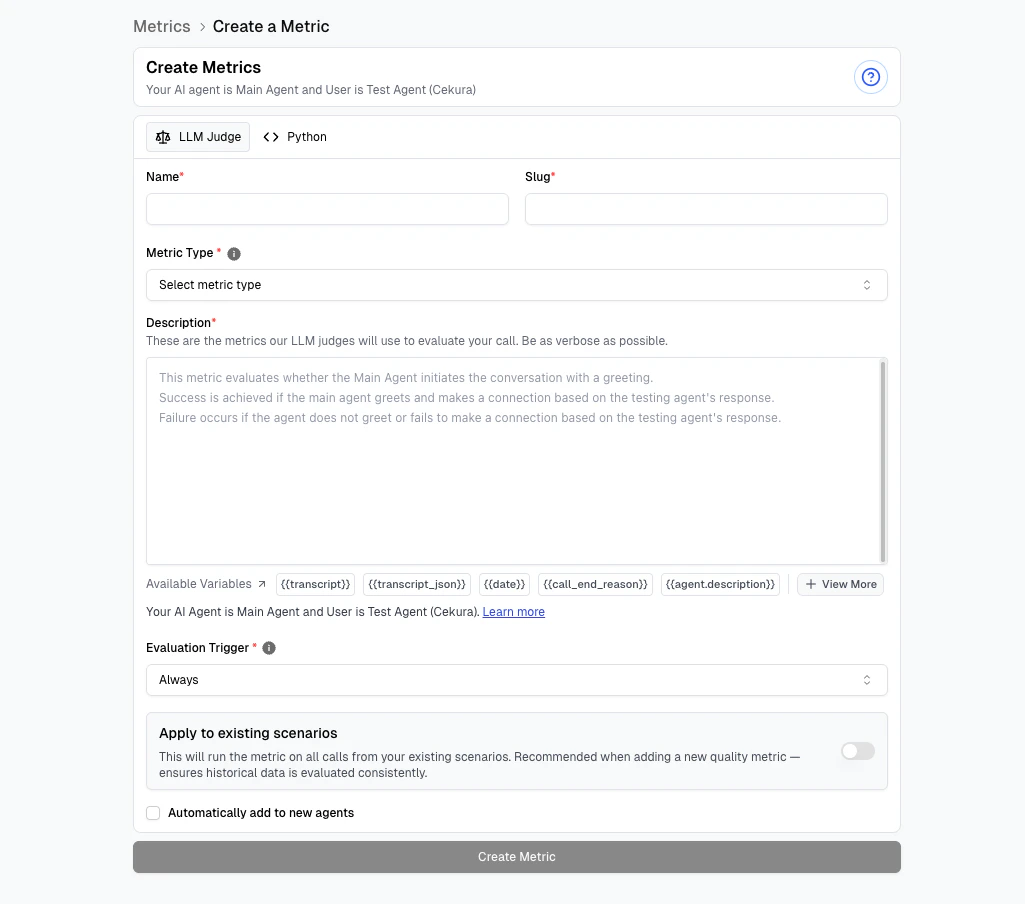
## Using Variables in Metrics
When creating metrics, you can reference these variables directly in your metric configuration. Here's how it looks in the interface:
 ## Key Points
* Variables are case-sensitive: `{{user_name}}` ≠ `{{User_Name}}`
* Not all variables exist in every call - handle missing values
* **Variables must be accessed with their namespace prefix:**
* Use `{{metadata.ringing_duration}}` to access metadata fields
* Use `{{dynamic_variables.user_name}}` to access dynamic variables
* Dot notation: `{{metadata.customer_id}}`
* Bracket notation: `{{metadata["customer_id"]}}` (both work the same)
## Key Points
* Variables are case-sensitive: `{{user_name}}` ≠ `{{User_Name}}`
* Not all variables exist in every call - handle missing values
* **Variables must be accessed with their namespace prefix:**
* Use `{{metadata.ringing_duration}}` to access metadata fields
* Use `{{dynamic_variables.user_name}}` to access dynamic variables
* Dot notation: `{{metadata.customer_id}}`
* Bracket notation: `{{metadata["customer_id"]}}` (both work the same)