> ## Documentation Index
> Fetch the complete documentation index at: https://docs.cekura.ai/llms.txt
> Use this file to discover all available pages before exploring further.
# Testing
> This guide will walk you through the process of setting up and testing voice agents using Retell integration in Cekura. When creating a new agent, you can select Retell as your provider from the available options in the agent creation interface.
export const CopyPageButton = () => {
if (typeof window !== 'undefined') {
setTimeout(function () {
if (document.getElementById('ck-tools')) return;
var anchor = document.getElementById('content-area') || document.querySelector('.mdx-content');
if (!anchor) return;
if (!document.getElementById('ck-style')) {
var s = document.createElement('style');
s.id = 'ck-style';
s.textContent = '#ck-tools{position:absolute;top:6px;right:0;z-index:100;font-family:inherit;}' + '.ck-row{display:inline-flex;align-items:stretch;border:1px solid rgba(0,0,0,0.15);border-radius:8px;overflow:hidden;background:#fff;}' + ':root.dark .ck-row{background:rgba(255,255,255,0.06);border-color:rgba(255,255,255,0.12);}' + '.ck-btn{padding:5px 12px;border:none;background:none;cursor:pointer;font-size:13px;font-weight:500;font-family:inherit;color:#374151;}' + ':root.dark .ck-btn{color:#d1d5db;}' + '.ck-btn:hover{background:rgba(0,0,0,0.04);}' + ':root.dark .ck-btn:hover{background:rgba(255,255,255,0.06);}' + '.ck-chevron{padding:5px 8px;border:none;background:none;cursor:pointer;font-size:14px;font-family:inherit;color:#374151;}' + ':root.dark .ck-chevron{color:#d1d5db;}' + '.ck-chevron:hover{background:rgba(0,0,0,0.04);}' + ':root.dark .ck-chevron:hover{background:rgba(255,255,255,0.06);}' + '.ck-divider{width:1px;background:rgba(0,0,0,0.12);flex-shrink:0;}' + ':root.dark .ck-divider{background:rgba(255,255,255,0.12);}' + '.ck-dd{position:absolute;top:calc(100% + 4px);right:0;min-width:180px;background:#fff;border:1px solid rgba(0,0,0,0.12);border-radius:8px;box-shadow:0 4px 12px rgba(0,0,0,0.1);padding:4px;display:none;z-index:200;}' + ':root.dark .ck-dd{background:#1f2937;border-color:rgba(255,255,255,0.1);box-shadow:0 4px 16px rgba(0,0,0,0.35);}' + '.ck-item{display:block;width:100%;padding:7px 12px;border:none;background:none;border-radius:6px;cursor:pointer;font-size:13px;font-family:inherit;text-align:left;color:#374151;}' + ':root.dark .ck-item{color:#d1d5db;}' + '.ck-item:hover{background:rgba(0,0,0,0.05);}' + ':root.dark .ck-item:hover{background:rgba(255,255,255,0.07);}';
document.head.appendChild(s);
}
var wrap = document.createElement('div');
wrap.id = 'ck-tools';
var row = document.createElement('div');
row.className = 'ck-row';
var mainBtn = document.createElement('button');
mainBtn.className = 'ck-btn';
mainBtn.textContent = 'Copy page';
var divider = document.createElement('span');
divider.className = 'ck-divider';
var chevron = document.createElement('button');
chevron.className = 'ck-chevron';
chevron.textContent = '▾';
var dd = document.createElement('div');
dd.className = 'ck-dd';
function closeDD() {
dd.style.display = 'none';
}
function openDD() {
dd.style.display = 'block';
}
chevron.onclick = function (e) {
e.stopPropagation();
if (dd.style.display === 'block') {
closeDD();
} else {
openDD();
}
};
document.addEventListener('click', function (e) {
if (!e.target.closest('#ck-tools')) {
closeDD();
}
});
document.addEventListener('keydown', function (e) {
if (e.key === 'Escape') {
closeDD();
}
});
function makeItem(label, fn) {
var b = document.createElement('button');
b.className = 'ck-item';
b.textContent = label;
b.onclick = function () {
fn();
closeDD();
};
return b;
}
function getMarkdown() {
var walk = function (node) {
if (!node) return '';
if (node.nodeType === 3) return node.textContent || '';
if (node.nodeType !== 1) return '';
var tag = node.tagName.toLowerCase();
var skip = ['script', 'style', 'svg', 'noscript', 'button', 'iframe'];
if (skip.indexOf(tag) !== -1) return '';
if (node.id === 'ck-tools') return '';
var ch = Array.from(node.childNodes).map(walk).join('');
if (tag === 'h1') return '\n# ' + ch.trim() + '\n\n';
if (tag === 'h2') return '\n## ' + ch.trim() + '\n\n';
if (tag === 'h3') return '\n### ' + ch.trim() + '\n\n';
if (tag === 'p') return '\n' + ch.trim() + '\n\n';
if (tag === 'pre') return '\n```\n' + node.textContent.trim() + '\n```\n\n';
if (tag === 'li') return '- ' + ch.trim() + '\n';
if (tag === 'code') return '`' + ch.trim() + '`';
return ch;
};
var content = document.querySelector('.mdx-content') || document.getElementById('content-area') || document.body;
return walk(content).replace(/\n\n\n+/g, '\n\n').trim();
}
function copyMd() {
var md = getMarkdown();
navigator.clipboard.writeText(md).then(function () {
mainBtn.textContent = 'Copied!';
setTimeout(function () {
mainBtn.textContent = 'Copy page';
}, 2000);
});
}
function viewMd() {
var md = getMarkdown();
var safe = md.split('&').join('&').split('<').join('<').split('>').join('>');
var html = '' + safe + '';
window.open(URL.createObjectURL(new Blob([html], {
type: 'text/html'
})), '_blank');
}
function openClaude() {
var prompt = 'Can you read this Cekura docs page ' + window.location.href + ' so I can ask you questions?';
window.open('https://claude.ai/new?q=' + encodeURIComponent(prompt), '_blank');
}
mainBtn.onclick = copyMd;
dd.appendChild(makeItem('Copy page', copyMd));
dd.appendChild(makeItem('View as Markdown', viewMd));
dd.appendChild(makeItem('Open in Claude', openClaude));
row.appendChild(mainBtn);
row.appendChild(divider);
row.appendChild(chevron);
wrap.appendChild(row);
wrap.appendChild(dd);
anchor.style.position = 'relative';
anchor.insertBefore(wrap, anchor.firstChild);
}, 50);
}
return null;
};
## Video Tutorial
Watch this video to see the Retell integration in action:
## Prerequisites
* A Cekura account
* A deployed Retell Assistant.
* Your Retell **API Key**.
* The Retell **Assistant ID** of the voice agent you wish to test.
## Testing with Retell
This guide walks you through setting up and testing your Voice AI agents built on the Retell platform using Cekura.
By linking your Retell Assistant to Cekura, you can run automated test suites, analyze call performance, and ensure agent quality.
### Integration Features
The Retell integration includes these automation features:
* **[Auto-Sync Prompt](#auto-sync-prompt)**: Automatically syncs your agent's prompt from Retell.
* **[Mock Tools](/documentation/guides/testing-agents/mock-tools)**: Fetch and mock all tools in your Retell agent with one click. Test tool integrations without hitting production endpoints.
* **[Auto-Fetch Calls](/documentation/integrations/retell/observability)**: Pulls production calls from Retell every minute so all call data is captured for analysis.
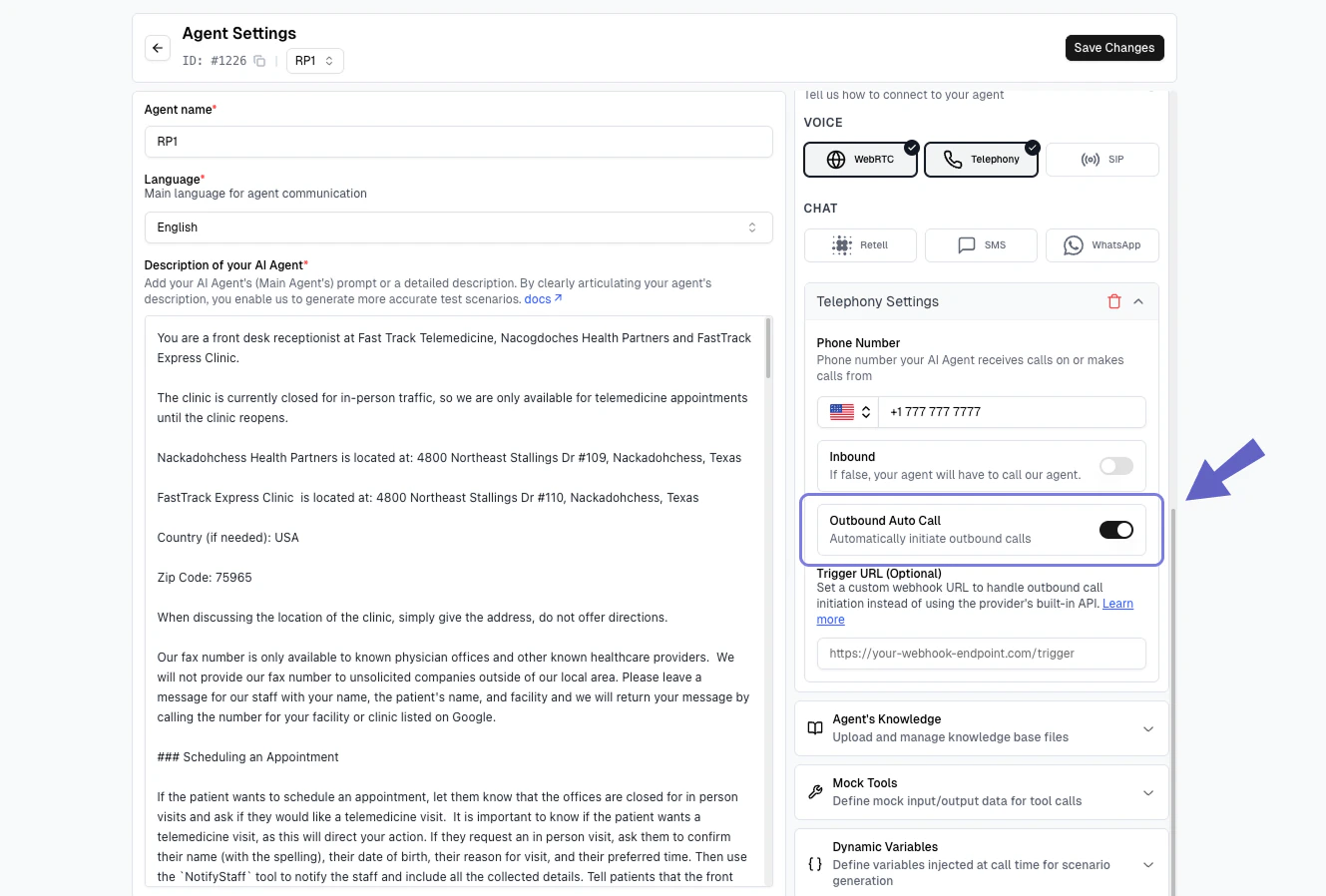
* **[Auto-Outbound Call](/documentation/guides/testing-agents/outbound-auto-call)**: Initiates outbound calls to your Retell agent automatically—no testing scripts required.
Test your Retell voice agents with automated call simulation.
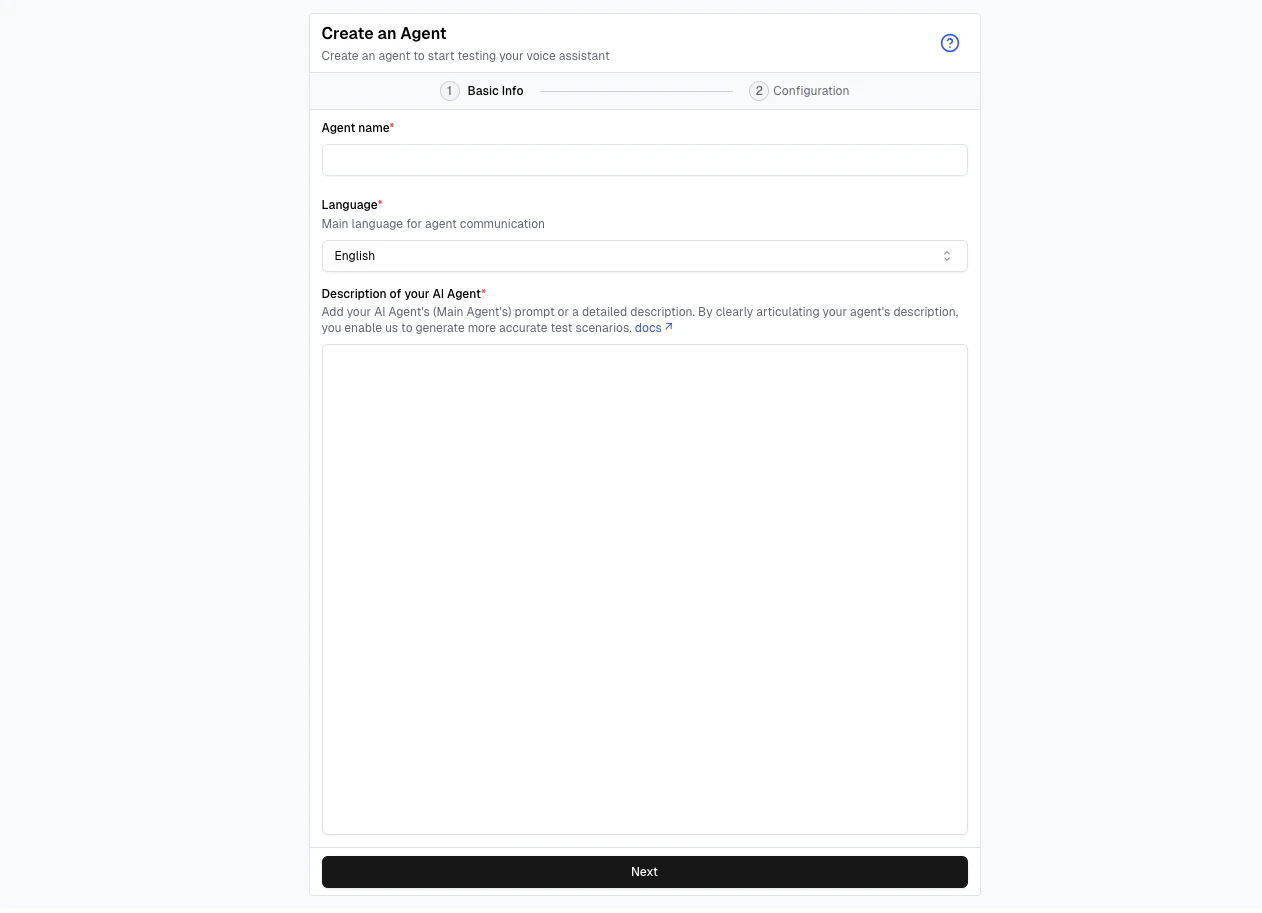
1. Navigate to the **Agents** section using the side navigation bar.
2. Click the **Create Agent** button in the top right, or click **Create your first agent** if you're new.
3. Fill in the **Agent name**, **Language**, and **Description of your AI Agent**, then click **Next**.
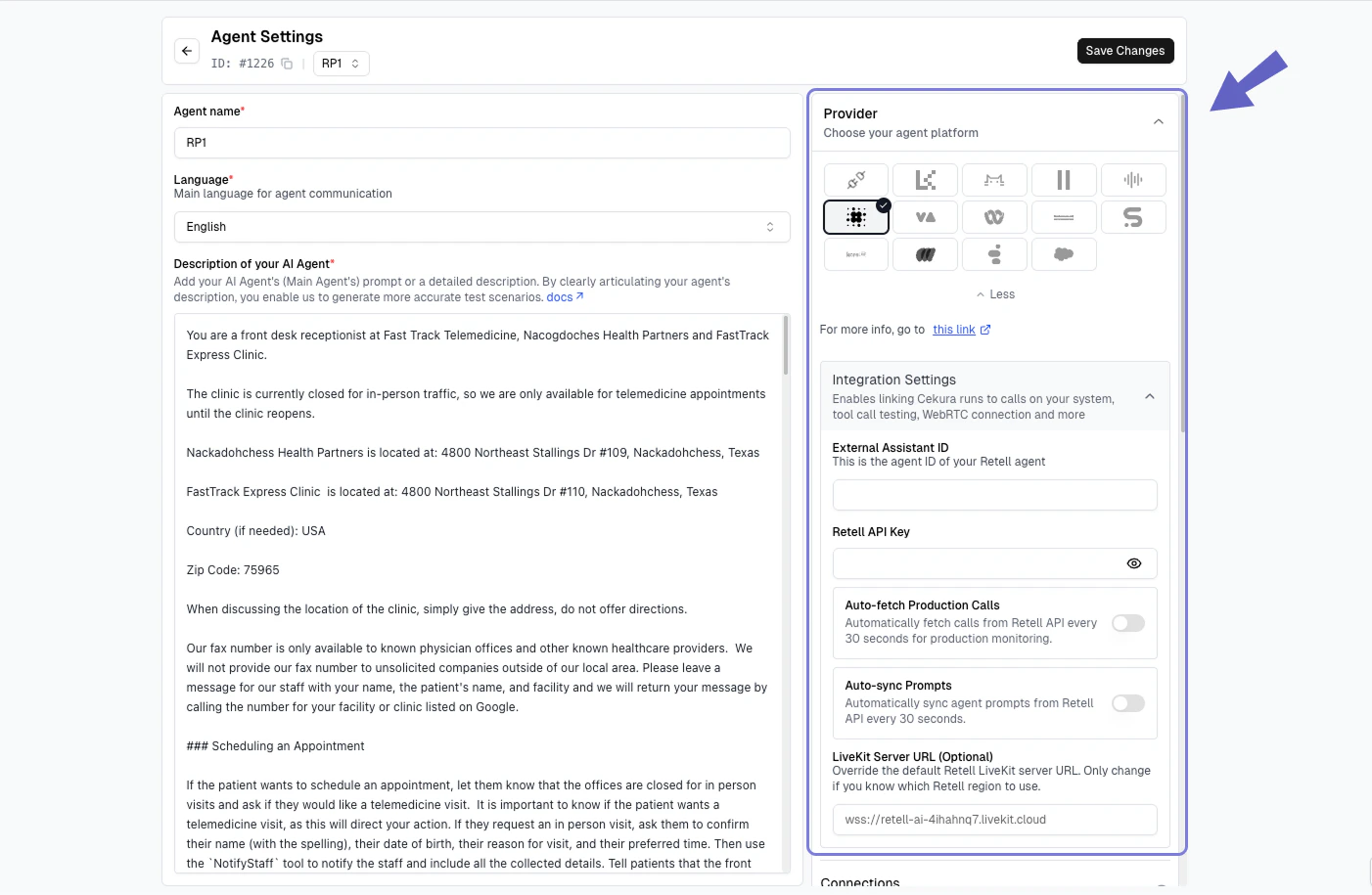
1. In the **Provider** panel on the right, select **Retell**.
2. Under **Integration Settings**, enter the **External Assistant ID** of your Retell agent.
3. Enter your **Retell API Key** in the designated field.
4. Click **Save Changes** to configure the agent.
> **Note:** The Retell Assistant ID is unique to each agent and is required for Cekura to simulate calls with the correct Retell workflow.
Once your Retell Agent is configured:
1. Go to **Simulation → Evaluator**.
2. Click **Generate Evaluators** to auto-create some scenarios (or create one).
You can also use the [Infrastructure Suite](/documentation/guides/testing-agents/infrastructure-suite) to instantly add 18+ pre-built test cases covering latency, audio quality, and interruption handling.
3. Choose a **Scenario** from the list .
4. Click the **Play button (▶︎)** button next to it to start your first test.
1. Monitor the test in **Simulation → Runs Overview**.
2. View **transcripts, audio, and metrics** in **Results**.
3. Use **Re-run Failed** or **Lab → Optimize** to refine and rerun.
Test your Retell chat agents through text-based interactions.
First, ensure you have a chat-compatible version of your agent:
1. Log in to your **Retell Dashboard**.
2. Locate the voice agent you want to test as a chat agent.
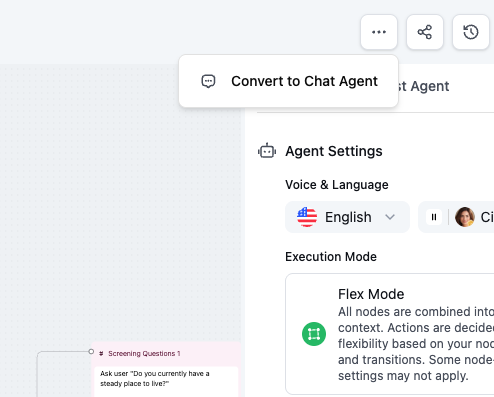
3. Use the **Copy as chat agent** option to create a text-based version of your agent.
4. Note the **Agent ID** of your chat agent - you'll need this for Cekura configuration.
> **Note:** The chat version enables text-based interactions while maintaining the same conversation logic as your voice agent.
Link your Retell chat agent to the Cekura platform:
1. Navigate to the **Agents** section and open the agent you want to configure.
2. In the **Provider** panel on the right, select **Retell**.
3. Under **Integration Settings**, enter the **External Assistant ID** of your Retell chat agent (created in Step 1).
4. Enter your **Retell API Key** in the designated field.
5. Click **Save Changes**.
> **Important:** Make sure to use the Assistant ID from your chat agent (created in Step 1), not your voice agent.
Execute your tests to ensure results appear on the dashboard:
1. Navigate to **Evaluator**.
2. Click **Generate Evaluators** or **Create Evaluators** (Skip this step if you already have evaluators created).
You can also use the [Infrastructure Suite](/documentation/guides/testing-agents/infrastructure-suite) to instantly add 18+ pre-built test cases covering latency, audio quality, and interruption handling.
3. Choose an **Evaluator** from the list.
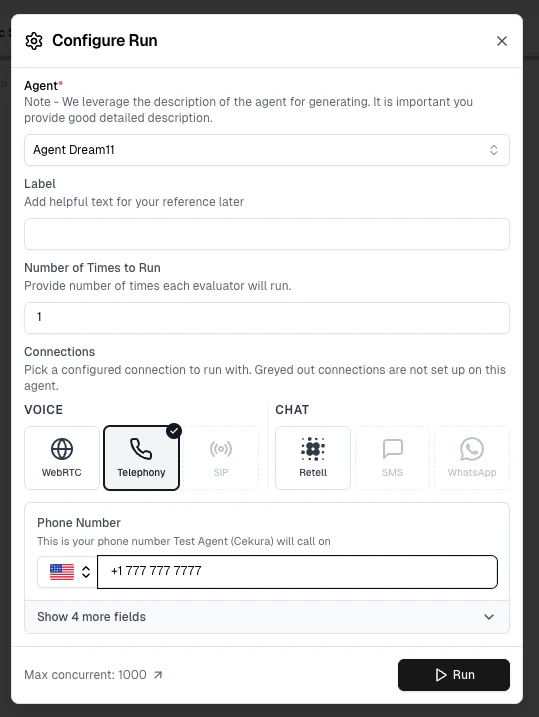
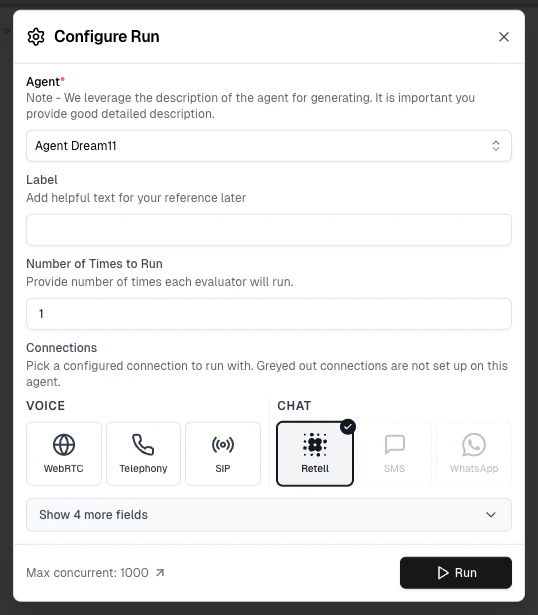
4. Click **Run** to open the **Configure Run** dialog. Under **Connections**, select **Retell** under the **CHAT** section to conduct a chat run.
> **Note:** Greyed out connections are not configured, set them up in your [Agent Setting's **Provider**](/documentation/key-concepts/agents/Agent_Setup_Guide#chat-connection) panel if you want to run with SMS or WhatsApp.
5. Monitor the test in **Results** section.
> **Tip:** Chat testing is ideal for rapid iteration on conversation design before deploying to voice.
### Helpful Tips
* **Run Workflow Testing:** Even if you are building voice agents on Retell, running them in text mode is much faster and cheaper. You will be able to effectively test the workflow of your agent with this approach we use the chat endpoint provided by Retell.
* **No Phone Number needed:** With chat testing, you do not need to configure any phone number on Retell.
Test your Retell voice agents through direct WebRTC connections—no phone number required. Faster and cheaper than phone-based testing, ideal for rapid iteration.
1. Navigate to the **Agents** section and open the agent you want to configure.
2. In the **Provider** panel on the right, select **Retell**.
3. Under **Integration Settings**, enter the **External Assistant ID** of your Retell agent.
4. Enter your **Retell API Key** in the designated field.
5. Click **Save Changes**.
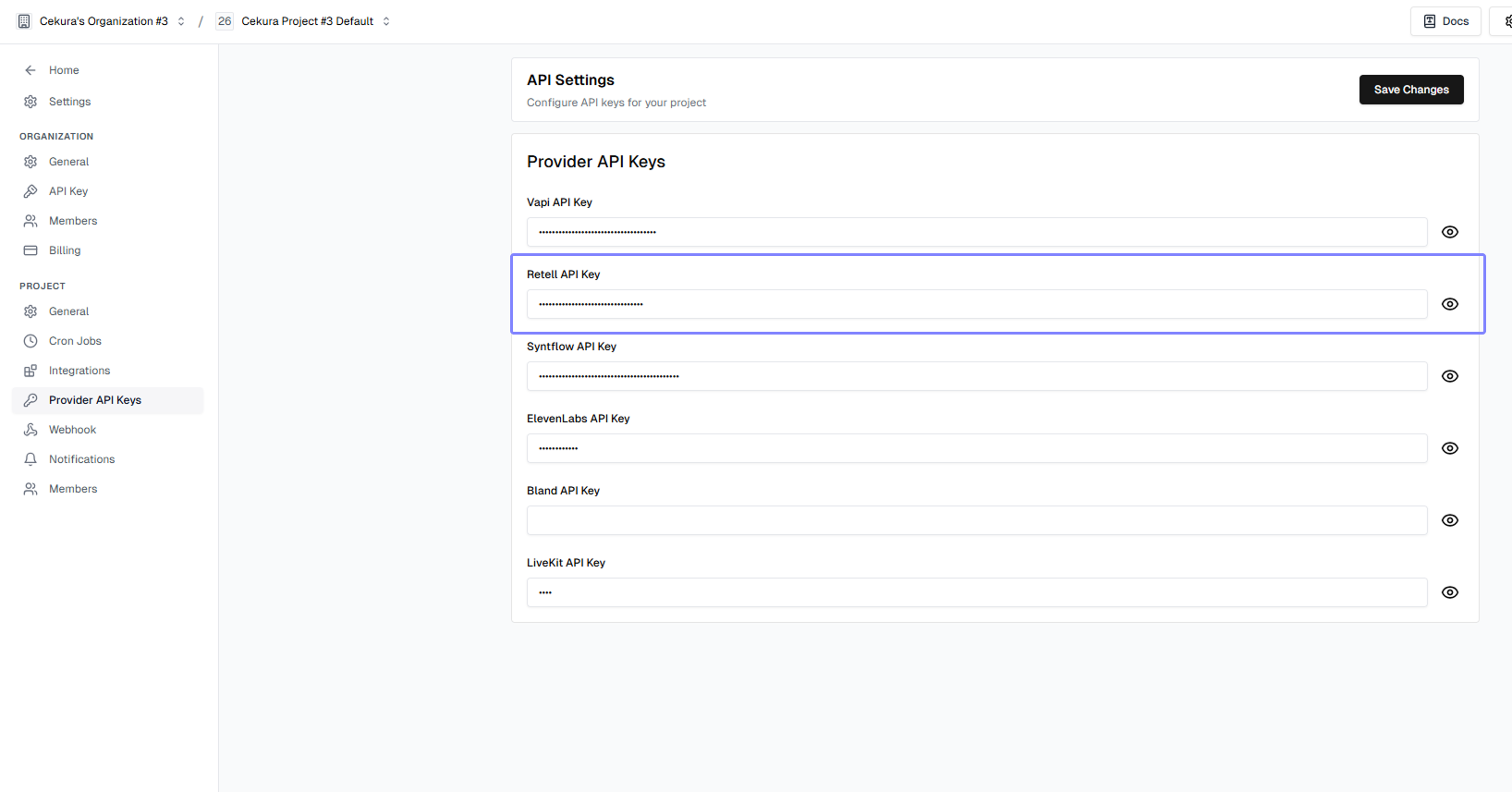
> **Note:** You can also configure your Retell API Key globally in **Settings → Provider API Keys** to use it across all Retell agents.
Once your Retell Agent is configured:
1. Go to **Simulation → Evaluator**.
2. Click **Generate Evaluators** to auto-create basic metrics, or select existing evaluators.
You can also use the [Infrastructure Suite](/documentation/guides/testing-agents/infrastructure-suite) to instantly add 18+ pre-built test cases covering latency, audio quality, and interruption handling.
3. Choose an **Evaluator** from the list.
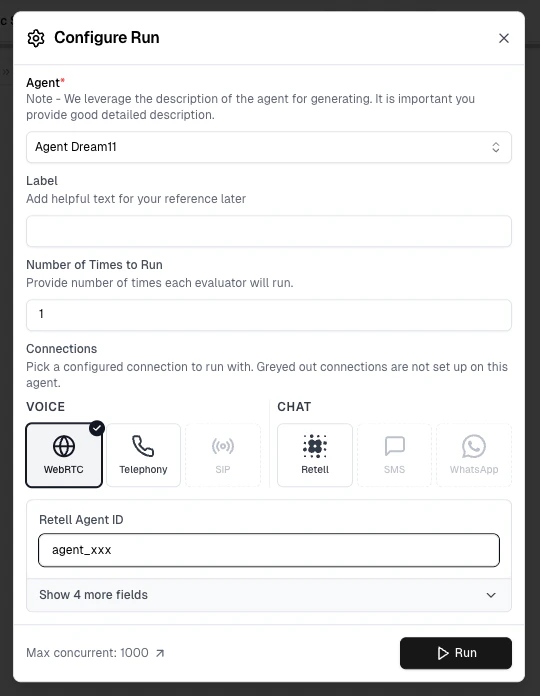
4. Select **WebRTC** Voice option, and click **Run** to start the test.
5. Monitor the test in **Simulation → Runs Overview**.
> **Note:** For programmatic testing, you can also run WebRTC tests via the [Run Evaluator API](/api-reference/test_framework/run-evaluator-voice).
1. Navigate to **Simulation → Runs Overview** to monitor test progress.
2. View **transcripts, audio, and metrics** in **Results**.
3. Use **Re-run Failed** or **Lab → Optimize** to refine and rerun.
WebRTC tests skip phone infrastructure entirely—no phone number needed, no telephony costs, and tests start immediately.
## Value of Retell Integration
Integrating your Retell Agent with Cekura unlocks powerful testing and observability features:
* **Detailed Tool Call Information:** Cekura is able to capture and display granular data on **tool calls** made by your Retell agent during a conversation, which is critical for debugging complex workflows.
* **Metadata Access:** Access **any metadata** available from Retell calls, enabling richer, context-aware evaluations of agent performance.
* **Automated Outbound Calling:** Leverage Cekura's infrastructure for **automated outbound calling** to run large-scale, performance-driven test campaigns.
This setup is recommended as it configures your Retell API Key once, making it available **across all Retell agents within your project**. Completing this step means you **will not** need to enter the API Key when creating subsequent Retell agents.
1. Log in to your [Cekura Dashboard](https://dashboard.cekura.ai).
2. Click on the **Settings** button (usually on the top right of the navigation bar).
3. Navigate to the **Provider API Keys** tab.
4. Locate the Retell section.
5. Enter your Retell **API Key** in the designated field.
6. Click **Save Changes**.
## Auto-Sync Prompt
With auto-sync enabled, Cekura automatically pulls your agent's prompt from Retell every 30 seconds and updates the description field—no manual updates required.
The feature supports:
* **Standard Retell LLM agents**: Syncs the `general_prompt` from your Retell LLM configuration
* **Conversation Flow agents**: Syncs the entire conversation flow as JSON
To enable auto-sync, toggle on **Auto-sync Prompt** in the Retell voice integration settings on your Agent Settings page.
Auto-sync requires a valid Retell API Key and Assistant ID. If credentials become invalid or the assistant is deleted, auto-sync will automatically disable itself.
## Mock Tools (optional)
If your Retell agent calls tools, you can test it without hitting live services using [Mock Tools](/documentation/key-concepts/evaluators/mock-tools). Use **Auto-Fetch** to pull your Retell tools and generate mock data, then enable the **Mock** toggle — Cekura updates the tool URLs directly in your LLM/Flow configuration and restores the originals when you disable the toggle.
Retell's call data already includes the tool calls your agent made, and Cekura extracts those into the transcript automatically. So the [Mock Tool Call Accuracy](/documentation/key-concepts/evaluators/mock-tools#verifying-tool-calls-the-mock-tool-call-accuracy-metric) metric works out of the box — unlike a [custom integration](/documentation/integrations/custom-integration#mock-tools-optional), you don't assemble or send the transcript yourself.
## Next Steps
* Learn about [custom metrics](/documentation/key-concepts/metrics/custom-metrics)
* Explore [predefined metrics](/documentation/key-concepts/metrics/pre-defined-metrics)
* Set up [instruction following metric](/documentation/key-concepts/metrics/instruction-following-metric)
 > **Note:** The Retell Assistant ID is unique to each agent and is required for Cekura to simulate calls with the correct Retell workflow.
 > **Note:** The chat version enables text-based interactions while maintaining the same conversation logic as your voice agent.
 > **Note:** Greyed out connections are not configured, set them up in your [Agent Setting's **Provider**](/documentation/key-concepts/agents/Agent_Setup_Guide#chat-connection) panel if you want to run with SMS or WhatsApp.
5. Monitor the test in **Results** section.
> **Tip:** Chat testing is ideal for rapid iteration on conversation design before deploying to voice.
> **Note:** Greyed out connections are not configured, set them up in your [Agent Setting's **Provider**](/documentation/key-concepts/agents/Agent_Setup_Guide#chat-connection) panel if you want to run with SMS or WhatsApp.
5. Monitor the test in **Results** section.
> **Tip:** Chat testing is ideal for rapid iteration on conversation design before deploying to voice.
 > **Note:** For programmatic testing, you can also run WebRTC tests via the [Run Evaluator API](/api-reference/test_framework/run-evaluator-voice).