> ## Documentation Index
> Fetch the complete documentation index at: https://docs.cekura.ai/llms.txt
> Use this file to discover all available pages before exploring further.
# Observability
> Monitor and analyze your ElevenLabs-based voice agents
export const CopyPageButton = () => {
if (typeof window !== 'undefined') {
setTimeout(function () {
if (document.getElementById('ck-tools')) return;
var anchor = document.getElementById('content-area') || document.querySelector('.mdx-content');
if (!anchor) return;
if (!document.getElementById('ck-style')) {
var s = document.createElement('style');
s.id = 'ck-style';
s.textContent = '#ck-tools{position:absolute;top:6px;right:0;z-index:100;font-family:inherit;}' + '.ck-row{display:inline-flex;align-items:stretch;border:1px solid rgba(0,0,0,0.15);border-radius:8px;overflow:hidden;background:#fff;}' + ':root.dark .ck-row{background:rgba(255,255,255,0.06);border-color:rgba(255,255,255,0.12);}' + '.ck-btn{padding:5px 12px;border:none;background:none;cursor:pointer;font-size:13px;font-weight:500;font-family:inherit;color:#374151;}' + ':root.dark .ck-btn{color:#d1d5db;}' + '.ck-btn:hover{background:rgba(0,0,0,0.04);}' + ':root.dark .ck-btn:hover{background:rgba(255,255,255,0.06);}' + '.ck-chevron{padding:5px 8px;border:none;background:none;cursor:pointer;font-size:14px;font-family:inherit;color:#374151;}' + ':root.dark .ck-chevron{color:#d1d5db;}' + '.ck-chevron:hover{background:rgba(0,0,0,0.04);}' + ':root.dark .ck-chevron:hover{background:rgba(255,255,255,0.06);}' + '.ck-divider{width:1px;background:rgba(0,0,0,0.12);flex-shrink:0;}' + ':root.dark .ck-divider{background:rgba(255,255,255,0.12);}' + '.ck-dd{position:absolute;top:calc(100% + 4px);right:0;min-width:180px;background:#fff;border:1px solid rgba(0,0,0,0.12);border-radius:8px;box-shadow:0 4px 12px rgba(0,0,0,0.1);padding:4px;display:none;z-index:200;}' + ':root.dark .ck-dd{background:#1f2937;border-color:rgba(255,255,255,0.1);box-shadow:0 4px 16px rgba(0,0,0,0.35);}' + '.ck-item{display:block;width:100%;padding:7px 12px;border:none;background:none;border-radius:6px;cursor:pointer;font-size:13px;font-family:inherit;text-align:left;color:#374151;}' + ':root.dark .ck-item{color:#d1d5db;}' + '.ck-item:hover{background:rgba(0,0,0,0.05);}' + ':root.dark .ck-item:hover{background:rgba(255,255,255,0.07);}';
document.head.appendChild(s);
}
var wrap = document.createElement('div');
wrap.id = 'ck-tools';
var row = document.createElement('div');
row.className = 'ck-row';
var mainBtn = document.createElement('button');
mainBtn.className = 'ck-btn';
mainBtn.textContent = 'Copy page';
var divider = document.createElement('span');
divider.className = 'ck-divider';
var chevron = document.createElement('button');
chevron.className = 'ck-chevron';
chevron.textContent = '▾';
var dd = document.createElement('div');
dd.className = 'ck-dd';
function closeDD() {
dd.style.display = 'none';
}
function openDD() {
dd.style.display = 'block';
}
chevron.onclick = function (e) {
e.stopPropagation();
if (dd.style.display === 'block') {
closeDD();
} else {
openDD();
}
};
document.addEventListener('click', function (e) {
if (!e.target.closest('#ck-tools')) {
closeDD();
}
});
document.addEventListener('keydown', function (e) {
if (e.key === 'Escape') {
closeDD();
}
});
function makeItem(label, fn) {
var b = document.createElement('button');
b.className = 'ck-item';
b.textContent = label;
b.onclick = function () {
fn();
closeDD();
};
return b;
}
function getMarkdown() {
var walk = function (node) {
if (!node) return '';
if (node.nodeType === 3) return node.textContent || '';
if (node.nodeType !== 1) return '';
var tag = node.tagName.toLowerCase();
var skip = ['script', 'style', 'svg', 'noscript', 'button', 'iframe'];
if (skip.indexOf(tag) !== -1) return '';
if (node.id === 'ck-tools') return '';
var ch = Array.from(node.childNodes).map(walk).join('');
if (tag === 'h1') return '\n# ' + ch.trim() + '\n\n';
if (tag === 'h2') return '\n## ' + ch.trim() + '\n\n';
if (tag === 'h3') return '\n### ' + ch.trim() + '\n\n';
if (tag === 'p') return '\n' + ch.trim() + '\n\n';
if (tag === 'pre') return '\n```\n' + node.textContent.trim() + '\n```\n\n';
if (tag === 'li') return '- ' + ch.trim() + '\n';
if (tag === 'code') return '`' + ch.trim() + '`';
return ch;
};
var content = document.querySelector('.mdx-content') || document.getElementById('content-area') || document.body;
return walk(content).replace(/\n\n\n+/g, '\n\n').trim();
}
function copyMd() {
var md = getMarkdown();
navigator.clipboard.writeText(md).then(function () {
mainBtn.textContent = 'Copied!';
setTimeout(function () {
mainBtn.textContent = 'Copy page';
}, 2000);
});
}
function viewMd() {
var md = getMarkdown();
var safe = md.split('&').join('&').split('<').join('<').split('>').join('>');
var html = '' + safe + '';
window.open(URL.createObjectURL(new Blob([html], {
type: 'text/html'
})), '_blank');
}
function openClaude() {
var prompt = 'Can you read this Cekura docs page ' + window.location.href + ' so I can ask you questions?';
window.open('https://claude.ai/new?q=' + encodeURIComponent(prompt), '_blank');
}
mainBtn.onclick = copyMd;
dd.appendChild(makeItem('Copy page', copyMd));
dd.appendChild(makeItem('View as Markdown', viewMd));
dd.appendChild(makeItem('Open in Claude', openClaude));
row.appendChild(mainBtn);
row.appendChild(divider);
row.appendChild(chevron);
wrap.appendChild(row);
wrap.appendChild(dd);
anchor.style.position = 'relative';
anchor.insertBefore(wrap, anchor.firstChild);
}, 50);
}
return null;
};
## Overview
This guide walks you through setting up and monitoring your ElevenLabs-based voice agents using Cekura's observability suite. Learn how to configure your integration and access powerful monitoring tools.
Auto-fetch pulls your call data from ElevenLabs every 30 seconds—no webhook configuration required.
In your Cekura dashboard, create a new agent or select an existing one with ElevenLabs as the voice provider.
In the Agent Settings page:
1. Select **ElevenLabs** as the voice integration provider
2. Add your ElevenLabs API key
3. Enter your ElevenLabs Agent ID
Toggle on **Auto-fetch Production Calls** in the voice integration settings.
Make a test call from ElevenLabs. Within 30 seconds, your call should appear in the Cekura observability `Calls` section.
Auto-fetch is ideal for getting started quickly or when you can't configure webhooks. For real-time call data, use the webhook-based setup.
Follow these steps to connect your ElevenLabs agent with Cekura's observability suite:
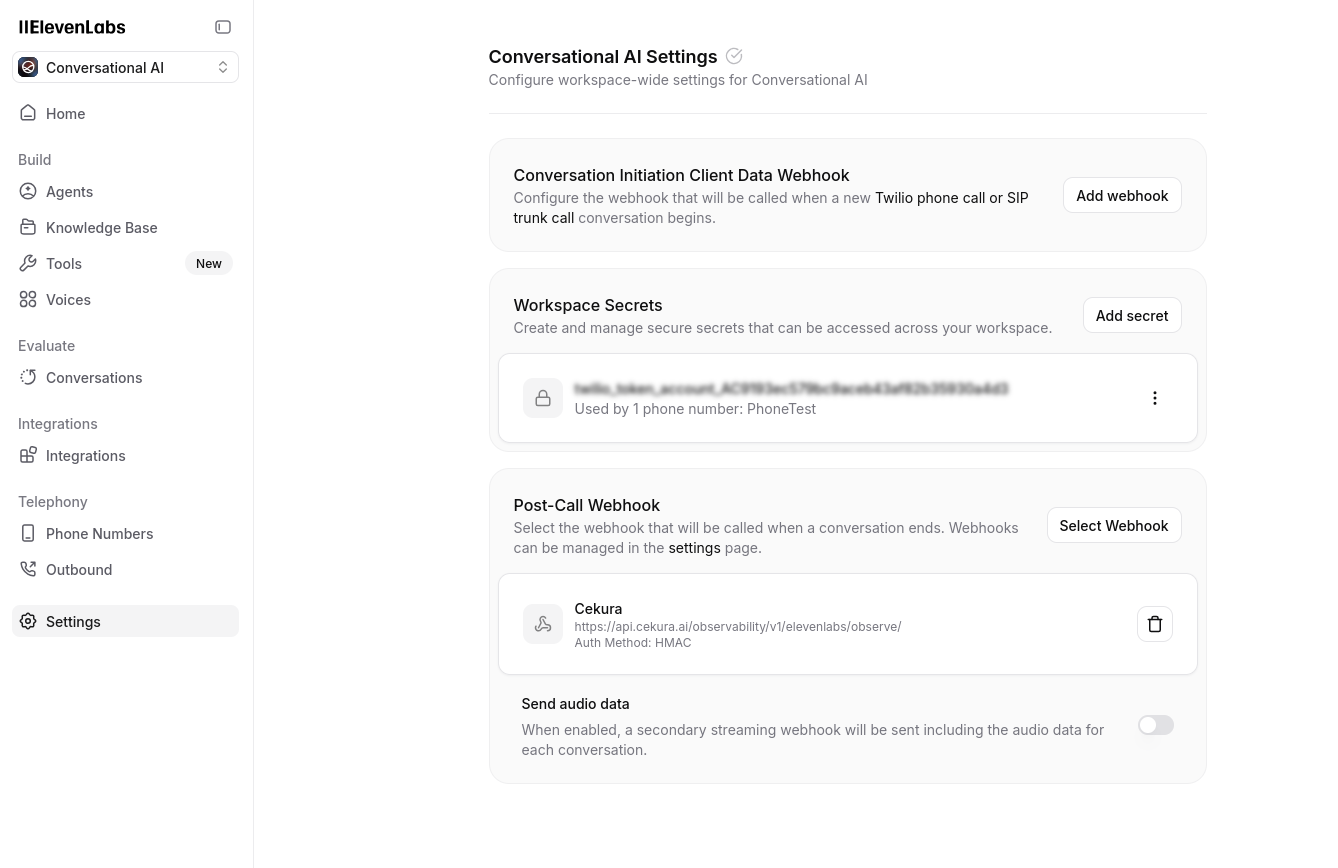
In your ElevenLabs dashboard, navigate to your agent settings and configure the observability webhook URL:
```
https://api.cekura.ai/observability/v1/elevenlabs/observe/
```
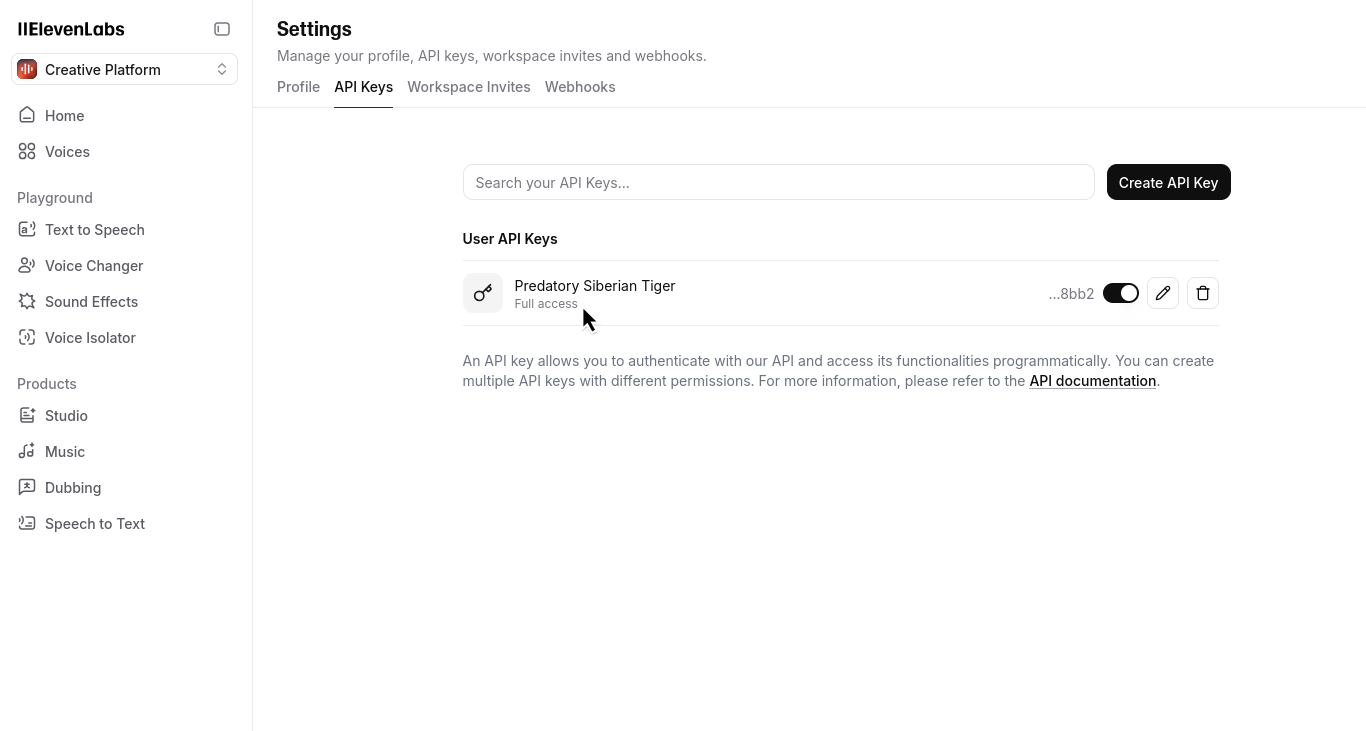
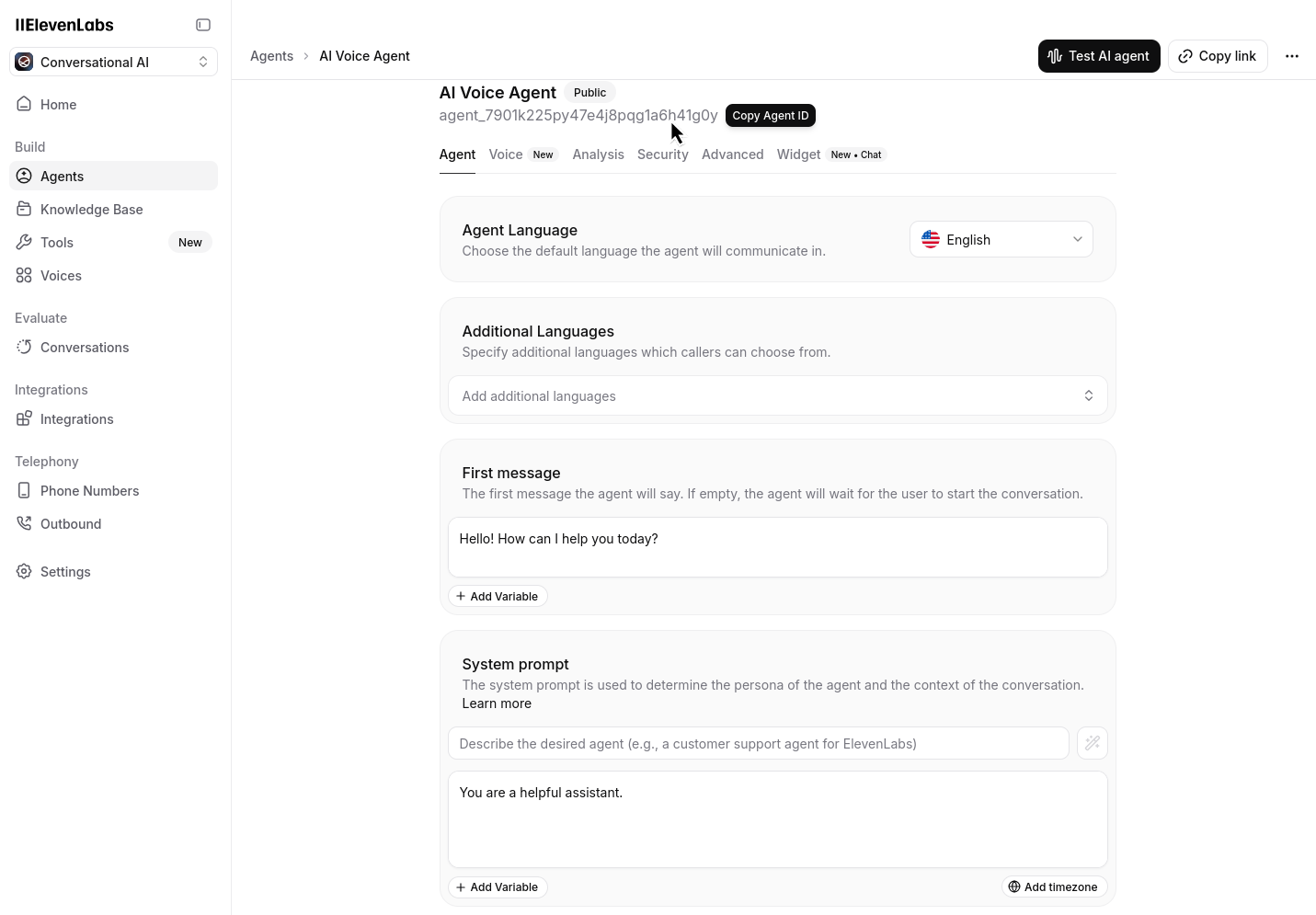
 Go to the API keys section in your ElevenLabs dashboard and ensure you have at least one API key configured. Also note your Agent ID from the dashboard:
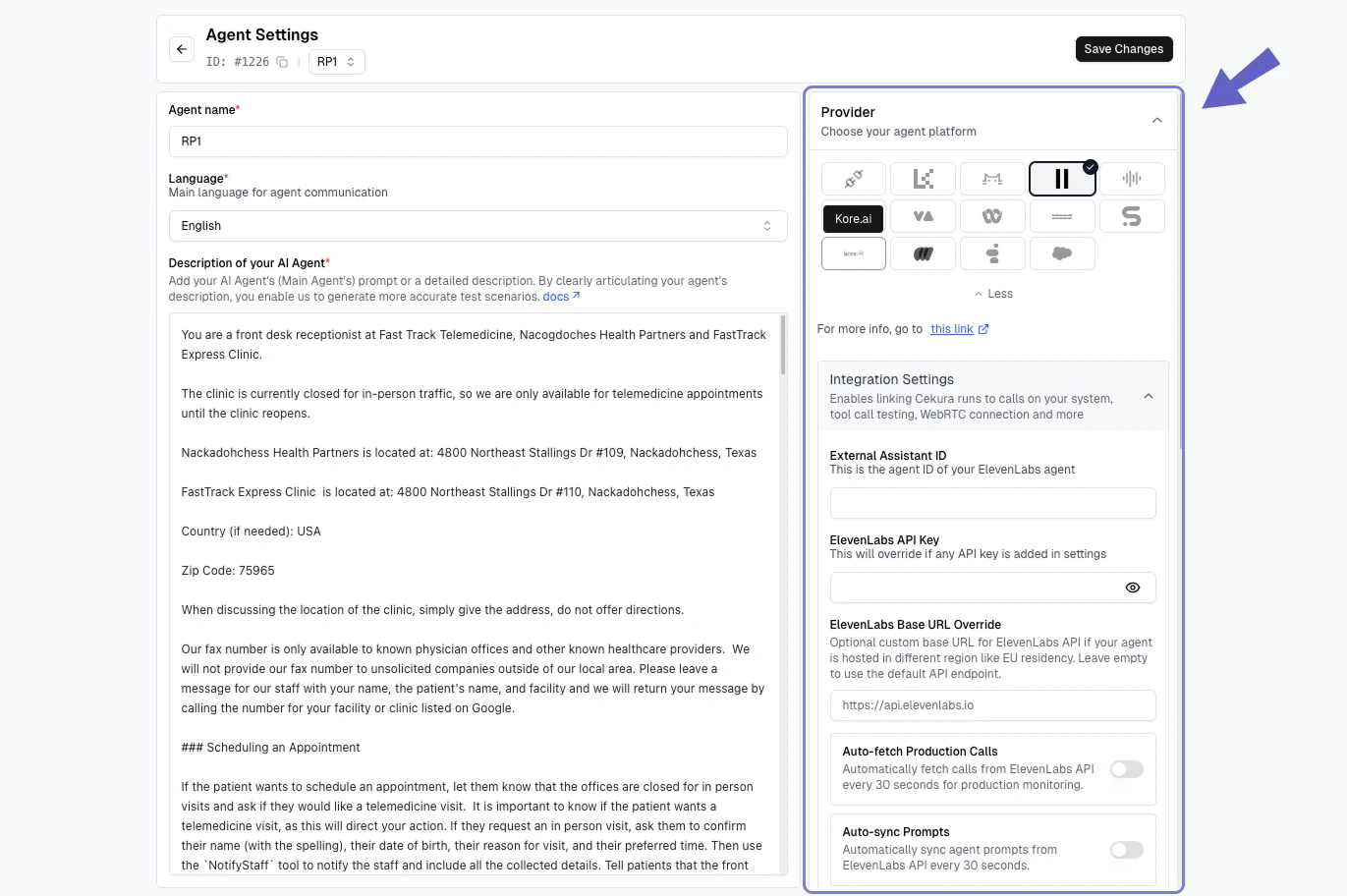
 In your Cekura Agent Settings page, add the API key from ElevenLabs and ensure you have copied your `agent ID` from ElevenLabs:
 Make a test call from ElevenLabs (phone number based or webcall). Your calls should now appear in the Cekura observability `Calls` section.
If you already have an existing webhook setup and want to forward the ElevenLabs response to Cekura's observability suite:
Set up a forwarding mechanism to send the ElevenLabs webhook response to Cekura's observability endpoint:
```
POST https://api.cekura.ai/observability/v1/observe/
```
Include your Cekura API key in the request headers:
```
X-CEKURA-API-KEY:
Content-Type: multipart/form-data
```
Forward the ElevenLabs webhook response to Cekura with the following request body structure:
```json theme={null}
{
"agent": ,
"transcript_type": "elevenlabs",
"transcript_json": elevenlabs_response["transcript"],
"call_id": elevenlabs_response["conversation_id"],
"voice_recording":
}
```
You should first download the audio data from the ElevenLabs API using the conversation ID, then pass this binary audio data to the Cekura Observe API as shown in the code examples below.
***
## Advanced: Code Implementation Examples
### Downloading Call Audio from ElevenLabs
You can download call audio recordings directly from ElevenLabs using their API. Here's a Python snippet that demonstrates how to retrieve call audio using the conversation ID and your ElevenLabs API key:
```python theme={null}
import requests
from typing import Optional, Union, Dict, Any, List, bytes
# configuration variables
ELEVENLABS_API_KEY = "your_elevenlabs_api_key"
ELEVENLABS_API_BASE_URL = "https://api.elevenlabs.io/v1"
def download_elevenlabs_call_audio(conversation_id: str, output_file: Optional[str] = None) -> Union[bytes, bool, None]:
"""
Download call audio recording from ElevenLabs API.
Args:
conversation_id (str): The ElevenLabs conversation ID
output_file (str, optional): Path to save the audio file. If None, returns the audio content
without saving to file.
Returns:
Union[bytes, bool, None]: If output_file is None, returns the audio content as bytes.
If output_file is provided, returns True if successful.
Returns None if the request fails.
"""
# API endpoint for retrieving conversation audio
url = f"{ELEVENLABS_API_BASE_URL}/convai/conversations/{conversation_id}/audio"
# Set up headers with API key
headers = {
"xi-api-key": ELEVENLABS_API_KEY,
}
# Make the request to ElevenLabs API
response = requests.get(url, headers=headers)
# Check if the request was successful
if response.status_code == 200:
# If output file is provided, save the file
if output_file:
with open(output_file, 'wb') as f:
f.write(response.content)
return True
# Otherwise return the audio content
return response.content
else:
print(f"Error: {response.status_code}")
print(response.text)
return None
# Example usage:
# conversation_id = "your_conversation_id"
#
# # Download and save to a file
# download_elevenlabs_call_audio(conversation_id, "call_recording.mp3")
#
# # Or just get the audio content without saving
# audio_content = download_elevenlabs_call_audio(conversation_id)
```
### Sending Call Data to Cekura's Observability API
After downloading the audio from ElevenLabs, you can send it along with the transcript data to Cekura's observability API. Here's how to do it:
```python theme={null}
import requests
import json
from typing import Optional, Dict, Any, List, Union
# configuration variables
ELEVENLABS_API_KEY = "your_elevenlabs_api_key"
CEKURA_API_KEY = "your_cekura_api_key"
CEKURA_AGENT_ID = "your_cekura_agent_id"
CEKURA_API_BASE_URL = "https://api.cekura.ai"
ELEVENLABS_API_BASE_URL = "https://api.elevenlabs.io/v1"
def send_to_cekura_observe(conversation_id: str, transcript_data: List[Dict[str, Any]],
audio_content: bytes) -> Optional[Dict[str, Any]]:
"""
Send ElevenLabs call data to Cekura's observability API.
Args:
conversation_id (str): The ElevenLabs conversation ID
transcript_data (List[Dict[str, Any]]): The transcript data from ElevenLabs
audio_content (bytes): The audio content downloaded from ElevenLabs
Returns:
Optional[Dict[str, Any]]: The response from the Cekura API or None if request failed
"""
# Cekura observability API endpoint
url = f"{CEKURA_API_BASE_URL}/observability/v1/observe/"
# Set up headers with Cekura API key
headers = {
"X-CEKURA-API-KEY": CEKURA_API_KEY
}
# Prepare the data payload
data = {
"agent": CEKURA_AGENT_ID,
"call_id": conversation_id,
"transcript_type": "elevenlabs",
"transcript_json": json.dumps(transcript_data)
}
# Prepare the files payload with the audio content
files = {
"voice_recording": (f"elevenlabs_recording_{conversation_id}.mp3", audio_content, "audio/mpeg")
}
# Make the request to Cekura API
response = requests.post(url, headers=headers, data=data, files=files)
# Check if the request was successful
if response.status_code == 201:
return response.json()
else:
print(f"Error: {response.status_code}")
print(response.text)
return None
# Example usage:
# conversation_id = "your_conversation_id"
#
# # First download the audio from ElevenLabs
# audio_content = download_elevenlabs_call_audio(conversation_id)
#
# # Get the transcript data from ElevenLabs (this would come from your webhook or API call)
# transcript_data = [...] # Your ElevenLabs transcript data
# # Send everything to Cekura
# if audio_content:
# result = send_to_cekura_observe(conversation_id, transcript_data, audio_content)
# print(f"Call log created with ID: {result['id']}")
```
### Extracting Agent Description from Workflows
If your ElevenLabs agent uses workflows, you can extract the complete agent description including system prompts, workflow nodes, and transfer conditions. This is useful for understanding your agent's structure when setting up observability and monitoring.
#### Usage
Run the script with your agent ID and ElevenLabs API key:
```bash theme={null}
python script.py <11LABS_API_KEY>
```
#### Script
```python theme={null}
# python script.py <11LABS_API_KEY>
import requests
import json
import argparse
def get_agent_description(agent_id: str, api_key: str) -> list | None:
api_url = f"https://api.elevenlabs.io/v1/convai/agents/{agent_id}"
headers = {
"Content-Type": "application/json",
"xi-api-key": api_key
}
try:
print(f"Fetching data for agent ID: {agent_id}...")
response = requests.get(api_url, headers=headers)
response.raise_for_status()
data = response.json()
print("Successfully fetched data.")
except requests.exceptions.RequestException as e:
print(f"Error: Failed to fetch data from API. {e}")
return None
agent_description = []
try:
system_prompt = data['conversation_config']['agent']['prompt']['prompt']
agent_description.append({
"node name": "system",
"node prompt": system_prompt
})
except KeyError:
print("Warning: Could not find the main system prompt.")
agent_description.append({
"node name": "system",
"node prompt": "Prompt not found in API response."
})
workflow = data.get('workflow', {})
if not workflow:
print("No workflow found for this agent.")
return agent_description
nodes = workflow.get('nodes', {})
edges = workflow.get('edges', {})
for node_id, node_data in nodes.items():
if node_data.get('type') == 'start':
continue
node_name = node_data.get('label', 'Unnamed Node')
node_prompt = node_data.get('additional_prompt', '')
transfer_conditions = []
if edges:
for edge_data in edges.values():
if edge_data.get('target') == node_id:
fwd_cond = edge_data.get('forward_condition')
if fwd_cond and fwd_cond.get('type') != 'unconditional':
condition_text = fwd_cond.get('condition') or fwd_cond.get('label')
if condition_text:
transfer_conditions.append(condition_text)
bwd_cond = edge_data.get('backward_condition')
if bwd_cond:
condition_text = bwd_cond.get('condition') or bwd_cond.get('label')
if condition_text:
transfer_conditions.append(condition_text)
agent_description.append({
"node name": node_name,
"node prompt": node_prompt,
"transfer conditions": transfer_conditions
})
return agent_description
if __name__ == "__main__":
parser = argparse.ArgumentParser(description="Fetch and format agent data from the Eleven Labs API.")
parser.add_argument("agent_id", type=str, help="The ID of the Eleven Labs agent to query.")
parser.add_argument("api_key", type=str, help="Your Eleven Labs API key.")
args = parser.parse_args()
description = get_agent_description(args.agent_id, args.api_key)
if description:
print("\n--- Generated Agent Description ---")
print(json.dumps(description, indent=2))
print("---------------------------------\n")
```
This script retrieves the agent's configuration from ElevenLabs, including the system prompt and all workflow nodes with their prompts and transfer conditions. The output is formatted as JSON and can be used to understand your agent's conversation flow when analyzing call logs in Cekura's observability suite.
Make a test call from ElevenLabs (phone number based or webcall). Your calls should now appear in the Cekura observability `Calls` section.
If you already have an existing webhook setup and want to forward the ElevenLabs response to Cekura's observability suite:
Set up a forwarding mechanism to send the ElevenLabs webhook response to Cekura's observability endpoint:
```
POST https://api.cekura.ai/observability/v1/observe/
```
Include your Cekura API key in the request headers:
```
X-CEKURA-API-KEY:
Content-Type: multipart/form-data
```
Forward the ElevenLabs webhook response to Cekura with the following request body structure:
```json theme={null}
{
"agent": ,
"transcript_type": "elevenlabs",
"transcript_json": elevenlabs_response["transcript"],
"call_id": elevenlabs_response["conversation_id"],
"voice_recording":
}
```
You should first download the audio data from the ElevenLabs API using the conversation ID, then pass this binary audio data to the Cekura Observe API as shown in the code examples below.
***
## Advanced: Code Implementation Examples
### Downloading Call Audio from ElevenLabs
You can download call audio recordings directly from ElevenLabs using their API. Here's a Python snippet that demonstrates how to retrieve call audio using the conversation ID and your ElevenLabs API key:
```python theme={null}
import requests
from typing import Optional, Union, Dict, Any, List, bytes
# configuration variables
ELEVENLABS_API_KEY = "your_elevenlabs_api_key"
ELEVENLABS_API_BASE_URL = "https://api.elevenlabs.io/v1"
def download_elevenlabs_call_audio(conversation_id: str, output_file: Optional[str] = None) -> Union[bytes, bool, None]:
"""
Download call audio recording from ElevenLabs API.
Args:
conversation_id (str): The ElevenLabs conversation ID
output_file (str, optional): Path to save the audio file. If None, returns the audio content
without saving to file.
Returns:
Union[bytes, bool, None]: If output_file is None, returns the audio content as bytes.
If output_file is provided, returns True if successful.
Returns None if the request fails.
"""
# API endpoint for retrieving conversation audio
url = f"{ELEVENLABS_API_BASE_URL}/convai/conversations/{conversation_id}/audio"
# Set up headers with API key
headers = {
"xi-api-key": ELEVENLABS_API_KEY,
}
# Make the request to ElevenLabs API
response = requests.get(url, headers=headers)
# Check if the request was successful
if response.status_code == 200:
# If output file is provided, save the file
if output_file:
with open(output_file, 'wb') as f:
f.write(response.content)
return True
# Otherwise return the audio content
return response.content
else:
print(f"Error: {response.status_code}")
print(response.text)
return None
# Example usage:
# conversation_id = "your_conversation_id"
#
# # Download and save to a file
# download_elevenlabs_call_audio(conversation_id, "call_recording.mp3")
#
# # Or just get the audio content without saving
# audio_content = download_elevenlabs_call_audio(conversation_id)
```
### Sending Call Data to Cekura's Observability API
After downloading the audio from ElevenLabs, you can send it along with the transcript data to Cekura's observability API. Here's how to do it:
```python theme={null}
import requests
import json
from typing import Optional, Dict, Any, List, Union
# configuration variables
ELEVENLABS_API_KEY = "your_elevenlabs_api_key"
CEKURA_API_KEY = "your_cekura_api_key"
CEKURA_AGENT_ID = "your_cekura_agent_id"
CEKURA_API_BASE_URL = "https://api.cekura.ai"
ELEVENLABS_API_BASE_URL = "https://api.elevenlabs.io/v1"
def send_to_cekura_observe(conversation_id: str, transcript_data: List[Dict[str, Any]],
audio_content: bytes) -> Optional[Dict[str, Any]]:
"""
Send ElevenLabs call data to Cekura's observability API.
Args:
conversation_id (str): The ElevenLabs conversation ID
transcript_data (List[Dict[str, Any]]): The transcript data from ElevenLabs
audio_content (bytes): The audio content downloaded from ElevenLabs
Returns:
Optional[Dict[str, Any]]: The response from the Cekura API or None if request failed
"""
# Cekura observability API endpoint
url = f"{CEKURA_API_BASE_URL}/observability/v1/observe/"
# Set up headers with Cekura API key
headers = {
"X-CEKURA-API-KEY": CEKURA_API_KEY
}
# Prepare the data payload
data = {
"agent": CEKURA_AGENT_ID,
"call_id": conversation_id,
"transcript_type": "elevenlabs",
"transcript_json": json.dumps(transcript_data)
}
# Prepare the files payload with the audio content
files = {
"voice_recording": (f"elevenlabs_recording_{conversation_id}.mp3", audio_content, "audio/mpeg")
}
# Make the request to Cekura API
response = requests.post(url, headers=headers, data=data, files=files)
# Check if the request was successful
if response.status_code == 201:
return response.json()
else:
print(f"Error: {response.status_code}")
print(response.text)
return None
# Example usage:
# conversation_id = "your_conversation_id"
#
# # First download the audio from ElevenLabs
# audio_content = download_elevenlabs_call_audio(conversation_id)
#
# # Get the transcript data from ElevenLabs (this would come from your webhook or API call)
# transcript_data = [...] # Your ElevenLabs transcript data
# # Send everything to Cekura
# if audio_content:
# result = send_to_cekura_observe(conversation_id, transcript_data, audio_content)
# print(f"Call log created with ID: {result['id']}")
```
### Extracting Agent Description from Workflows
If your ElevenLabs agent uses workflows, you can extract the complete agent description including system prompts, workflow nodes, and transfer conditions. This is useful for understanding your agent's structure when setting up observability and monitoring.
#### Usage
Run the script with your agent ID and ElevenLabs API key:
```bash theme={null}
python script.py <11LABS_API_KEY>
```
#### Script
```python theme={null}
# python script.py <11LABS_API_KEY>
import requests
import json
import argparse
def get_agent_description(agent_id: str, api_key: str) -> list | None:
api_url = f"https://api.elevenlabs.io/v1/convai/agents/{agent_id}"
headers = {
"Content-Type": "application/json",
"xi-api-key": api_key
}
try:
print(f"Fetching data for agent ID: {agent_id}...")
response = requests.get(api_url, headers=headers)
response.raise_for_status()
data = response.json()
print("Successfully fetched data.")
except requests.exceptions.RequestException as e:
print(f"Error: Failed to fetch data from API. {e}")
return None
agent_description = []
try:
system_prompt = data['conversation_config']['agent']['prompt']['prompt']
agent_description.append({
"node name": "system",
"node prompt": system_prompt
})
except KeyError:
print("Warning: Could not find the main system prompt.")
agent_description.append({
"node name": "system",
"node prompt": "Prompt not found in API response."
})
workflow = data.get('workflow', {})
if not workflow:
print("No workflow found for this agent.")
return agent_description
nodes = workflow.get('nodes', {})
edges = workflow.get('edges', {})
for node_id, node_data in nodes.items():
if node_data.get('type') == 'start':
continue
node_name = node_data.get('label', 'Unnamed Node')
node_prompt = node_data.get('additional_prompt', '')
transfer_conditions = []
if edges:
for edge_data in edges.values():
if edge_data.get('target') == node_id:
fwd_cond = edge_data.get('forward_condition')
if fwd_cond and fwd_cond.get('type') != 'unconditional':
condition_text = fwd_cond.get('condition') or fwd_cond.get('label')
if condition_text:
transfer_conditions.append(condition_text)
bwd_cond = edge_data.get('backward_condition')
if bwd_cond:
condition_text = bwd_cond.get('condition') or bwd_cond.get('label')
if condition_text:
transfer_conditions.append(condition_text)
agent_description.append({
"node name": node_name,
"node prompt": node_prompt,
"transfer conditions": transfer_conditions
})
return agent_description
if __name__ == "__main__":
parser = argparse.ArgumentParser(description="Fetch and format agent data from the Eleven Labs API.")
parser.add_argument("agent_id", type=str, help="The ID of the Eleven Labs agent to query.")
parser.add_argument("api_key", type=str, help="Your Eleven Labs API key.")
args = parser.parse_args()
description = get_agent_description(args.agent_id, args.api_key)
if description:
print("\n--- Generated Agent Description ---")
print(json.dumps(description, indent=2))
print("---------------------------------\n")
```
This script retrieves the agent's configuration from ElevenLabs, including the system prompt and all workflow nodes with their prompts and transfer conditions. The output is formatted as JSON and can be used to understand your agent's conversation flow when analyzing call logs in Cekura's observability suite.