> ## Documentation Index
> Fetch the complete documentation index at: https://docs.cekura.ai/llms.txt
> Use this file to discover all available pages before exploring further.
# Chat-Based Testing
> Test your voice agents faster and cheaper using text-based simulation
export const CopyPageButton = () => {
if (typeof window !== 'undefined') {
setTimeout(function () {
if (document.getElementById('ck-tools')) return;
var anchor = document.getElementById('content-area') || document.querySelector('.mdx-content');
if (!anchor) return;
if (!document.getElementById('ck-style')) {
var s = document.createElement('style');
s.id = 'ck-style';
s.textContent = '#ck-tools{position:absolute;top:6px;right:0;z-index:100;font-family:inherit;}' + '.ck-row{display:inline-flex;align-items:stretch;border:1px solid rgba(0,0,0,0.15);border-radius:8px;overflow:hidden;background:#fff;}' + ':root.dark .ck-row{background:rgba(255,255,255,0.06);border-color:rgba(255,255,255,0.12);}' + '.ck-btn{padding:5px 12px;border:none;background:none;cursor:pointer;font-size:13px;font-weight:500;font-family:inherit;color:#374151;}' + ':root.dark .ck-btn{color:#d1d5db;}' + '.ck-btn:hover{background:rgba(0,0,0,0.04);}' + ':root.dark .ck-btn:hover{background:rgba(255,255,255,0.06);}' + '.ck-chevron{padding:5px 8px;border:none;background:none;cursor:pointer;font-size:14px;font-family:inherit;color:#374151;}' + ':root.dark .ck-chevron{color:#d1d5db;}' + '.ck-chevron:hover{background:rgba(0,0,0,0.04);}' + ':root.dark .ck-chevron:hover{background:rgba(255,255,255,0.06);}' + '.ck-divider{width:1px;background:rgba(0,0,0,0.12);flex-shrink:0;}' + ':root.dark .ck-divider{background:rgba(255,255,255,0.12);}' + '.ck-dd{position:absolute;top:calc(100% + 4px);right:0;min-width:180px;background:#fff;border:1px solid rgba(0,0,0,0.12);border-radius:8px;box-shadow:0 4px 12px rgba(0,0,0,0.1);padding:4px;display:none;z-index:200;}' + ':root.dark .ck-dd{background:#1f2937;border-color:rgba(255,255,255,0.1);box-shadow:0 4px 16px rgba(0,0,0,0.35);}' + '.ck-item{display:block;width:100%;padding:7px 12px;border:none;background:none;border-radius:6px;cursor:pointer;font-size:13px;font-family:inherit;text-align:left;color:#374151;}' + ':root.dark .ck-item{color:#d1d5db;}' + '.ck-item:hover{background:rgba(0,0,0,0.05);}' + ':root.dark .ck-item:hover{background:rgba(255,255,255,0.07);}';
document.head.appendChild(s);
}
var wrap = document.createElement('div');
wrap.id = 'ck-tools';
var row = document.createElement('div');
row.className = 'ck-row';
var mainBtn = document.createElement('button');
mainBtn.className = 'ck-btn';
mainBtn.textContent = 'Copy page';
var divider = document.createElement('span');
divider.className = 'ck-divider';
var chevron = document.createElement('button');
chevron.className = 'ck-chevron';
chevron.textContent = '▾';
var dd = document.createElement('div');
dd.className = 'ck-dd';
function closeDD() {
dd.style.display = 'none';
}
function openDD() {
dd.style.display = 'block';
}
chevron.onclick = function (e) {
e.stopPropagation();
if (dd.style.display === 'block') {
closeDD();
} else {
openDD();
}
};
document.addEventListener('click', function (e) {
if (!e.target.closest('#ck-tools')) {
closeDD();
}
});
document.addEventListener('keydown', function (e) {
if (e.key === 'Escape') {
closeDD();
}
});
function makeItem(label, fn) {
var b = document.createElement('button');
b.className = 'ck-item';
b.textContent = label;
b.onclick = function () {
fn();
closeDD();
};
return b;
}
function getMarkdown() {
var walk = function (node) {
if (!node) return '';
if (node.nodeType === 3) return node.textContent || '';
if (node.nodeType !== 1) return '';
var tag = node.tagName.toLowerCase();
var skip = ['script', 'style', 'svg', 'noscript', 'button', 'iframe'];
if (skip.indexOf(tag) !== -1) return '';
if (node.id === 'ck-tools') return '';
var ch = Array.from(node.childNodes).map(walk).join('');
if (tag === 'h1') return '\n# ' + ch.trim() + '\n\n';
if (tag === 'h2') return '\n## ' + ch.trim() + '\n\n';
if (tag === 'h3') return '\n### ' + ch.trim() + '\n\n';
if (tag === 'p') return '\n' + ch.trim() + '\n\n';
if (tag === 'pre') return '\n```\n' + node.textContent.trim() + '\n```\n\n';
if (tag === 'li') return '- ' + ch.trim() + '\n';
if (tag === 'code') return '`' + ch.trim() + '`';
return ch;
};
var content = document.querySelector('.mdx-content') || document.getElementById('content-area') || document.body;
return walk(content).replace(/\n\n\n+/g, '\n\n').trim();
}
function copyMd() {
var md = getMarkdown();
navigator.clipboard.writeText(md).then(function () {
mainBtn.textContent = 'Copied!';
setTimeout(function () {
mainBtn.textContent = 'Copy page';
}, 2000);
});
}
function viewMd() {
var md = getMarkdown();
var safe = md.split('&').join('&').split('<').join('<').split('>').join('>');
var html = '' + safe + '';
window.open(URL.createObjectURL(new Blob([html], {
type: 'text/html'
})), '_blank');
}
function openClaude() {
var prompt = 'Can you read this Cekura docs page ' + window.location.href + ' so I can ask you questions?';
window.open('https://claude.ai/new?q=' + encodeURIComponent(prompt), '_blank');
}
mainBtn.onclick = copyMd;
dd.appendChild(makeItem('Copy page', copyMd));
dd.appendChild(makeItem('View as Markdown', viewMd));
dd.appendChild(makeItem('Open in Claude', openClaude));
row.appendChild(mainBtn);
row.appendChild(divider);
row.appendChild(chevron);
wrap.appendChild(row);
wrap.appendChild(dd);
anchor.style.position = 'relative';
anchor.insertBefore(wrap, anchor.firstChild);
}, 50);
}
return null;
};
## Overview
Test your voice agents using text instead of phone calls. 10x faster and 90% cheaper - ideal for workflow validation, regression testing, and CI/CD pipelines.
Use voice testing for ASR/TTS validation and final production checks.
## Supported Providers
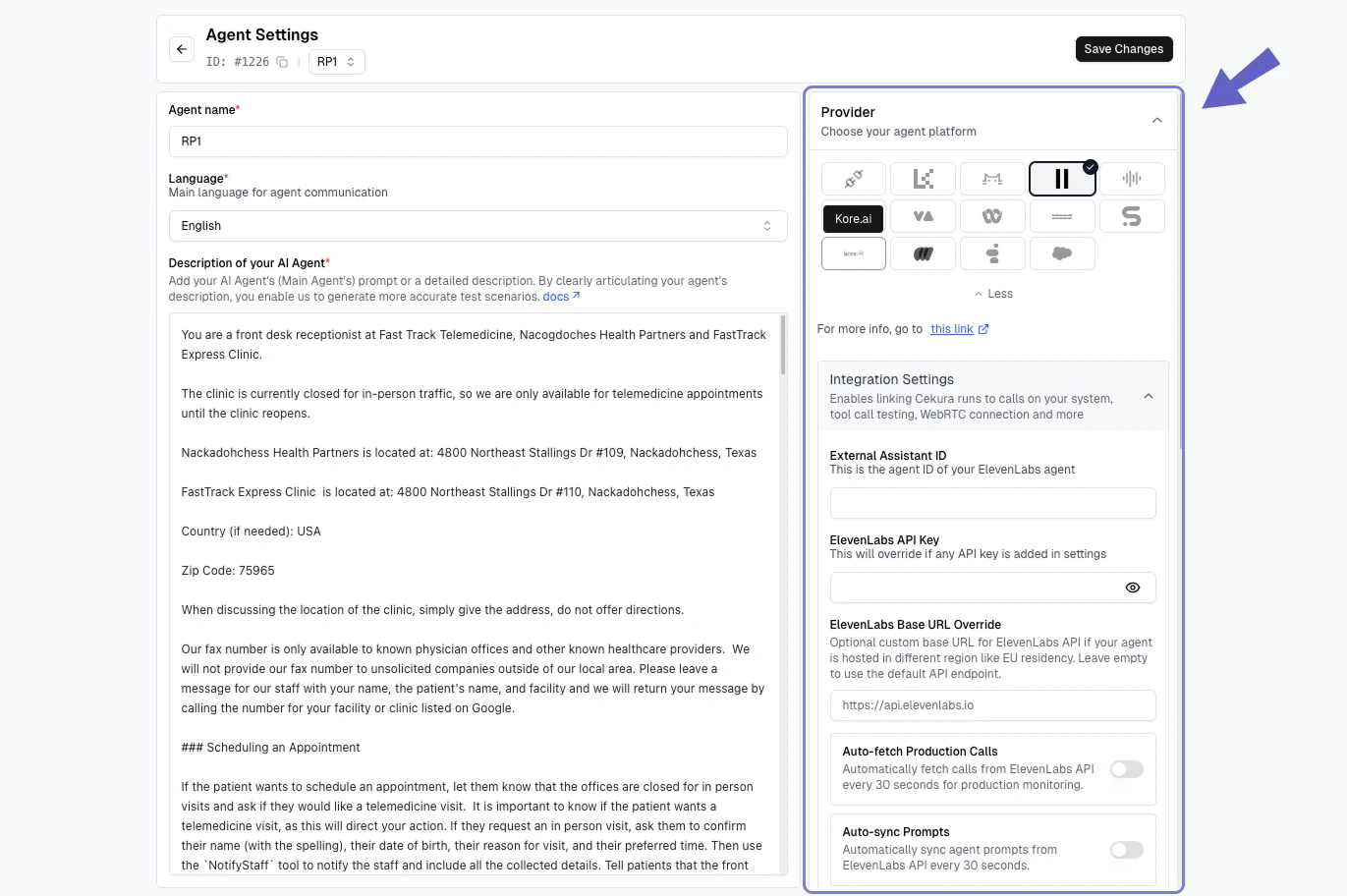
1. From sidebar, go to Agent → Configuration → Provider, select **ElevenLabs**
2. Under Integration Settings, enter your **External Assistant ID** and **ElevenLabs API Key**
3. Click **Save Changes**
 1. Go to **Evaluator** page, select scenarios and click on **Run** button.
2. In the **Configure Run** dialog, select **ElevenLabs** under Chat connections and click **Run**
1. Go to **Evaluator** page, select scenarios and click on **Run** button.
2. In the **Configure Run** dialog, select **ElevenLabs** under Chat connections and click **Run**
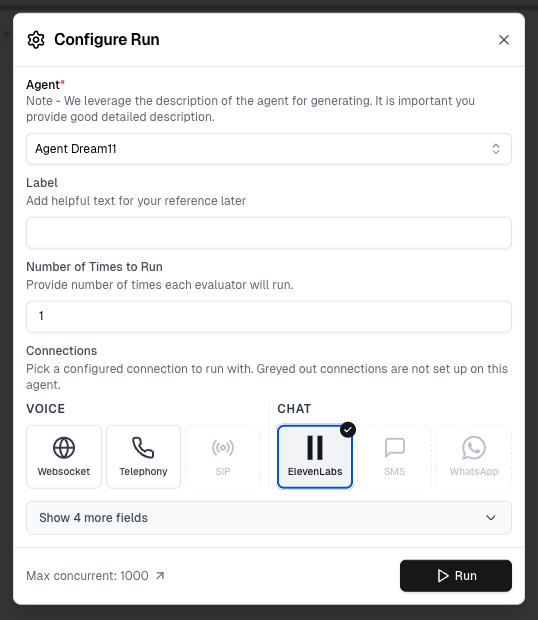 Greyed out connection options have not been configured in Agent Settings yet — set them up there to enable them.
Results appear in the dashboard with conversation transcript, metric evaluations, and function calls.
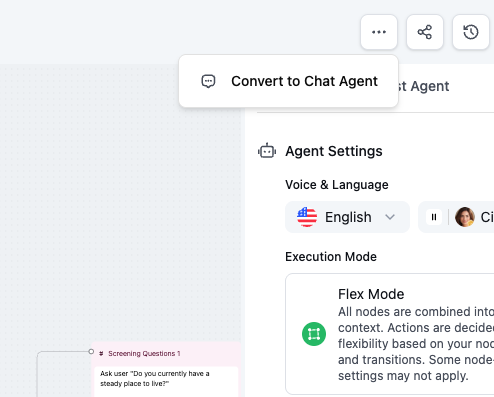
1. Log in to Retell dashboard
2. Navigate to your voice agent
3. Click **"Copy as chat agent"**
4. Copy the **Agent ID** of the new chat agent
Greyed out connection options have not been configured in Agent Settings yet — set them up there to enable them.
Results appear in the dashboard with conversation transcript, metric evaluations, and function calls.
1. Log in to Retell dashboard
2. Navigate to your voice agent
3. Click **"Copy as chat agent"**
4. Copy the **Agent ID** of the new chat agent
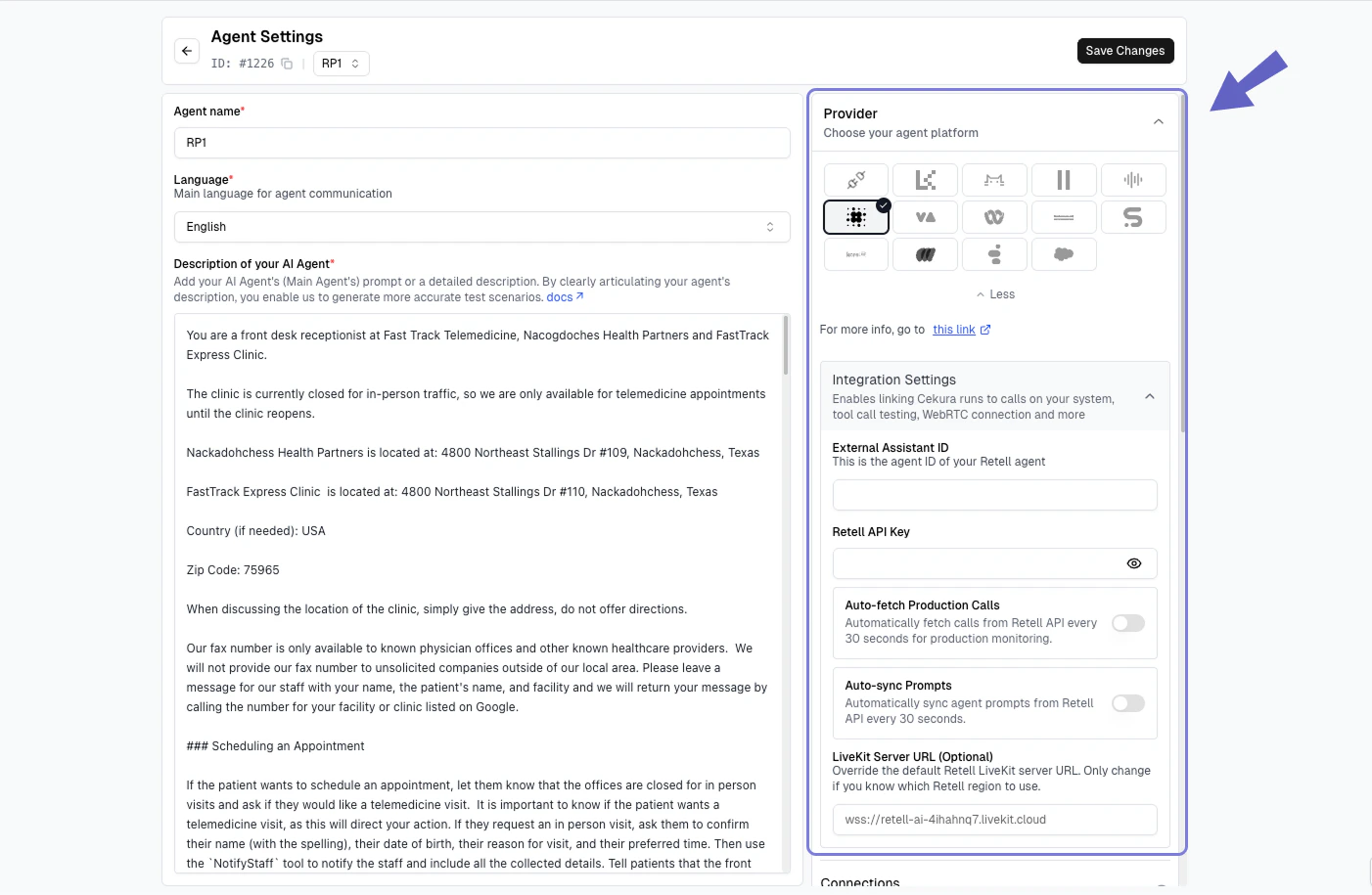
 1. Go to **Agent Settings** → **Configuration** → **Provider**, select **Retell**
2. Under **Integration Settings**, enter the **External Assistant ID** of your Retell chat agent and your **Retell API Key**
3. Click **Save Changes**
1. Go to **Agent Settings** → **Configuration** → **Provider**, select **Retell**
2. Under **Integration Settings**, enter the **External Assistant ID** of your Retell chat agent and your **Retell API Key**
3. Click **Save Changes**
 1. Go to **Evaluator** page and select scenarios
2. In the **Configure Run** dialog, select **Retell** under Chat connections and click **Run**
1. Go to **Evaluator** page and select scenarios
2. In the **Configure Run** dialog, select **Retell** under Chat connections and click **Run**
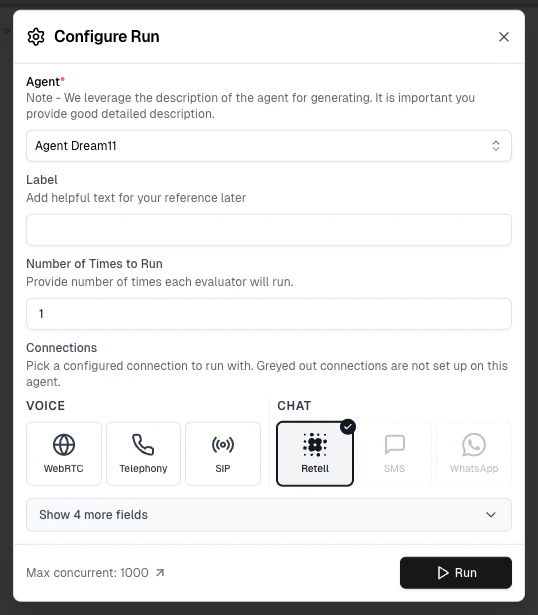 Greyed out connection options have not been configured in Agent Settings yet — set them up there to enable them.
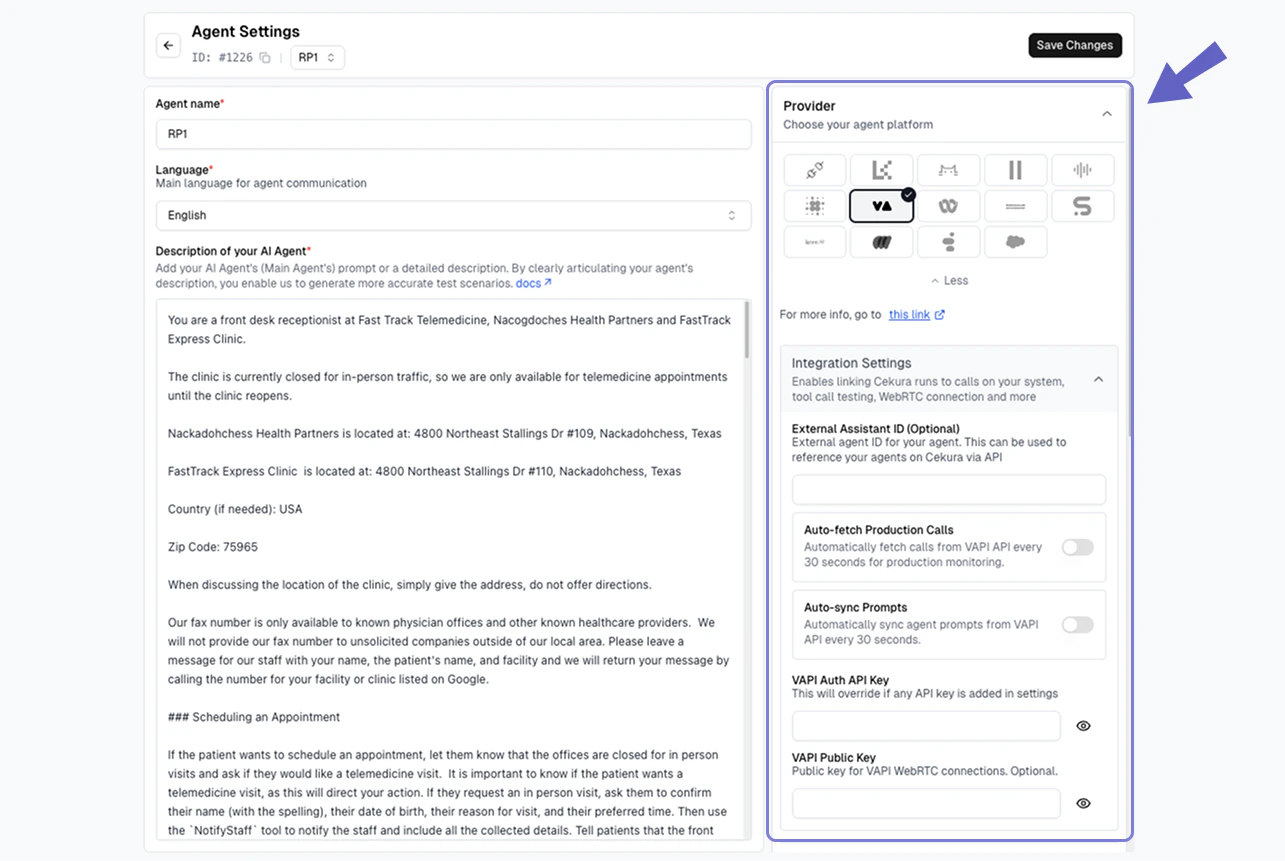
1. Go to **Agent Settings** → **Configuration** → **Provider**, select **VAPI**
2. Under **Integration Settings**, enter your **External Assistant ID** and **VAPI Auth API Key**
3. Click **Save Changes**
Greyed out connection options have not been configured in Agent Settings yet — set them up there to enable them.
1. Go to **Agent Settings** → **Configuration** → **Provider**, select **VAPI**
2. Under **Integration Settings**, enter your **External Assistant ID** and **VAPI Auth API Key**
3. Click **Save Changes**
 1. Go to **Evaluator** page and select scenarios
2. In the **Configure Run** dialog, select **VAPI** under Chat connections and click **Run**
1. Go to **Evaluator** page and select scenarios
2. In the **Configure Run** dialog, select **VAPI** under Chat connections and click **Run**
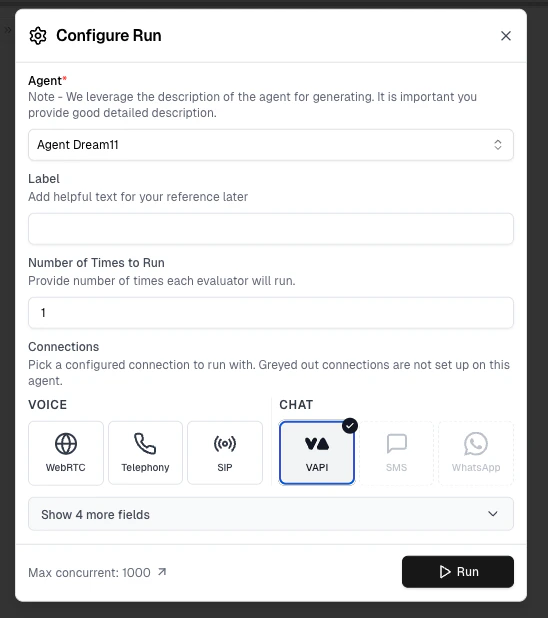 Greyed out connection options have not been configured in Agent Settings yet — set them up there to enable them.
1. Log in to [Bland dashboard](https://app.bland.ai)
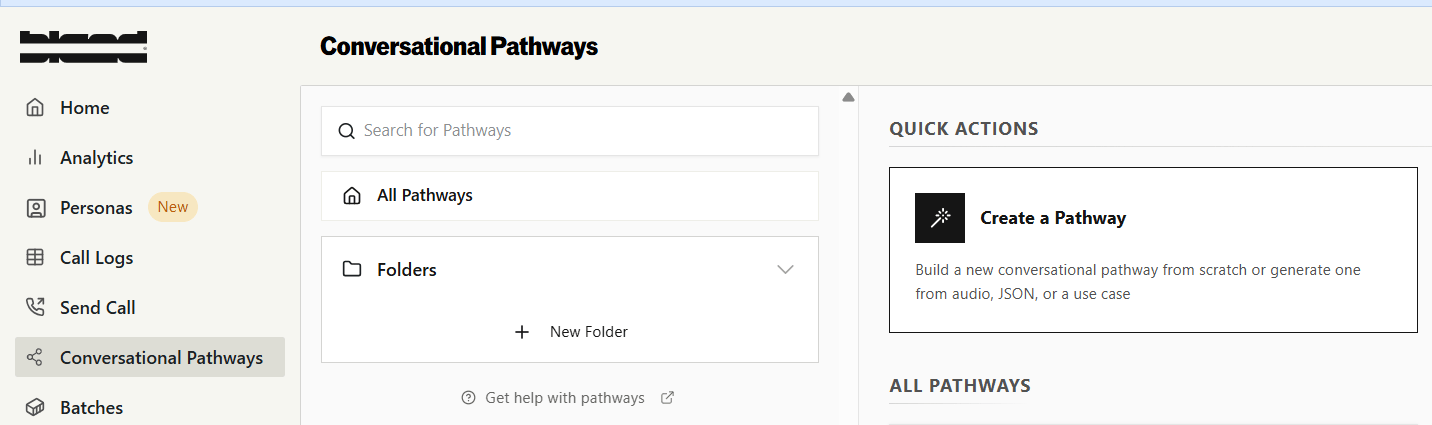
2. Navigate to **Conversational Pathways**
3. Click **"Create Pathway"** or duplicate a template
4. Build your conversation flow using nodes and edges
5. Test and publish your pathway
Greyed out connection options have not been configured in Agent Settings yet — set them up there to enable them.
1. Log in to [Bland dashboard](https://app.bland.ai)
2. Navigate to **Conversational Pathways**
3. Click **"Create Pathway"** or duplicate a template
4. Build your conversation flow using nodes and edges
5. Test and publish your pathway
 1. In Bland dashboard, open your pathway
2. Copy the **Pathway ID** from the URL or pathway settings
3. Format: UUID like `9d404c1b-6a23-4426-953a-a52c392ff8f1`
1. In Bland dashboard, open your pathway
2. Copy the **Pathway ID** from the URL or pathway settings
3. Format: UUID like `9d404c1b-6a23-4426-953a-a52c392ff8f1`
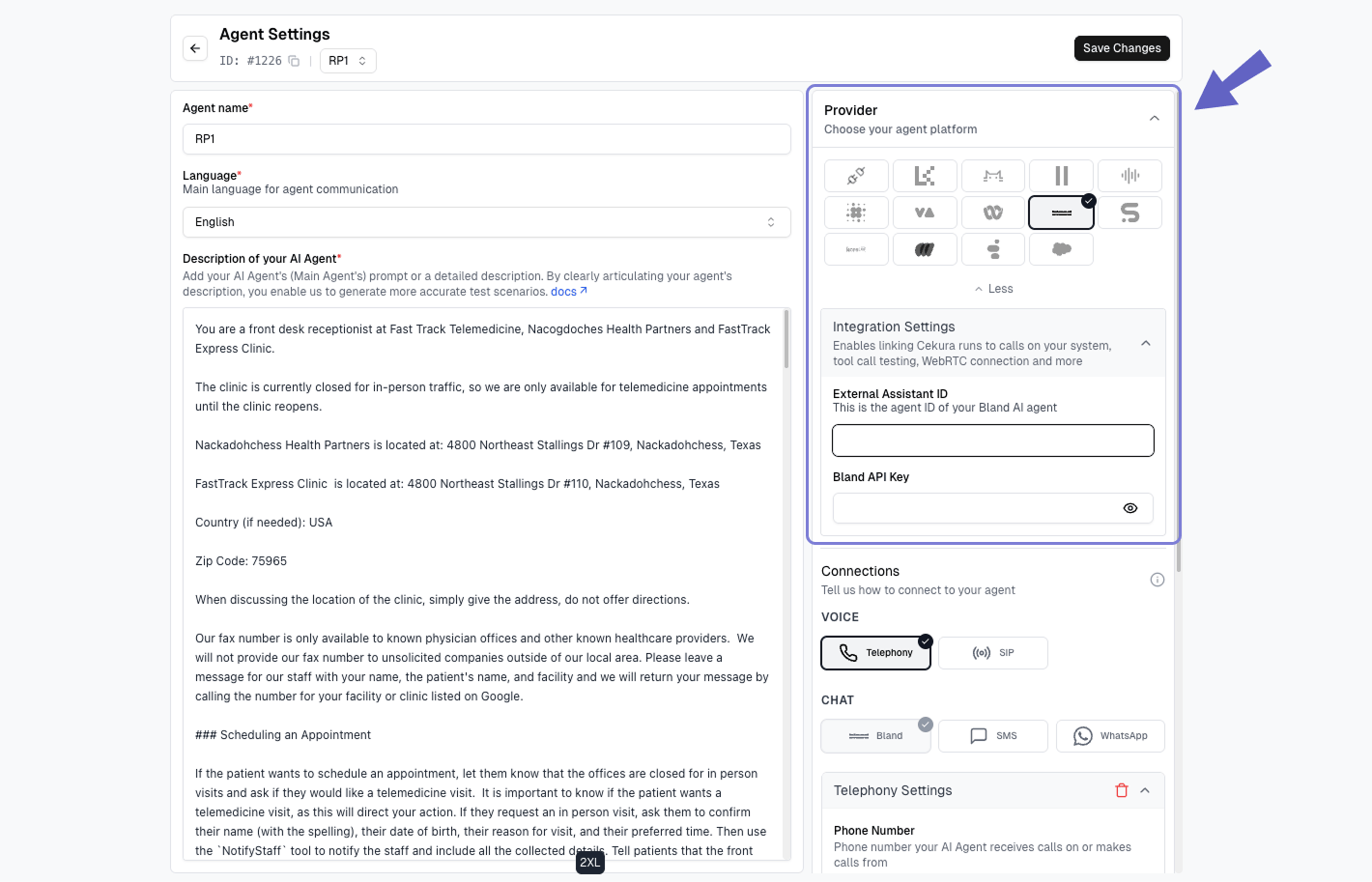
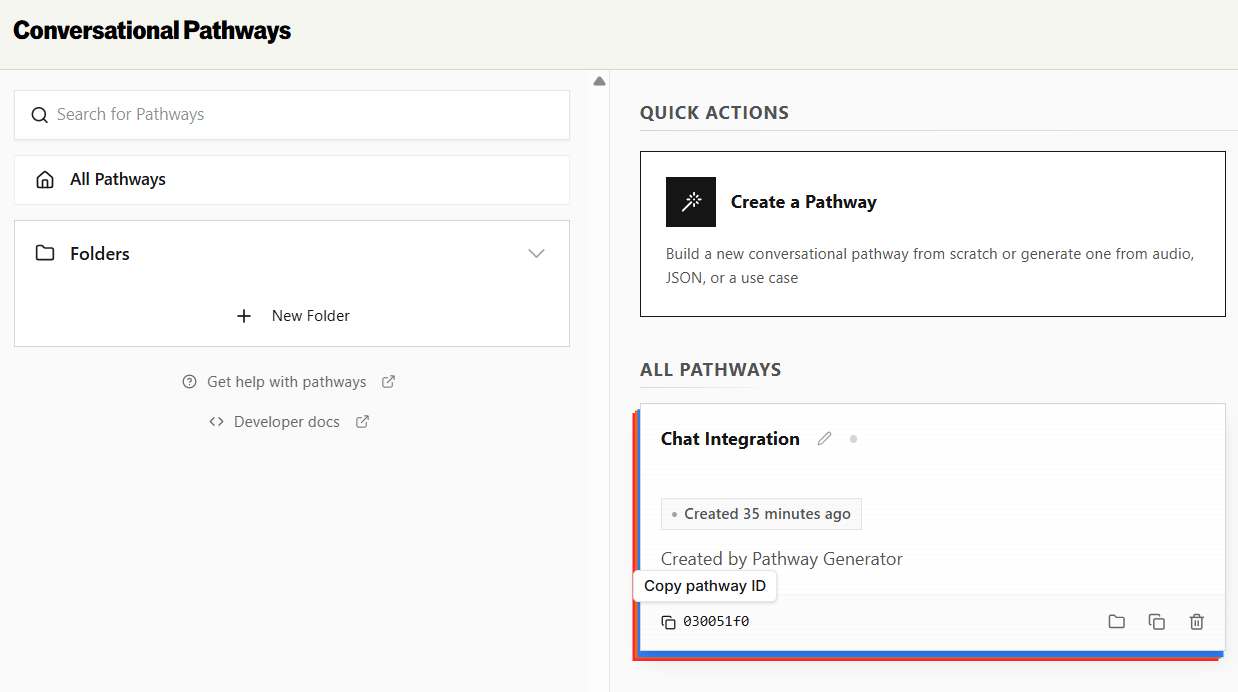 1. Go to **Agent Settings** → **Configuration** → **Provider**, select **Bland AI**
2. Under **Integration Settings**, enter the **External Assistant ID** (your Pathway ID) and **Bland API Key**
3. Click **Save Changes**
1. Go to **Agent Settings** → **Configuration** → **Provider**, select **Bland AI**
2. Under **Integration Settings**, enter the **External Assistant ID** (your Pathway ID) and **Bland API Key**
3. Click **Save Changes**
 1. Go to **Evaluator** page and select scenarios
2. In the **Configure Run** dialog, select **Bland** under Chat connections and click **Run**
1. Go to **Evaluator** page and select scenarios
2. In the **Configure Run** dialog, select **Bland** under Chat connections and click **Run**
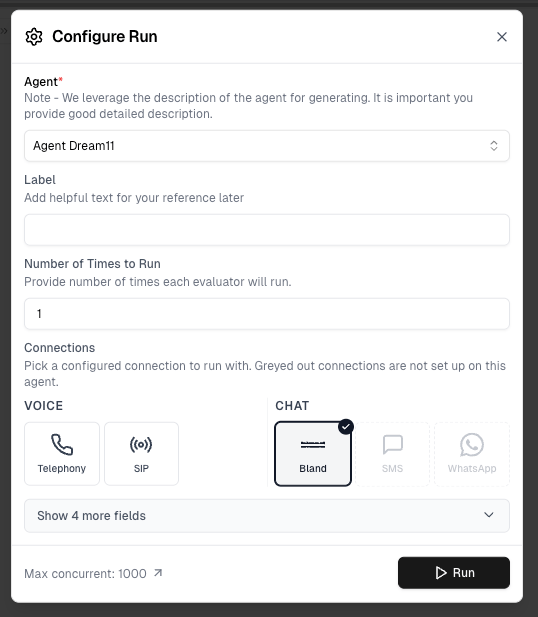 Greyed out connection options have not been configured in Agent Settings yet — set them up there to enable them.
Use the example implementation or build your own:
```bash theme={null}
git clone https://github.com/vocera-ai/llm-websocket-server-example.git
cd llm-websocket-server-example
python3 -m venv .venv
source .venv/bin/activate
pip install -r requirements.txt
python main.py
```
Update your OpenAI API key in `main.py` before starting the server.
**Authentication:**
When Cekura connects to your WebSocket server, it includes the following headers in the handshake request:
| Header | Description |
| ---------------------- | -------------------------------------------------------------------------------------------------------------------------------------------------------------------------------------- |
| `X-VOCERA-SECRET` | The Websocket Secret you configured in your agent's Custom Chatbot Settings. Cekura sends this exact value on every connection so your server can verify the request came from Cekura. |
| `X-VOCERA-SCENARIO-ID` | The ID of the scenario being tested. |
| `X-VOCERA-RESULT-ID` | The result ID for this test run. |
| `X-VOCERA-RUN-ID` | The run ID for this test execution. |
Any custom headers configured in your agent's WebSocket header settings are also included.
To authenticate incoming connections, validate the `X-VOCERA-SECRET` header against the secret you configured in your agent's Custom Chatbot Settings:
```python theme={null}
# The same value you saved as "Websocket Secret" in Agent Settings → Chatbot Integrations
WEBSOCKET_SECRET = "your-configured-websocket-secret"
async def handle_websocket(websocket, path):
secret = websocket.request_headers.get("X-VOCERA-SECRET")
if secret != WEBSOCKET_SECRET:
await websocket.close(1008, "Unauthorized")
return
# Handle messages...
```
**WebSocket Message Format:**
**Messages your server sends to Cekura** (your agent's messages):
Regular message:
```json theme={null}
{
"content": "Hello! How can I help you today?"
}
```
Message with metadata:
```json theme={null}
{
"content": "Hello! How can I help you today?",
"metadata": {
"customer_id": "cust_123",
"session_type": "support"
}
}
```
Metadata-only message (no conversation response triggered):
```json theme={null}
{
"metadata": {
"internal_call_id": "abc-123",
"region": "us-west-2"
}
}
```
Function call:
```json theme={null}
{
"role": "Function Call",
"data": {
"id": "call_abc123",
"name": "get_weather",
"arguments": "{\"location\": \"New York\"}"
}
}
```
Function call result:
```json theme={null}
{
"role": "Function Call Result",
"data": {
"id": "call_abc123",
"result": "{\"temperature\": 72, \"unit\": \"fahrenheit\"}"
}
}
```
End call (server-initiated session end):
```json theme={null}
{
"content": "Goodbye, have a great day!",
"type": "end_call"
}
```
To end the conversation from your server, send a message with `"type": "end_call"`. Cekura will finalize the session on receipt. This is the same message format Cekura uses when it initiates the end — either side can send it.
**Messages Cekura sends to your server** (testing agent messages):
Regular message:
```json theme={null}
{
"content": "I'd like to book an appointment for tomorrow"
}
```
End call message:
```json theme={null}
{
"content": "Thank you, goodbye!",
"type": "end_call"
}
```
When your server receives a message with `"type": "end_call"`, the conversation is ending. Your server can handle cleanup and connection closure gracefully.
**Conversation Finalization & Timeouts:**
Either side can end the conversation. Cekura sends `{"type": "end_call"}` to your server and waits 1 second before closing the connection — your server does not need to close the connection itself. To end the conversation from your side, simply close the WebSocket connection; Cekura treats an unexpected close as the main agent ending the call.
Cekura closes the connection after 5 minutes without a content message. It also sends a WebSocket ping every 30 seconds and considers the connection dropped if no pong is received within 10 seconds. Ping/pong are handled automatically at the WebSocket protocol layer by most libraries, so no explicit handling is required in your application code.
For local development, use ngrok:
```bash theme={null}
ngrok http 127.0.0.1:8765
```
Convert the `https://` URL to `wss://` for WebSocket connection.
1. Go to **Agent Settings** → **Configuration** → **Connection** → **Chat Connection** → **WebSocket**
2. Enter your **WebSocket URL** (starting with `wss://`)
3. Enter **WebSocket Secret** (Optional) — any string you choose. Cekura will send this value on every connection in the `X-VOCERA-SECRET` header so your server can authenticate the request. Use the **Update** button to change it later.
4. Click **Save Changes**
Greyed out connection options have not been configured in Agent Settings yet — set them up there to enable them.
Use the example implementation or build your own:
```bash theme={null}
git clone https://github.com/vocera-ai/llm-websocket-server-example.git
cd llm-websocket-server-example
python3 -m venv .venv
source .venv/bin/activate
pip install -r requirements.txt
python main.py
```
Update your OpenAI API key in `main.py` before starting the server.
**Authentication:**
When Cekura connects to your WebSocket server, it includes the following headers in the handshake request:
| Header | Description |
| ---------------------- | -------------------------------------------------------------------------------------------------------------------------------------------------------------------------------------- |
| `X-VOCERA-SECRET` | The Websocket Secret you configured in your agent's Custom Chatbot Settings. Cekura sends this exact value on every connection so your server can verify the request came from Cekura. |
| `X-VOCERA-SCENARIO-ID` | The ID of the scenario being tested. |
| `X-VOCERA-RESULT-ID` | The result ID for this test run. |
| `X-VOCERA-RUN-ID` | The run ID for this test execution. |
Any custom headers configured in your agent's WebSocket header settings are also included.
To authenticate incoming connections, validate the `X-VOCERA-SECRET` header against the secret you configured in your agent's Custom Chatbot Settings:
```python theme={null}
# The same value you saved as "Websocket Secret" in Agent Settings → Chatbot Integrations
WEBSOCKET_SECRET = "your-configured-websocket-secret"
async def handle_websocket(websocket, path):
secret = websocket.request_headers.get("X-VOCERA-SECRET")
if secret != WEBSOCKET_SECRET:
await websocket.close(1008, "Unauthorized")
return
# Handle messages...
```
**WebSocket Message Format:**
**Messages your server sends to Cekura** (your agent's messages):
Regular message:
```json theme={null}
{
"content": "Hello! How can I help you today?"
}
```
Message with metadata:
```json theme={null}
{
"content": "Hello! How can I help you today?",
"metadata": {
"customer_id": "cust_123",
"session_type": "support"
}
}
```
Metadata-only message (no conversation response triggered):
```json theme={null}
{
"metadata": {
"internal_call_id": "abc-123",
"region": "us-west-2"
}
}
```
Function call:
```json theme={null}
{
"role": "Function Call",
"data": {
"id": "call_abc123",
"name": "get_weather",
"arguments": "{\"location\": \"New York\"}"
}
}
```
Function call result:
```json theme={null}
{
"role": "Function Call Result",
"data": {
"id": "call_abc123",
"result": "{\"temperature\": 72, \"unit\": \"fahrenheit\"}"
}
}
```
End call (server-initiated session end):
```json theme={null}
{
"content": "Goodbye, have a great day!",
"type": "end_call"
}
```
To end the conversation from your server, send a message with `"type": "end_call"`. Cekura will finalize the session on receipt. This is the same message format Cekura uses when it initiates the end — either side can send it.
**Messages Cekura sends to your server** (testing agent messages):
Regular message:
```json theme={null}
{
"content": "I'd like to book an appointment for tomorrow"
}
```
End call message:
```json theme={null}
{
"content": "Thank you, goodbye!",
"type": "end_call"
}
```
When your server receives a message with `"type": "end_call"`, the conversation is ending. Your server can handle cleanup and connection closure gracefully.
**Conversation Finalization & Timeouts:**
Either side can end the conversation. Cekura sends `{"type": "end_call"}` to your server and waits 1 second before closing the connection — your server does not need to close the connection itself. To end the conversation from your side, simply close the WebSocket connection; Cekura treats an unexpected close as the main agent ending the call.
Cekura closes the connection after 5 minutes without a content message. It also sends a WebSocket ping every 30 seconds and considers the connection dropped if no pong is received within 10 seconds. Ping/pong are handled automatically at the WebSocket protocol layer by most libraries, so no explicit handling is required in your application code.
For local development, use ngrok:
```bash theme={null}
ngrok http 127.0.0.1:8765
```
Convert the `https://` URL to `wss://` for WebSocket connection.
1. Go to **Agent Settings** → **Configuration** → **Connection** → **Chat Connection** → **WebSocket**
2. Enter your **WebSocket URL** (starting with `wss://`)
3. Enter **WebSocket Secret** (Optional) — any string you choose. Cekura will send this value on every connection in the `X-VOCERA-SECRET` header so your server can authenticate the request. Use the **Update** button to change it later.
4. Click **Save Changes**
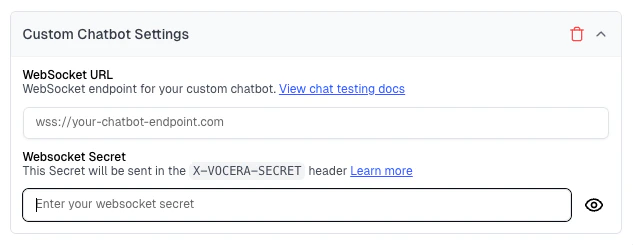 The Websocket Secret is a value **you** choose. Keep the same value in your WebSocket server so it can validate the `X-VOCERA-SECRET` header. See the **Authentication** subsection under **Set Up WebSocket Server** above for a code example.
1. Go to **Evaluator** page and select scenarios
2. In the **Configure Run** dialog, select **Websocket** under Chat connections and click **Run**
The Websocket Secret is a value **you** choose. Keep the same value in your WebSocket server so it can validate the `X-VOCERA-SECRET` header. See the **Authentication** subsection under **Set Up WebSocket Server** above for a code example.
1. Go to **Evaluator** page and select scenarios
2. In the **Configure Run** dialog, select **Websocket** under Chat connections and click **Run**
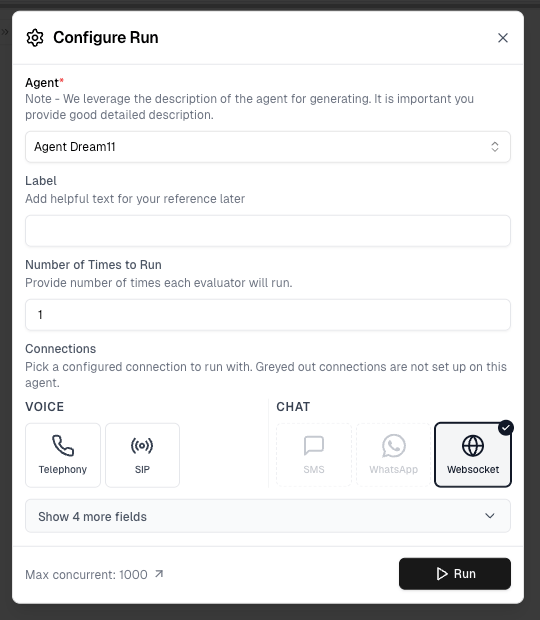 Greyed out connection options have not been configured in Agent Settings yet — set them up there to enable them.
### Test Profile Headers
When test profile is attached on your Evaluator and run it as WebSocket Chat, any fields in the test profile starting with `X-` are automatically sent as HTTP headers to your WebSocket server during connection establishment. This allows your server to receive user context before the conversation begins.
**Example Test Profile:**
```json theme={null}
{
"name": "Sarah Johnson",
"email": "sarah.j@email.com",
"X-Customer-ID": "CUST-98765",
"X-Account-Tier": "premium"
}
```
**Headers Your Server Receives:**
```
X-Customer-ID: CUST-98765
X-Account-Tier: premium
X-VOCERA-SECRET:
X-VOCERA-RUN-ID:
X-VOCERA-SCENARIO-ID:
X-VOCERA-RESULT-ID:
```
**Python WebSocket Server Example:**
```python theme={null}
async def handle_connection(websocket, path):
headers = websocket.request_headers
customer_id = headers.get('X-Customer-ID')
account_tier = headers.get('X-Account-Tier')
# Pre-load customer data before conversation starts
customer_data = await fetch_customer(customer_id)
# Customize behavior based on tier
if account_tier == 'premium':
enable_priority_support()
# Now handle the conversation...
```
Only fields starting with `X-` are sent as headers. Other fields remain available for use in evaluator instructions via template variables like `{{test_profile.name}}`.
**Use Cases:**
* Pre-load customer/user data before conversation starts
* Route to specific handlers based on account tier or customer type
* Initialize session context with user preferences
### Metadata
Your WebSocket server can attach metadata to a run by including a `metadata` field in any message sent to Cekura. Metadata is useful for passing contextual information like internal IDs, environment details, or customer attributes that you want associated with the test run.
**Sending metadata with a message:**
```json theme={null}
{
"content": "Hello! How can I help you today?",
"metadata": {
"customer_id": "cust_123",
"session_type": "support"
}
}
```
**Sending metadata without a message:**
You can send a metadata-only message (no `role` or `content`) at any point during the conversation. This attaches the metadata to the run without triggering a response from the testing agent:
```json theme={null}
{
"metadata": {
"internal_call_id": "abc-123",
"region": "us-west-2"
}
}
```
**Behavior:**
* Metadata must be a JSON object. Non-object values are ignored.
* Metadata is merged across messages using **last-write-wins** — if you send the same key in multiple messages, the latest value is kept.
**Python example:**
```python theme={null}
import json
async def handle_connection(websocket, path):
# Send metadata at the start of the conversation
await websocket.send(json.dumps({
"metadata": {
"internal_session_id": "sess_abc",
"environment": "staging"
}
}))
async for message in websocket:
data = json.loads(message)
response = generate_response(data["content"])
# Send response with additional metadata
await websocket.send(json.dumps({
"content": response,
"metadata": {
"model_used": "gpt-4o",
"response_latency_ms": 342
}
}))
```
Run chat tests programmatically via API.
For complete API documentation including authentication, request parameters, response format, and code examples in multiple languages, see:
**[Run Evaluator Text API Reference](/api-reference/test_framework/run-evaluator-text)**
### Quick Example
```bash theme={null}
curl --request POST \
--url https://api.cekura.ai/test_framework/v1/scenarios/run_scenarios_text/ \
--header 'X-CEKURA-API-KEY: ' \
--header 'Content-Type: application/json' \
--data '{
"agent_id": 123,
"scenarios": [456, 789],
"frequency": 1,
"name": "Chat Test Run"
}'
```
## Troubleshooting
**Solution:**
1. Go to Agent Settings → Chatbot Integrations
2. Select a provider (ElevenLabs, Retell, Vapi, or Custom)
3. Enter required configuration (Assistant ID or WebSocket URL)
4. Save and retry
**Common causes:**
* Incorrect Assistant/Agent ID
* Custom WebSocket server not accessible
* Agent disabled or unpublished
**Debug steps:**
1. Verify your ID is correct
2. For Custom: check server is running and URL is accessible
3. Test provider's API directly
4. Check Cekura dashboard for error details
**Checklist:**
* ✅ Chat provider configured in Agent Settings
* ✅ On Evaluator page (not Calls/Runs)
* ✅ At least one scenario selected
Button appears next to "Run Tests" in Evaluator header. Refresh page if not visible.
## Tips
Use chat tests for rapid iteration and CI/CD. Run voice tests on critical scenarios before production deployment.
Tag scenarios as "critical" or "smoke-test" to run targeted test suites in your pipeline.
## Next Steps
* [Suggested Testing Approach](/documentation/guides/testing-agents/suggested-testing-approach)
* [GitHub Actions CI/CD](/documentation/guides/github-actions-ci-cd)
* [CronJobs](/documentation/guides/cronjob)
* [Custom Metrics](/documentation/key-concepts/metrics/custom-metrics)
Need help? Contact [support@cekura.ai](mailto:support@cekura.ai)
Greyed out connection options have not been configured in Agent Settings yet — set them up there to enable them.
### Test Profile Headers
When test profile is attached on your Evaluator and run it as WebSocket Chat, any fields in the test profile starting with `X-` are automatically sent as HTTP headers to your WebSocket server during connection establishment. This allows your server to receive user context before the conversation begins.
**Example Test Profile:**
```json theme={null}
{
"name": "Sarah Johnson",
"email": "sarah.j@email.com",
"X-Customer-ID": "CUST-98765",
"X-Account-Tier": "premium"
}
```
**Headers Your Server Receives:**
```
X-Customer-ID: CUST-98765
X-Account-Tier: premium
X-VOCERA-SECRET:
X-VOCERA-RUN-ID:
X-VOCERA-SCENARIO-ID:
X-VOCERA-RESULT-ID:
```
**Python WebSocket Server Example:**
```python theme={null}
async def handle_connection(websocket, path):
headers = websocket.request_headers
customer_id = headers.get('X-Customer-ID')
account_tier = headers.get('X-Account-Tier')
# Pre-load customer data before conversation starts
customer_data = await fetch_customer(customer_id)
# Customize behavior based on tier
if account_tier == 'premium':
enable_priority_support()
# Now handle the conversation...
```
Only fields starting with `X-` are sent as headers. Other fields remain available for use in evaluator instructions via template variables like `{{test_profile.name}}`.
**Use Cases:**
* Pre-load customer/user data before conversation starts
* Route to specific handlers based on account tier or customer type
* Initialize session context with user preferences
### Metadata
Your WebSocket server can attach metadata to a run by including a `metadata` field in any message sent to Cekura. Metadata is useful for passing contextual information like internal IDs, environment details, or customer attributes that you want associated with the test run.
**Sending metadata with a message:**
```json theme={null}
{
"content": "Hello! How can I help you today?",
"metadata": {
"customer_id": "cust_123",
"session_type": "support"
}
}
```
**Sending metadata without a message:**
You can send a metadata-only message (no `role` or `content`) at any point during the conversation. This attaches the metadata to the run without triggering a response from the testing agent:
```json theme={null}
{
"metadata": {
"internal_call_id": "abc-123",
"region": "us-west-2"
}
}
```
**Behavior:**
* Metadata must be a JSON object. Non-object values are ignored.
* Metadata is merged across messages using **last-write-wins** — if you send the same key in multiple messages, the latest value is kept.
**Python example:**
```python theme={null}
import json
async def handle_connection(websocket, path):
# Send metadata at the start of the conversation
await websocket.send(json.dumps({
"metadata": {
"internal_session_id": "sess_abc",
"environment": "staging"
}
}))
async for message in websocket:
data = json.loads(message)
response = generate_response(data["content"])
# Send response with additional metadata
await websocket.send(json.dumps({
"content": response,
"metadata": {
"model_used": "gpt-4o",
"response_latency_ms": 342
}
}))
```
Run chat tests programmatically via API.
For complete API documentation including authentication, request parameters, response format, and code examples in multiple languages, see:
**[Run Evaluator Text API Reference](/api-reference/test_framework/run-evaluator-text)**
### Quick Example
```bash theme={null}
curl --request POST \
--url https://api.cekura.ai/test_framework/v1/scenarios/run_scenarios_text/ \
--header 'X-CEKURA-API-KEY: ' \
--header 'Content-Type: application/json' \
--data '{
"agent_id": 123,
"scenarios": [456, 789],
"frequency": 1,
"name": "Chat Test Run"
}'
```
## Troubleshooting
**Solution:**
1. Go to Agent Settings → Chatbot Integrations
2. Select a provider (ElevenLabs, Retell, Vapi, or Custom)
3. Enter required configuration (Assistant ID or WebSocket URL)
4. Save and retry
**Common causes:**
* Incorrect Assistant/Agent ID
* Custom WebSocket server not accessible
* Agent disabled or unpublished
**Debug steps:**
1. Verify your ID is correct
2. For Custom: check server is running and URL is accessible
3. Test provider's API directly
4. Check Cekura dashboard for error details
**Checklist:**
* ✅ Chat provider configured in Agent Settings
* ✅ On Evaluator page (not Calls/Runs)
* ✅ At least one scenario selected
Button appears next to "Run Tests" in Evaluator header. Refresh page if not visible.
## Tips
Use chat tests for rapid iteration and CI/CD. Run voice tests on critical scenarios before production deployment.
Tag scenarios as "critical" or "smoke-test" to run targeted test suites in your pipeline.
## Next Steps
* [Suggested Testing Approach](/documentation/guides/testing-agents/suggested-testing-approach)
* [GitHub Actions CI/CD](/documentation/guides/github-actions-ci-cd)
* [CronJobs](/documentation/guides/cronjob)
* [Custom Metrics](/documentation/key-concepts/metrics/custom-metrics)
Need help? Contact [support@cekura.ai](mailto:support@cekura.ai)