> ## Documentation Index
> Fetch the complete documentation index at: https://docs.cekura.ai/llms.txt
> Use this file to discover all available pages before exploring further.
# Metric Lab
> Metric Lab is a tool that allows you to create and manage custom metrics for your AI agents.
export const CopyPageButton = () => {
if (typeof window !== 'undefined') {
setTimeout(function () {
if (document.getElementById('ck-tools')) return;
var anchor = document.getElementById('content-area') || document.querySelector('.mdx-content');
if (!anchor) return;
if (!document.getElementById('ck-style')) {
var s = document.createElement('style');
s.id = 'ck-style';
s.textContent = '#ck-tools{position:absolute;top:6px;right:0;z-index:100;font-family:inherit;}' + '.ck-row{display:inline-flex;align-items:stretch;border:1px solid rgba(0,0,0,0.15);border-radius:8px;overflow:hidden;background:#fff;}' + ':root.dark .ck-row{background:rgba(255,255,255,0.06);border-color:rgba(255,255,255,0.12);}' + '.ck-btn{padding:5px 12px;border:none;background:none;cursor:pointer;font-size:13px;font-weight:500;font-family:inherit;color:#374151;}' + ':root.dark .ck-btn{color:#d1d5db;}' + '.ck-btn:hover{background:rgba(0,0,0,0.04);}' + ':root.dark .ck-btn:hover{background:rgba(255,255,255,0.06);}' + '.ck-chevron{padding:5px 8px;border:none;background:none;cursor:pointer;font-size:14px;font-family:inherit;color:#374151;}' + ':root.dark .ck-chevron{color:#d1d5db;}' + '.ck-chevron:hover{background:rgba(0,0,0,0.04);}' + ':root.dark .ck-chevron:hover{background:rgba(255,255,255,0.06);}' + '.ck-divider{width:1px;background:rgba(0,0,0,0.12);flex-shrink:0;}' + ':root.dark .ck-divider{background:rgba(255,255,255,0.12);}' + '.ck-dd{position:absolute;top:calc(100% + 4px);right:0;min-width:180px;background:#fff;border:1px solid rgba(0,0,0,0.12);border-radius:8px;box-shadow:0 4px 12px rgba(0,0,0,0.1);padding:4px;display:none;z-index:200;}' + ':root.dark .ck-dd{background:#1f2937;border-color:rgba(255,255,255,0.1);box-shadow:0 4px 16px rgba(0,0,0,0.35);}' + '.ck-item{display:block;width:100%;padding:7px 12px;border:none;background:none;border-radius:6px;cursor:pointer;font-size:13px;font-family:inherit;text-align:left;color:#374151;}' + ':root.dark .ck-item{color:#d1d5db;}' + '.ck-item:hover{background:rgba(0,0,0,0.05);}' + ':root.dark .ck-item:hover{background:rgba(255,255,255,0.07);}';
document.head.appendChild(s);
}
var wrap = document.createElement('div');
wrap.id = 'ck-tools';
var row = document.createElement('div');
row.className = 'ck-row';
var mainBtn = document.createElement('button');
mainBtn.className = 'ck-btn';
mainBtn.textContent = 'Copy page';
var divider = document.createElement('span');
divider.className = 'ck-divider';
var chevron = document.createElement('button');
chevron.className = 'ck-chevron';
chevron.textContent = '▾';
var dd = document.createElement('div');
dd.className = 'ck-dd';
function closeDD() {
dd.style.display = 'none';
}
function openDD() {
dd.style.display = 'block';
}
chevron.onclick = function (e) {
e.stopPropagation();
if (dd.style.display === 'block') {
closeDD();
} else {
openDD();
}
};
document.addEventListener('click', function (e) {
if (!e.target.closest('#ck-tools')) {
closeDD();
}
});
document.addEventListener('keydown', function (e) {
if (e.key === 'Escape') {
closeDD();
}
});
function makeItem(label, fn) {
var b = document.createElement('button');
b.className = 'ck-item';
b.textContent = label;
b.onclick = function () {
fn();
closeDD();
};
return b;
}
function getMarkdown() {
var walk = function (node) {
if (!node) return '';
if (node.nodeType === 3) return node.textContent || '';
if (node.nodeType !== 1) return '';
var tag = node.tagName.toLowerCase();
var skip = ['script', 'style', 'svg', 'noscript', 'button', 'iframe'];
if (skip.indexOf(tag) !== -1) return '';
if (node.id === 'ck-tools') return '';
var ch = Array.from(node.childNodes).map(walk).join('');
if (tag === 'h1') return '\n# ' + ch.trim() + '\n\n';
if (tag === 'h2') return '\n## ' + ch.trim() + '\n\n';
if (tag === 'h3') return '\n### ' + ch.trim() + '\n\n';
if (tag === 'p') return '\n' + ch.trim() + '\n\n';
if (tag === 'pre') return '\n```\n' + node.textContent.trim() + '\n```\n\n';
if (tag === 'li') return '- ' + ch.trim() + '\n';
if (tag === 'code') return '`' + ch.trim() + '`';
return ch;
};
var content = document.querySelector('.mdx-content') || document.getElementById('content-area') || document.body;
return walk(content).replace(/\n\n\n+/g, '\n\n').trim();
}
function copyMd() {
var md = getMarkdown();
navigator.clipboard.writeText(md).then(function () {
mainBtn.textContent = 'Copied!';
setTimeout(function () {
mainBtn.textContent = 'Copy page';
}, 2000);
});
}
function viewMd() {
var md = getMarkdown();
var safe = md.split('&').join('&').split('<').join('<').split('>').join('>');
var html = '' + safe + '';
window.open(URL.createObjectURL(new Blob([html], {
type: 'text/html'
})), '_blank');
}
function openClaude() {
var prompt = 'Can you read this Cekura docs page ' + window.location.href + ' so I can ask you questions?';
window.open('https://claude.ai/new?q=' + encodeURIComponent(prompt), '_blank');
}
mainBtn.onclick = copyMd;
dd.appendChild(makeItem('Copy page', copyMd));
dd.appendChild(makeItem('View as Markdown', viewMd));
dd.appendChild(makeItem('Open in Claude', openClaude));
row.appendChild(mainBtn);
row.appendChild(divider);
row.appendChild(chevron);
wrap.appendChild(row);
wrap.appendChild(dd);
anchor.style.position = 'relative';
anchor.insertBefore(wrap, anchor.firstChild);
}, 50);
}
return null;
};
## Advanced Features of Metric Lab
Metric Lab is for **refining and improving metric definitions** — you annotate a sample of calls with the correct expected values, then use Auto Improve to tighten the metric prompt based on those annotations. If you need to **run automated per-call comparisons between a Cekura metric score and a manually supplied ground-truth value across all your calls**, write a [Python metric that accesses other metric results](/documentation/key-concepts/metrics/python-metric#metric-results-access) instead. See [Can I compare Cekura metric results against my own manual or ground-truth scores?](/documentation/FAQ#can-i-compare-cekura-metric-results-against-my-own-manual-or-ground-truth-scores) in the FAQ.
Metric Lab provides powerful tools for defining, testing, and optimizing custom metrics for your AI assistant. This guide walks you through the process of refining metrics to ensure they accurately reflect real-world performance.
## Metric Optimization Workflow
Metric Lab provides a powerful workflow for defining, testing, and automatically optimizing custom metrics to ensure they accurately reflect your AI assistant's performance.
### Defining Custom Metrics
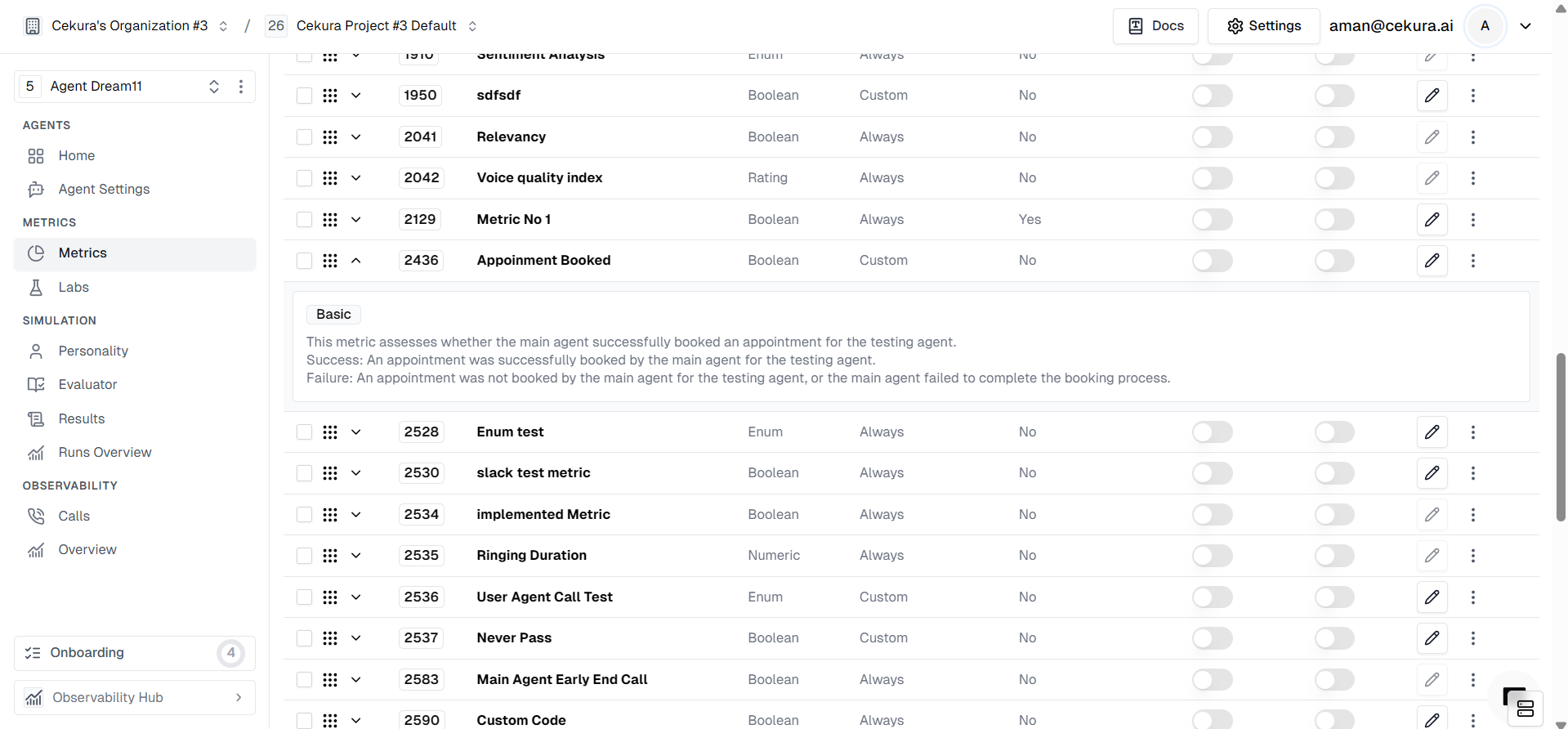
First, define a custom metric tailored to your specific business logic. In this example, we will create a metric to verify appointment bookings.
* **Metric Name**: Appointment Booked
* **Definition**: Assesses whether the main agent successfully booked an appointment for the testing agent.
* **Success Criteria**: An appointment was successfully booked.
* **Failure Criteria**: No appointment was booked, or the process was incomplete.
 ### Identifying Metric Performance Issues
After your agent runs, you might notice discrepancies where the metric result doesn't match reality.
* **False Positive**: The metric says "Appointment Booked" (Success), but the agent actually failed to confirm the time.
* **False Negative**: The metric says "Not Booked" (Failure), even though the agent successfully completed the booking.
These inconsistencies are signals that your metric definition (prompt or code) needs refinement.
### Add to Labs
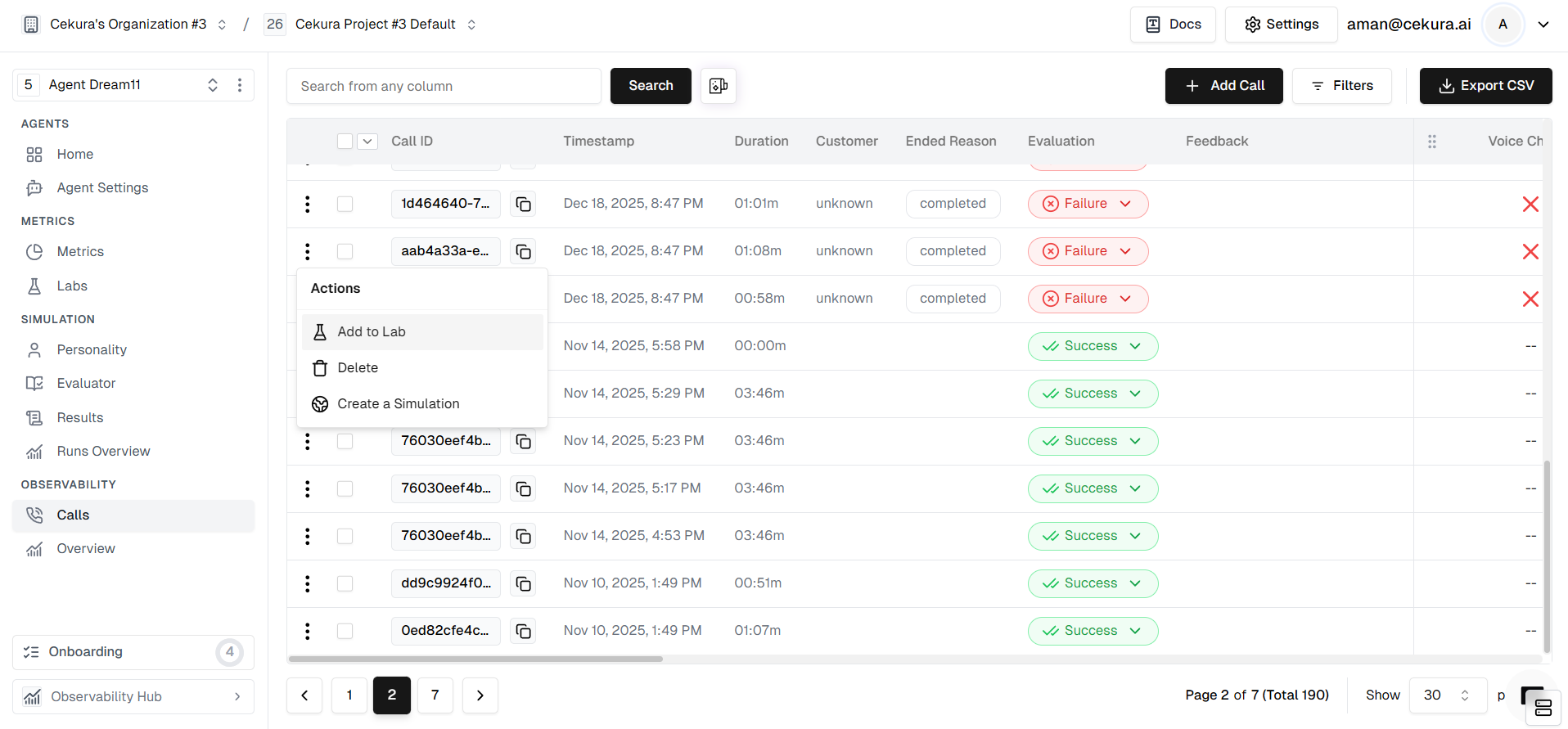
To fix these issues, you need to create a test set from these problematic calls.
* Locate the specific calls in your logs where the metric failed.
* Select them and click **Add to Lab**.
* Assign them to the "Appointment Booked" metric lab.
### Identifying Metric Performance Issues
After your agent runs, you might notice discrepancies where the metric result doesn't match reality.
* **False Positive**: The metric says "Appointment Booked" (Success), but the agent actually failed to confirm the time.
* **False Negative**: The metric says "Not Booked" (Failure), even though the agent successfully completed the booking.
These inconsistencies are signals that your metric definition (prompt or code) needs refinement.
### Add to Labs
To fix these issues, you need to create a test set from these problematic calls.
* Locate the specific calls in your logs where the metric failed.
* Select them and click **Add to Lab**.
* Assign them to the "Appointment Booked" metric lab.
 ### Initial Run
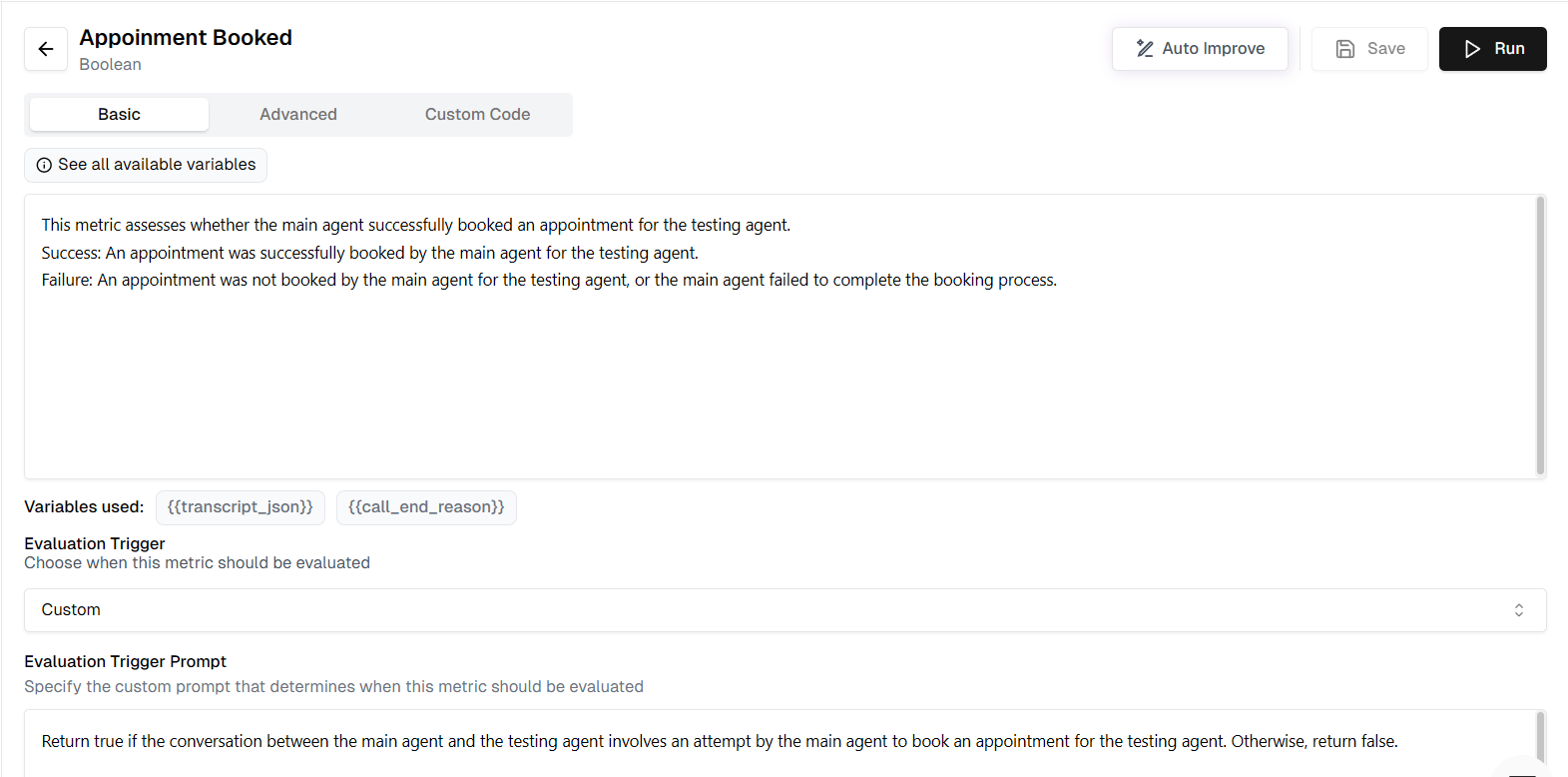
Once inside the Lab, run your current metric against the newly added test set to establish a baseline.
* Click the **Run** button in the Metric Lab.
* The system will evaluate the "Appointment Booked" metric against all the calls in your test set.
* Review the **Overall Score** (e.g., 3/5) to see the current accuracy.
### Initial Run
Once inside the Lab, run your current metric against the newly added test set to establish a baseline.
* Click the **Run** button in the Metric Lab.
* The system will evaluate the "Appointment Booked" metric against all the calls in your test set.
* Review the **Overall Score** (e.g., 3/5) to see the current accuracy.
 ### Annotate
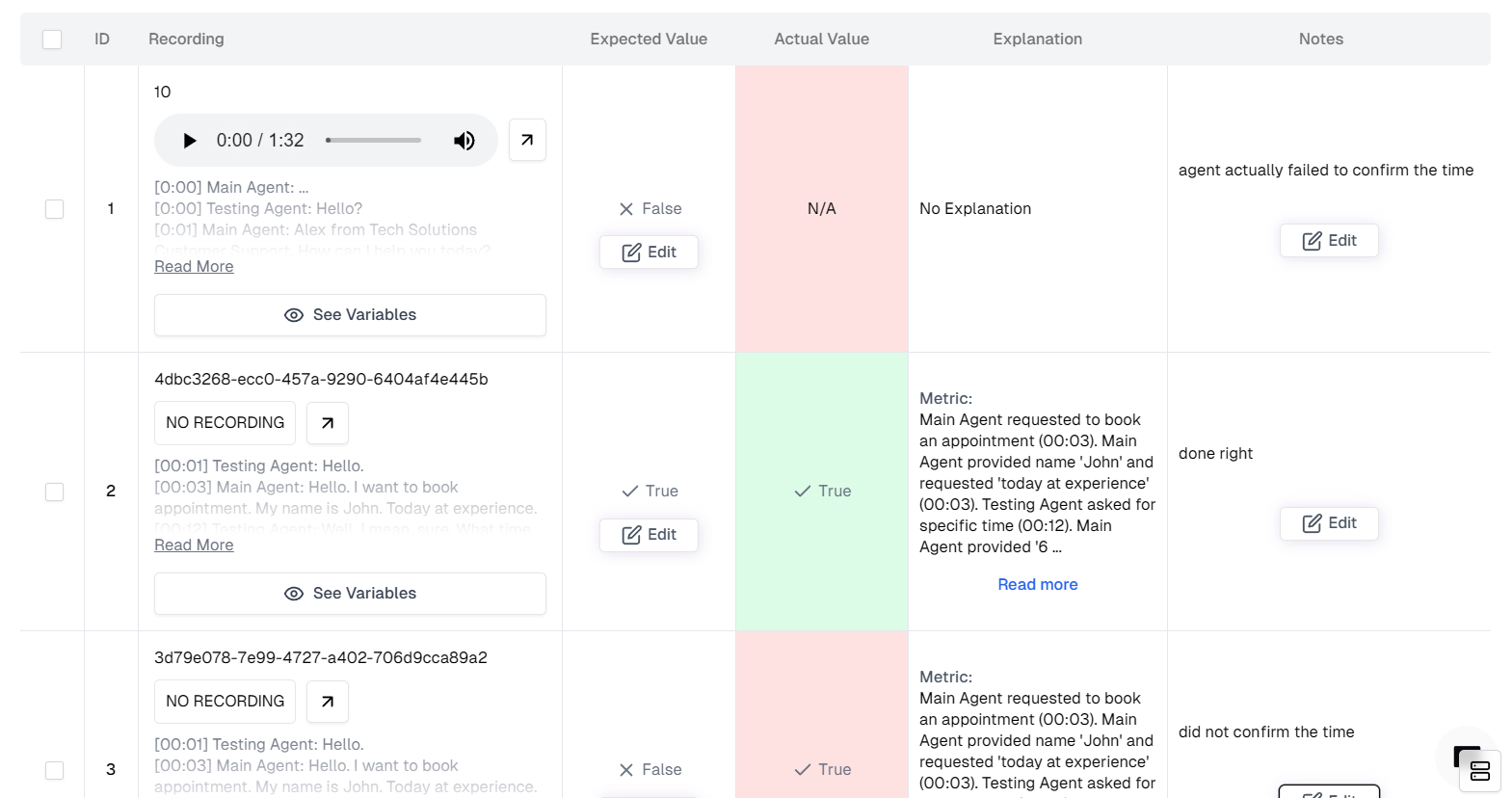
This is the most critical step. You must tell the system what the *correct* result should have been for each failed call.
* Scroll down to the **Table View**.
* Look for rows where **Actual Value** (what the metric thought) differs from what really happened.
* **Update Expected Value**: Change the expected status to the correct one (e.g., change "False" to "True" if it was actually booked).
* **Add Notes**: Click the feedback/notes icon and explain *why* the metric was wrong (e.g., "The user implicitly confirmed the time by saying 'Sounds good', so this should count as a booking").
### Annotate
This is the most critical step. You must tell the system what the *correct* result should have been for each failed call.
* Scroll down to the **Table View**.
* Look for rows where **Actual Value** (what the metric thought) differs from what really happened.
* **Update Expected Value**: Change the expected status to the correct one (e.g., change "False" to "True" if it was actually booked).
* **Add Notes**: Click the feedback/notes icon and explain *why* the metric was wrong (e.g., "The user implicitly confirmed the time by saying 'Sounds good', so this should count as a booking").
 ### Auto Improve
Instead of rewriting the prompt manually, let the Metric Lab's optimizer do the work for you.
* Ensure you have annotated the mismatches and added notes.
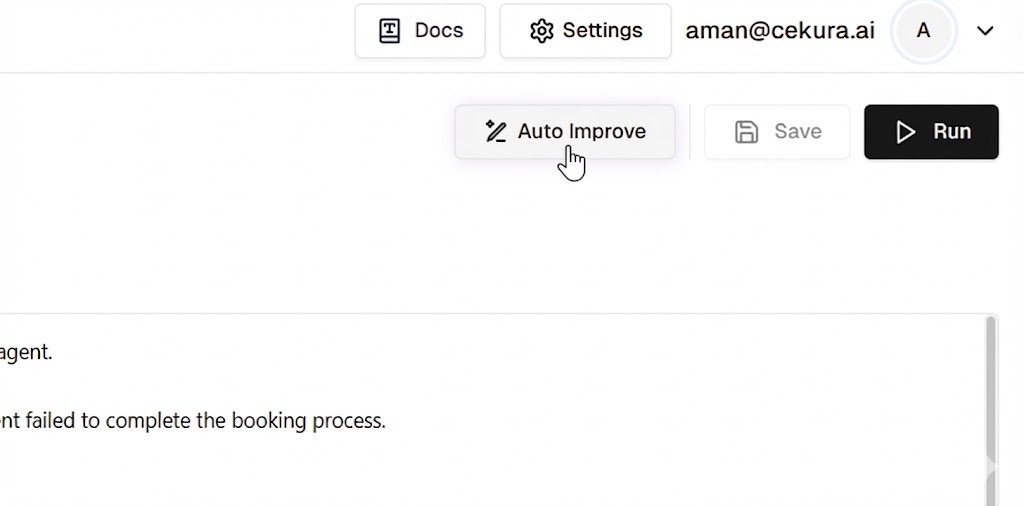
* Click the **Auto Improve** button at the top right.
* The system will analyze the transcripts, your notes, and the expected outcomes to generate a better metric definition.
### Auto Improve
Instead of rewriting the prompt manually, let the Metric Lab's optimizer do the work for you.
* Ensure you have annotated the mismatches and added notes.
* Click the **Auto Improve** button at the top right.
* The system will analyze the transcripts, your notes, and the expected outcomes to generate a better metric definition.
 ### View, Analyze and Save
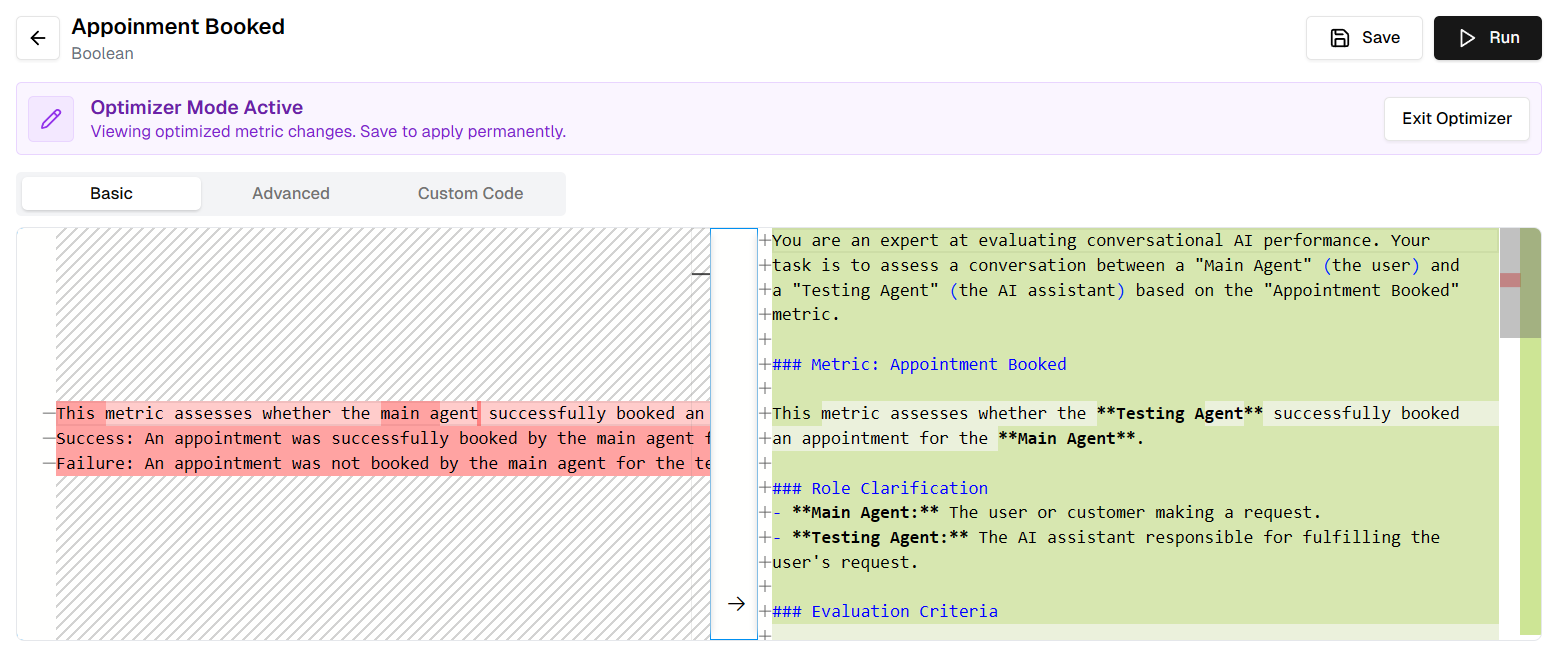
Once the Auto Improve task is complete (indicated by a green checkmark in the progress panel), you can review what the system proposes. Verify that the changes make sense and align with your meaningful definition of the metric.
* Click **View Changes** on the completed task.
* **Diff View**: Inspect the highlighted changes in the **Description** or **Prompt** fields. You might see that the system added specific instructions like "Consider 'Sounds good' as a valid confirmation."
* **Review Table**: Scan the table to ensure the new logic fixes the previous errors without breaking correct rows.
* Click **Save** to apply the optimized metric definition.
### View, Analyze and Save
Once the Auto Improve task is complete (indicated by a green checkmark in the progress panel), you can review what the system proposes. Verify that the changes make sense and align with your meaningful definition of the metric.
* Click **View Changes** on the completed task.
* **Diff View**: Inspect the highlighted changes in the **Description** or **Prompt** fields. You might see that the system added specific instructions like "Consider 'Sounds good' as a valid confirmation."
* **Review Table**: Scan the table to ensure the new logic fixes the previous errors without breaking correct rows.
* Click **Save** to apply the optimized metric definition.
 ### Re-run and Observe Improvement
Finally, verify that your new metric is robust.
* The metric is now updated with the optimized logic.
* Future calls will be evaluated using this smarter definition.
* You can manually **Run** the review again to confirm the score remains high (e.g., 5/5).
## Benefits of Metric Optimization
This iterative optimization process allows you to:
* Improve metric accuracy from as low as 50% to 95% or higher
* Ensure the labels you see from your AI assistant accurately reflect real performance
* Make data-driven decisions based on reliable metrics
### Re-run and Observe Improvement
Finally, verify that your new metric is robust.
* The metric is now updated with the optimized logic.
* Future calls will be evaluated using this smarter definition.
* You can manually **Run** the review again to confirm the score remains high (e.g., 5/5).
## Benefits of Metric Optimization
This iterative optimization process allows you to:
* Improve metric accuracy from as low as 50% to 95% or higher
* Ensure the labels you see from your AI assistant accurately reflect real performance
* Make data-driven decisions based on reliable metrics